The complete guide to converting PDFs
Last updated: 8 November 2026.
A PDF can be converted in three directions: into another file (Word, JPG, text), into a different PDF (compressed, merged, split, rotated, protected), or out of another file into a PDF. This guide covers all three, one mini how-to per tool, so you can find the conversion you need and do it in your browser without installing anything. Every tool below runs on your device — your file is never uploaded, there is no account, and closing the tab clears it from memory.
The three directions of PDF conversion
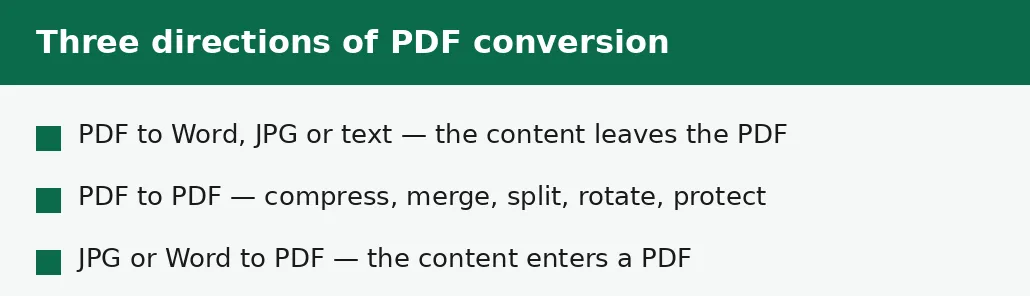
Most people say convert a PDF when they mean one of three different jobs, and the tool you need depends on which one it is. The first direction takes content out of the PDF: a PDF to Word conversion gives you editable text, a PDF to JPG conversion gives you pictures of the pages, and extracting the images gives you the photos inside the file. The second direction keeps the file a PDF but changes it: compressing shrinks it, merging joins several files, splitting takes pages out, rotating fixes the orientation, and protecting adds a password.
The third direction runs the other way: turning a JPG, a Word document or a web page into a PDF. That is the direction for sharing — a PDF looks the same on every device, which is why forms, certificates and reports travel as PDFs. If you are not sure which direction your job runs in, ask what the result should be: an editable document, a smaller PDF, or a PDF made from something else. The answer picks the tool.
Compress a PDF: make it smaller
Compress when the file is too big for its destination — an email attachment, a portal upload, a form with a size cap. The Compress PDF tool takes a target size in kilobytes and works toward exactly that number, then reports the size it reached and whether the target was met. The exact-target pages cover the common limits directly: 200 KB, 500 KB and 1 MB.
Compression works in three steps: first it rebuilds the file's internal structure, which does not touch the pages; then it recompresses the embedded pictures, which can soften photos slightly; and only with your permission does it turn pages into images as a last resort. If the target cannot be reached and stay readable, the tool says so and gives the closest readable result. The full story, level by level, is in the guide to compressing a PDF to an exact size.
Merge PDFs: several files into one
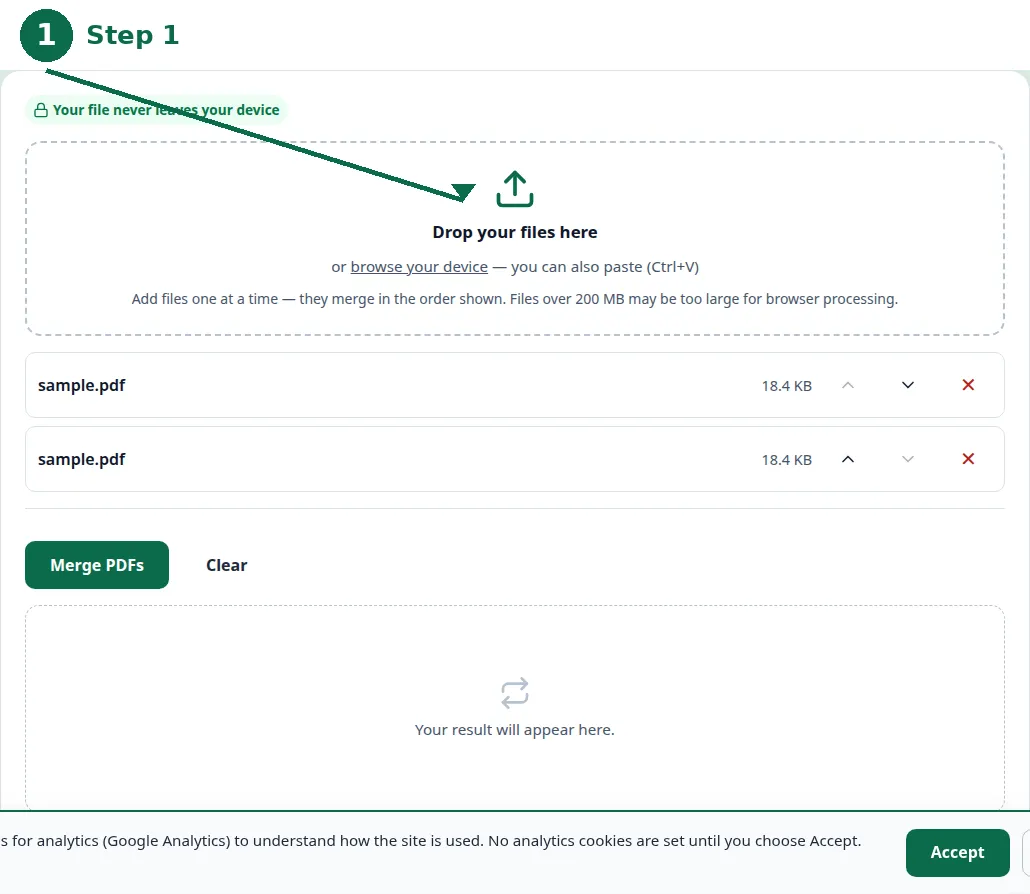
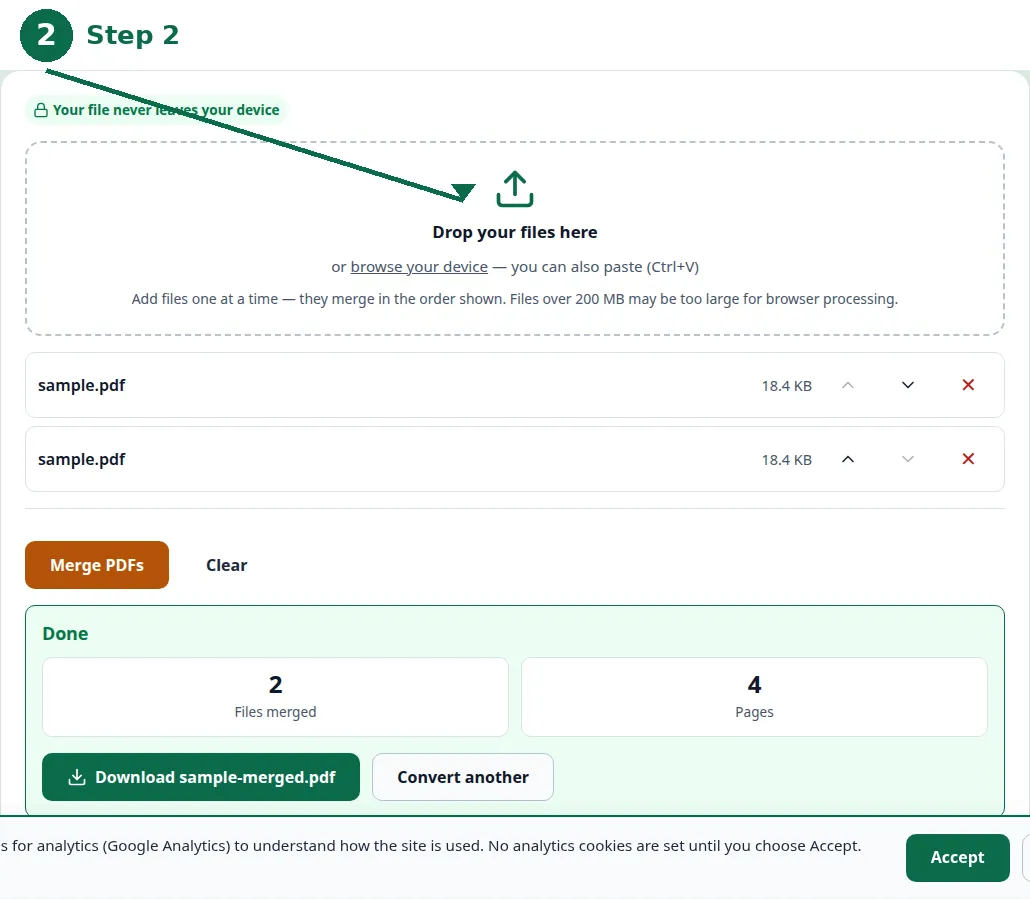
Merge when several PDFs should be one document — chapters of a report, pages scanned separately, a form and its attachments. The Merge PDF tool takes the files in the order you choose and produces a single PDF in that order, so the order you drop them in is the order the pages come out.
Check the order before you download: a merged file with the chapters in the wrong order is worse than separate files, because it looks finished. The full method, including what to do when the merged file is too big, is in the guide to merging a PDF without Acrobat.
- Step 1 — Open the Merge PDF tool and choose your PDF files, in the order they should appear.
- Step 2 — Check the order on screen, and drag files into place if the tool lets you reorder them.
- Step 3 — Click Convert and download the single merged PDF.
- Step 4 — Open the result and check the first and last pages, then check the size if the file is headed for an upload limit.
Split and rotate: fix the pages
Split when only some pages matter: a single chapter from a long report, the signed page from a contract, the pages a form actually asks for. The Split PDF tool takes a page range and returns just those pages as a new PDF, leaving the original untouched. Splitting by page range is covered in full in the guide to splitting a PDF by page range.
Rotate when pages come out sideways — usually a scan taken with the phone held the wrong way. The Rotate PDF tool turns the pages and saves the change permanently, so the file opens the right way up for whoever receives it. Rotating in a viewer only changes how you see it; rotating with the tool changes the file itself, which is the point of the guide to rotating a PDF and saving it permanently.
PDF to Word, JPG and text: content out of the PDF
Converting a PDF to Word gives you editable text, but it rarely keeps the layout pixel-perfect: tables drift, fonts change, and a scanned page has no text to convert at all until it has been read as an image first. Expect to tidy the result, and check the guide to converting a PDF to Word without the formatting breaking before you convert a document that must look exactly right.
Converting a PDF to JPG turns each page into a picture: good for sharing a page as an image, bad for anything that needs selectable text, because a picture of text is not text. Extracting the images instead takes the photos out of the file without touching the pages — the guide to extracting the images from a PDF covers when each one is right. The high-quality route for page pictures is in the guide to converting a PDF to JPG in high quality.
| Job | Tool | Result |
|---|---|---|
| File too big | Compress PDF | Same PDF, smaller, at an exact size. |
| Several files, one document | Merge PDF | One PDF, in the order you chose. |
| Only some pages needed | Split PDF | A new PDF with just those pages. |
| Pages sideways | Rotate PDF | The same PDF, the right way up, saved. |
| Editable text needed | PDF to Word | A Word document; layout needs checking. |
| Pages as pictures | PDF to JPG | One JPG image per page. |
| Photos out of a PDF | Extract images | The embedded pictures, as image files. |
| Keep others out | Protect PDF | The same PDF, behind a password. |
Protect a PDF and add page numbers
Protection and page numbers are finishing touches, not conversions, but they belong in the same workflow: a document that is ready to send is usually protected, numbered, or both. The Protect PDF tool adds a password so only people who know it can open the file — and the guide to protecting a PDF with a password explains when not to use one, because a forgotten password locks you out exactly as surely as it locks anyone else out.
Page numbers belong on a document before it is submitted, not after: a report without page numbers is hard to reference in a meeting or a review. The Add page numbers tool stamps numbers onto the pages, and the guide to adding page numbers to a PDF before you submit it covers placement and what to check before you send it.
More PDF guides
The PDF family has a guide for each job in this pillar, and each one links to its tool at Step 1. When a file is too big for email, the guide to reducing a PDF for email attachment limits walks through the attachment caps and the fix. When a portal rejects the upload, the guide to compressing a PDF for a visa or government portal upload covers the common portal rules. And when a PDF is mysteriously large, the guide to why a PDF is so large lists the seven usual causes and the fix for each.
Two comparison guides help with the choices around PDFs: PDF vs DOCX: which format should you send for the send-or-keep question, and the image-format guides for the pictures inside a PDF — HEIC vs JPG and WebP vs PNG vs JPG. All of them are listed on the guides index, and every one of them feeds a tool on this site.
Troubleshooting
Why does my converted Word file look different from the PDF?
A PDF stores where every character sits on the page; a Word document stores paragraphs and styles that flow. The conversion rebuilds the layout from positions, so tables drift and fonts change. Expect to tidy the result, and check the PDF-to-Word guide before converting a document that must look exactly right.
Why is my merged PDF too big to send?
Merging adds the files together — it does not shrink them. Compress the merged file afterwards, or compress each file before merging, and check the exact-size guide for the target your destination allows.
Why can't I select text in my converted JPG?
A JPG is a picture of the page, not the page itself. The text in the picture is pixels, not characters. If you need selectable text, convert to Word or extract the text instead of converting to an image.
Common questions
What is the best way to convert a PDF?
It depends on the job: compress when it is too big, merge when several files should be one, split when only some pages matter, convert to Word when the text must be editable, and convert to JPG when a page must be a picture. This guide lists one tool per job.
Can I convert a PDF without installing anything?
Yes. Every tool in this guide runs in your browser: your file is never uploaded, there is no account, and closing the tab clears it from memory.
Will converting a PDF to Word keep the formatting?
Not exactly. Tables drift, fonts change, and scanned pages have no text to convert. Expect to tidy the result, and read the PDF-to-Word guide first for a document that must look exactly right.
Is my file uploaded anywhere when I convert it?
No. The conversions on this site run entirely in your browser. Nothing is sent to a server, there is no account, and closing the tab clears your file from memory.
What is the difference between splitting and extracting pages?
They are the same job described two ways: splitting a PDF by page range produces a new PDF containing just those pages, leaving the original untouched.
Which PDF tool should I use first?
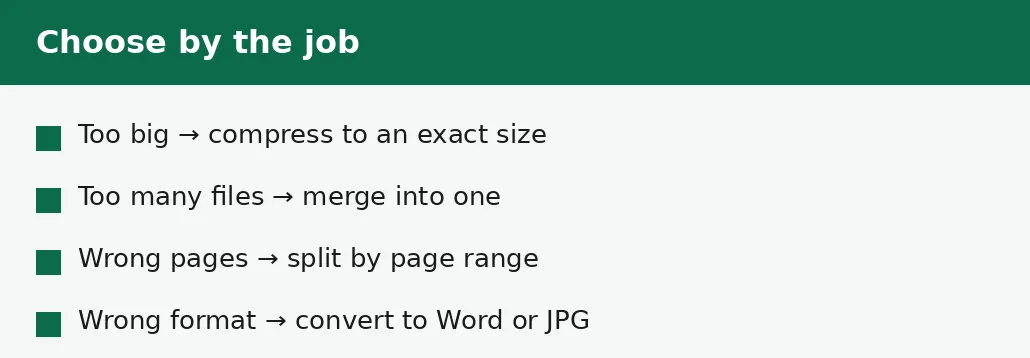
Start from the job, not the tool: too big means compress, too many files means merge, wrong pages means split, sideways means rotate, and a different format means convert. The table in this guide maps each job to its tool.
Summary
A PDF converts in three directions — out to Word, JPG or text, into a different PDF through compressing, merging, splitting, rotating or protecting, or in from another format. Find the job in the table, use the tool linked at Step 1 of its guide, and check the result before you send it. Everything runs in your browser, with no upload and no account.