How to convert a PDF to Word without the formatting breaking
Last updated: 8 November 2026.
A PDF-to-Word conversion rebuilds a flowing document from fixed positions on a page, so some formatting always shifts: tables drift, fonts change, and columns reflow. The way to keep the damage small is to start from a text-based PDF rather than a scan, convert the whole document rather than page by page, and then check the result against the original — headings, tables and page breaks first — before you edit anything. And one fact up front: this site does not yet offer a PDF-to-Word converter, because that conversion needs server processing that this site does not run — so this guide explains the method and what to check, and points you to the PDF tools that do exist here.
Why the formatting breaks
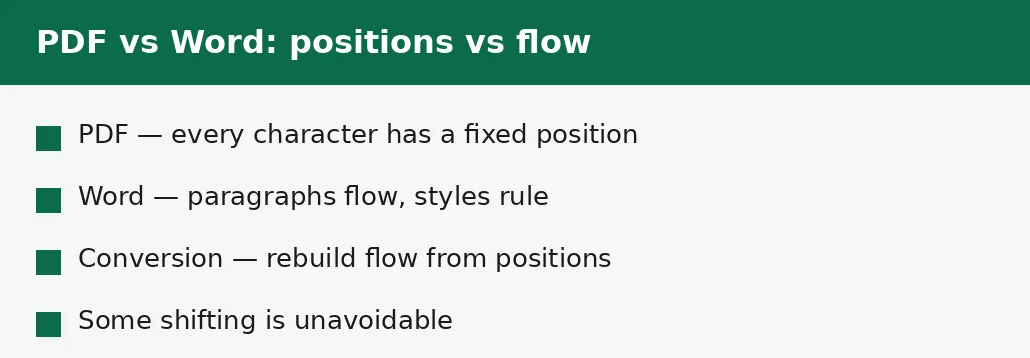
A PDF is a picture of a finished page: every character sits at an exact position, and the file does not record that two lines belong to one paragraph, or that a block of text is a heading. A Word document is the opposite: it records paragraphs, styles and tables that flow, and the page is built from them each time it opens. Word files are DOCX files, and the two formats suit different jobs — see PDF vs DOCX for which one to keep. Converting one to the other means guessing the structure from the positions — which lines form a paragraph, which block is a heading, where a table starts and ends — and guesses are sometimes wrong.
That is why the same conversion can look nearly perfect on a simple letter and fall apart on a complex report: the letter's structure is obvious from its positions, and the report's is not. Tables are the hardest case, because a table in a PDF is just text at aligned positions — the converter must decide which text belongs in which cell, and a single wrong decision shifts a whole column.
How to convert a PDF to Word, step by step
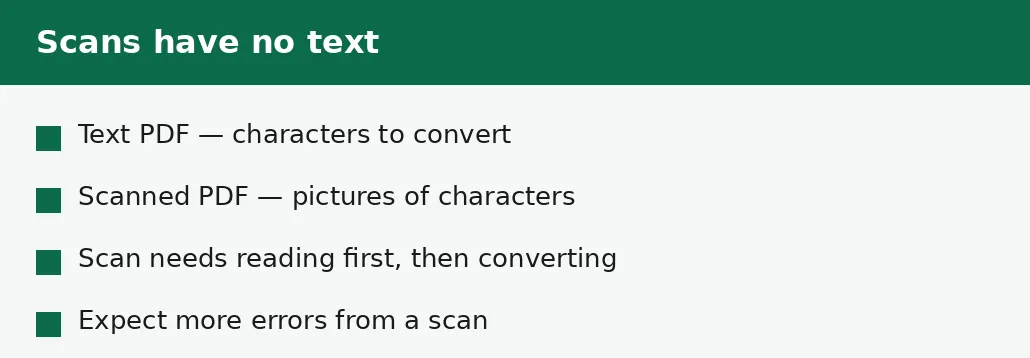
Start by checking what kind of PDF you have: open it and try to select a sentence. If the text selects, the PDF has real text and will convert well. If nothing selects, the PDF is a scan — pictures of text — and it must be read as text first, a step that adds errors of its own. Converting a scan directly produces either nothing or a document full of pictures, neither of which is editable text.
Then convert the whole document in one pass, rather than page by page: the converter makes better structural guesses with the whole document in front of it, and page-by-page conversion breaks tables and lists at the page boundaries. After converting, check the result before you edit anything — the checking order is in the section below — and fix the structure first: headings, tables and page breaks, before a single typo.
- Step 1 — Open the PDF tools on this site to see the PDF conversions that exist here — and note that a PDF-to-Word converter is not among them yet.
- Step 2 — Check your PDF: try to select a sentence. If the text selects, it will convert well; if not, it is a scan.
- Step 3 — Convert the whole document in one pass with a PDF-to-Word converter, rather than page by page.
- Step 4 — Check the result against the original — headings, tables and page breaks first — before you edit anything.
What breaks, and what survives
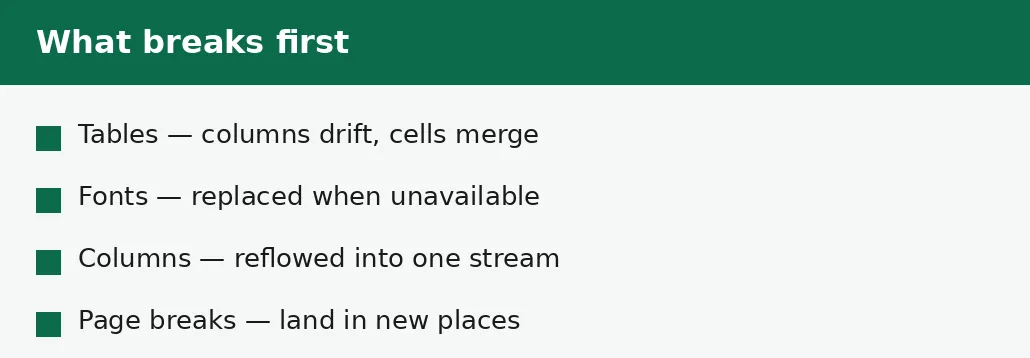
Tables break first: columns drift, cells merge, numbers land in the wrong column. Fonts break second: a font the converter does not have is replaced with the nearest available one, and the whole document's look shifts. Multi-column layouts break third: two columns of text are often read as one continuous stream, so the reading order scrambles. Page breaks land in new places, because Word rebuilds the pages from the flowing text rather than copying the PDF's pages.
What survives is the text itself: the words, the numbers, the order of the paragraphs in a simple document. Headings usually survive as text, though they may lose their heading style and need to be re-marked. Simple lists survive. The damage is structural, not textual — which is why the fix is also structural, and why checking the structure first saves the most time.
| Element | Usually survives? | What to check |
|---|---|---|
| Body text | Yes | Typos and missing pieces. |
| Headings | As text, not as styles | Re-mark them as headings. |
| Tables | Partly | Columns, cells, numbers in the right places. |
| Fonts | Often replaced | The look of the whole document. |
| Multi-column text | Often scrambled | Reading order. |
| Page breaks | No | Where the new breaks land. |
| Scanned pages | No text at all | The pages need reading first. |
Scanned PDFs: the hard case
A scanned PDF has no text to convert — it is pictures of pages — so a converter must first read the pictures as text, a step that introduces its own errors: misread letters, missed punctuation, numbers confused with letters. A scan of a clean, printed page reads well; a scan of a handwritten note, a faded copy or a skewed page reads badly, and the converted document carries those errors as if they were in the original.
If your PDF is a scan, expect to proofread the whole converted document against the original, line by line. The errors are not random — they cluster around similar-looking characters and poor-quality areas — so a careful pass catches most of them. And keep the scan: it is the only record of what the page actually said, and the converted document is a reconstruction, not a copy.
Checking the result: the order that saves time
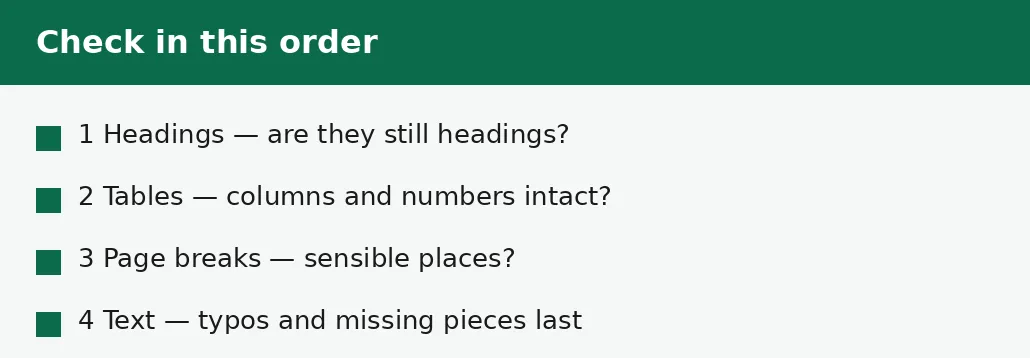
Check in order: headings first, then tables, then page breaks, then text. Headings first because they carry the document's structure — if a heading has become body text, re-mark it before anything else, or the table of contents and navigation will be wrong. Tables second because they carry the numbers, and a number in the wrong column is worse than a typo. Page breaks third, because a break in the middle of a table or a paragraph looks careless.
Text last, because it is the easiest to fix and the least structural: typos, missing punctuation, characters the converter misread. Proofread the converted document against the original PDF side by side for anything that matters — a contract, an application, a report that will be quoted. For a document that only you will read, a quick skim of the headings and tables is usually enough.
A note on this site's tools
This site does not yet offer a PDF-to-Word converter. That conversion needs server processing, and this site runs its tools in your browser with no server and no ongoing cost — so a conversion that cannot run in the browser is not offered here rather than offered badly. The PDF tools that do exist here are the browser-side ones: compressing, merging, splitting, rotating, protecting, extracting images and converting pages to JPG — and the complete guide to converting PDFs lists them all.
If you need a PDF converted to Word, use a converter that runs the conversion on its own service, and check what happens to your file there before you upload it: read its privacy note, and do not upload a document you would not want stored elsewhere. Then bring the converted document back here for the checks in this guide — the checking order works wherever the conversion happened.
Troubleshooting
Why did my table come out scrambled?
A table in a PDF is text at aligned positions, not a real table — the converter must guess which text belongs in which cell, and a wrong guess shifts a whole column. Check the numbers cell by cell against the original, and rebuild the worst tables by hand.
Why is the font different in the Word document?
The converter replaced a font it did not have with the nearest available one. Re-apply the font you want to the whole document, or accept the replacement if the document is only for reading.
Why is there no text at all in my converted file?
The PDF is a scan — pictures of text, not text. It must be read as text first, a step that adds its own errors, and a direct conversion produces pictures instead of editable words.
Common questions
Will converting a PDF to Word keep the formatting?
Not exactly. Tables drift, fonts change, columns reflow and page breaks move, because the conversion rebuilds flowing text from fixed positions. Expect to tidy the result, checking headings, tables and page breaks first.
Why does my converted table look wrong?
A PDF stores a table as text at aligned positions, not as a table — so the converter guesses the cells, and a wrong guess shifts a column. Check the numbers against the original and rebuild the worst tables by hand.
Can a scanned PDF be converted to Word?
Only after the scan is read as text, which introduces errors of its own — misread letters and confused numbers. Expect to proofread the whole converted document against the original scan.
Does this site have a PDF-to-Word converter?
Not yet. That conversion needs server processing, and this site runs its tools in your browser with no server. This guide explains the method and what to check, and lists the PDF tools that do exist here.
What should I check first in a converted document?
Headings, then tables, then page breaks, then text. Structure first, wording last — a number in the wrong column is worse than a typo.
Is my file safe when I use an online PDF-to-Word converter?
It depends on the service: read its privacy note before you upload anything, and do not upload a document you would not want stored elsewhere. The browser-side tools on this site never upload your file at all.
Summary
A PDF-to-Word conversion rebuilds flowing text from fixed positions, so tables drift, fonts change and page breaks move — and a scanned PDF has no text to convert at all. Convert the whole document in one pass, then check headings, tables and page breaks before you touch the wording. This site has no PDF-to-Word converter yet, because that conversion needs server processing; the method and the checks in this guide work wherever the conversion happens.