PDF vs DOCX: which format should you send?
Last updated: 9 November 2026.
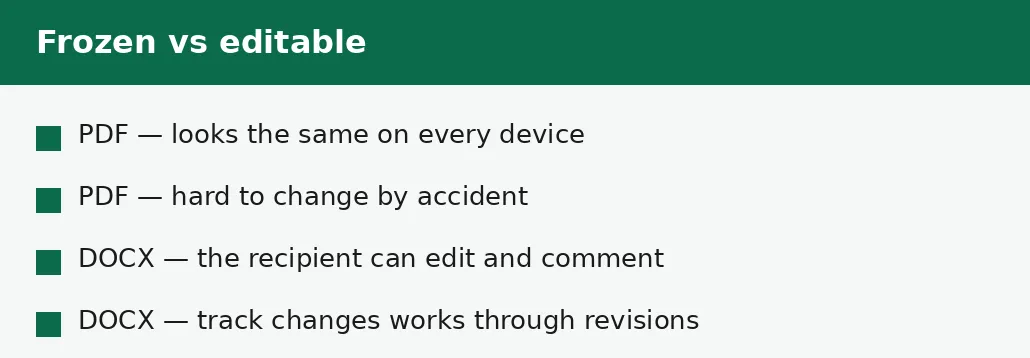
Send a PDF when the document must look exactly the same for everyone who opens it — a CV, a finished report, a form, anything that should not be changed. Send a DOCX when the recipient must edit it, comment on it, or track changes — a draft, a contract under negotiation, a document that will go through revisions. The difference is not quality but control: a PDF freezes the document, a DOCX hands it over for editing. When in doubt, send the PDF and keep the DOCX for yourself.
What PDF and DOCX actually are
A PDF is a finished page: it records where every character sits, which font it uses and how the page looks, so it opens the same on every device, in every program, on every printer. It was designed for sharing finished documents, and it does that one job extremely well — at the cost of being hard to edit, because editing a finished page means rebuilding it.
A DOCX is a working document: it records paragraphs, styles, tables and tracked changes that flow, so the recipient can edit it, comment on it, and send it back with their changes marked. It was designed for writing and revising, and it does that job well — at the cost of looking slightly different on different devices, because each program rebuilds the pages from the flowing text.
When to send a PDF
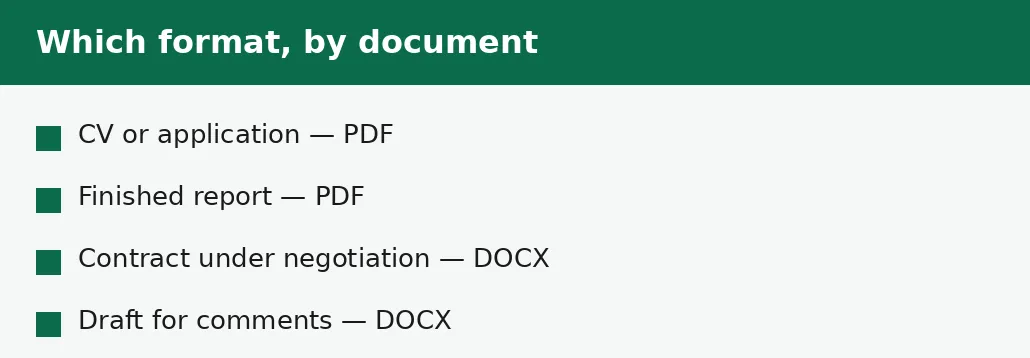
Send a PDF when the document is finished and must not change: a CV, a finished report, a certificate, a form, an invoice, anything where the layout is part of the message. A CV sent as a DOCX can reflow on the recruiter's screen — different fonts, different page breaks — and the careful layout you built becomes a mess. A CV sent as PDF looks exactly as you made it, on every screen.
Send a PDF also when you do not know what software the recipient uses. A PDF opens everywhere — phones, tablets, old computers, printers — while a DOCX needs a word processor, and the one on the recipient's device may render your document differently from yours. For anything that must simply be read, PDF is the safe format.
- Step 1 — Decide whether the recipient must edit the document. If not, send a PDF. If they cannot open PDFs at all, send the pages as JPG images instead.
- Step 2 — Export the PDF from your editable original, and keep the original.
- Step 3 — Open the PDF and check it looks exactly as intended, on the first and last pages.
- Step 4 — Send the PDF. If the recipient later needs to edit it, send the DOCX then.
When to send a DOCX
Send a DOCX when the recipient must work on the document: a draft for comments, a contract under negotiation, a report that will go through revisions, anything where track changes and comments are part of the job. A PDF of a draft is nearly useless for collaboration — the recipient can read it, but cannot mark it up in the document itself.
Send a DOCX also when the recipient asked for it. Some employers, publishers and institutions ask for DOCX specifically, because their workflow — applicant tracking, editing, typesetting — runs on editable documents. Arguing for PDF when DOCX was requested wastes everyone's time; send what was asked for, and keep a PDF copy for yourself.
| DOCX | ||
|---|---|---|
| Looks the same everywhere | Yes | Mostly — fonts and flow vary |
| Can be edited | Hard, by design | Yes — that is the point |
| Comments and track changes | No | Yes |
| Opens on any device | Yes | Needs a word processor |
| File size | Often smaller | Often larger |
| Best for | Finished work | Work in progress |
PDF vs DOCX at a glance

The common cases, decided
A CV or a job application: PDF, always, unless the employer explicitly asks for DOCX — because the layout is part of the application, and a reflowed CV looks careless. A finished report or a certificate: PDF, because it must not change and must look the same for everyone who opens it. A contract under negotiation: DOCX, because both sides must edit and track changes.
A draft for comments: DOCX, because comments and track changes are the whole point of sending it. An invoice or a receipt: PDF, because it is a record, not a working document. A form to be filled in: PDF, where the form was designed as one — or the format the form's instructions state, which is the authority over any general rule.
The two mistakes
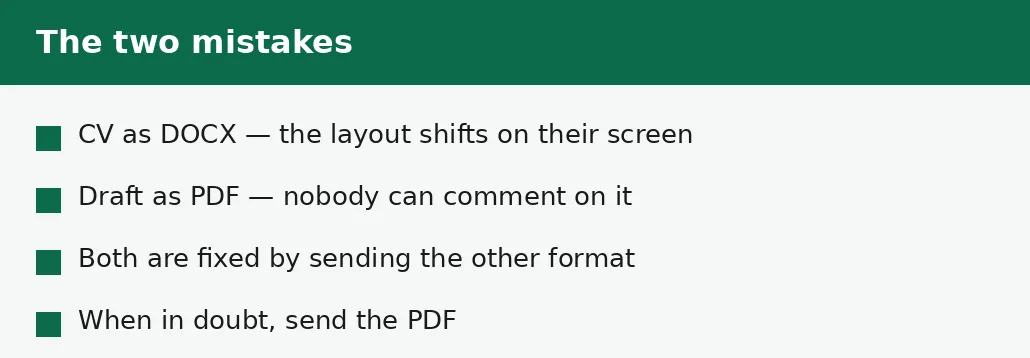
The first mistake is sending an editable CV: a DOCX that reflows on the recruiter's screen, with the headings in the wrong places and the dates misaligned. The second mistake is the opposite — sending a finished draft as a PDF when the recipient needed to comment on it, so they reply with a separate list of notes that is hard to match to the text. Both mistakes come from the same cause: choosing the format before thinking about what the recipient must do with the document.
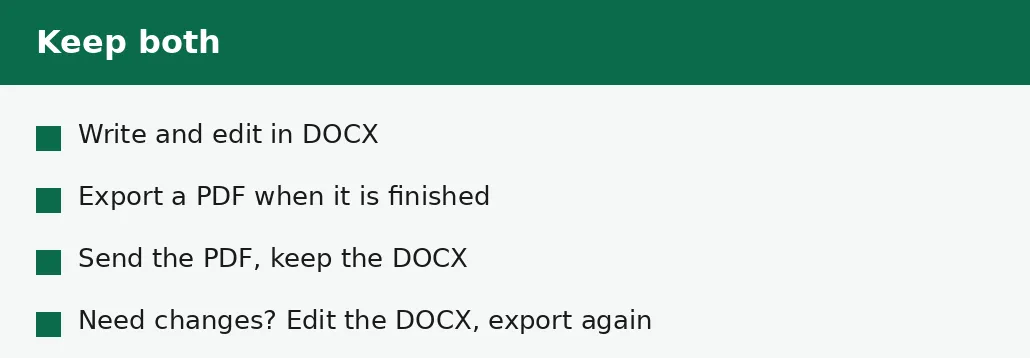
The fix for both is the same question, asked before sending: must the recipient edit this, or only read it? Edit means DOCX; read means PDF. And the safety net is to keep both: write and edit in DOCX, export a PDF when it is finished, send the format the job needs, and keep the other for yourself.
Applicant tracking systems: what they actually read
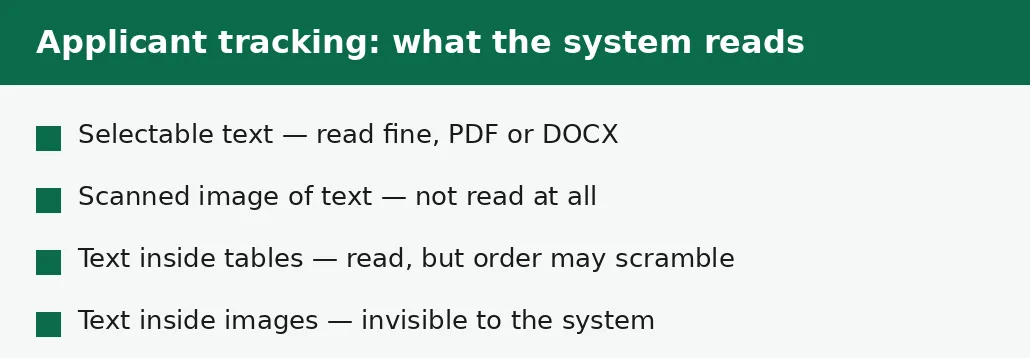
Most large employers run CVs through an applicant tracking system before a human sees them, and the system reads text — not pictures, not design. A PDF with selectable text parses as well as a DOCX: the system pulls out the words, matches them against the job description, and ranks the application. A PDF that is a scanned image of text parses as nothing at all, because there is no text in the file to read — only pixels. That is the single most important technical fact about CV formats: whatever you send, its text must be selectable, which you can check by trying to highlight a line with the mouse.
Two details decide how well the system reads the file. First, text inside tables and text boxes can scramble: the system reads the words, but not necessarily in the order you wrote them, so a job title can end up attached to the wrong employer. Keep the important facts — name, titles, dates — in plain paragraphs, and use tables only for layout that does not carry meaning. Second, text inside images is invisible to the system entirely: a logo that contains your name, a chart that holds your results, a signature image — none of it is read. The system sees a gap where the picture is, and the gap does not count in your favour.
Troubleshooting
Why does my CV look different on the recruiter's screen?
It was sent as a DOCX, and their word processor rebuilt the pages from the flowing text with different fonts. Send a PDF next time — it looks the same everywhere.
Why can't the reviewer comment on my draft?
It was sent as a PDF, which is hard to mark up in the document. Send the DOCX, so comments and track changes work.
Why did they ask for DOCX when I sent a PDF?
Their workflow runs on editable documents — applicant tracking, editing, typesetting. Send what was asked for, and keep a PDF copy for yourself.
Common questions
Should I send my CV as PDF or DOCX?
PDF, unless the employer explicitly asks for DOCX. A PDF looks exactly as you made it on every screen; a DOCX can reflow and make a careful layout look careless.
Is PDF better than DOCX?
Neither is better in general. PDF is better for finished work that must not change; DOCX is better for work in progress that must be edited, commented on and revised.
Can I convert a PDF to DOCX?
Yes, but the conversion rebuilds flowing text from fixed positions, so tables drift and fonts change. The guide to converting a PDF to Word without the formatting breaking explains what to check.
Can a PDF be edited?
Only with difficulty, by design. A PDF is a finished page, not a working document — which is exactly why it is the right format for finished work.
What format do employers prefer?
Most prefer PDF for CVs, because the layout survives. Some ask for DOCX because their systems run on editable documents. Send what was asked for.
Should I keep both formats?
Yes. Write and edit in DOCX, export a PDF when it is finished, send the format the job needs, and keep the other as your original.
Summary
Send a PDF when the document must look the same for everyone and must not change — CVs, finished reports, forms. Send a DOCX when the recipient must edit, comment or track changes — drafts, contracts under negotiation. Ask what the recipient must do with the document, send that format, and keep the other for yourself.