How to extract the images from a PDF
Last updated: 8 November 2026.
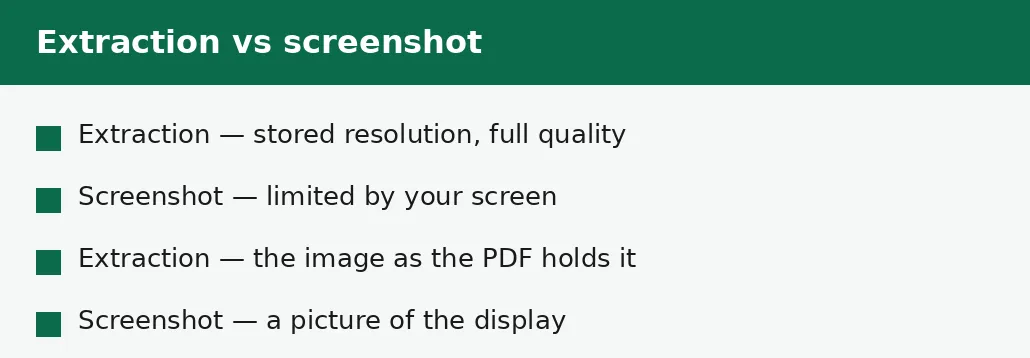
Extracting the images from a PDF takes the photos and graphics embedded in the file and saves them as separate image files, leaving the PDF itself untouched. You get the images as they were stored in the file — at their stored resolution, in their stored format — which is usually better quality than a screenshot of the page, because a screenshot is limited by your screen. The images you get are the ones the PDF actually contains: a photo that appears on three pages is stored once, so you get it once, and a page that is a scanned picture has no embedded image to extract at all.
What extracting images means
A PDF does not store a page as a single picture: it stores text as text, and pictures as separate images placed on the page. Extracting takes those stored images out of the file and saves them as ordinary image files — JPGs, PNGs, whatever format they were stored in — so you can use them elsewhere: in a presentation, on a website, in another document.
The PDF itself is untouched: extraction reads the file and copies the images out, it does not change or remove anything. And the images come out at the resolution they were stored at, which is the resolution the document's author chose — often far higher than your screen, and far better than a screenshot of the page would be.
How to extract the images from a PDF
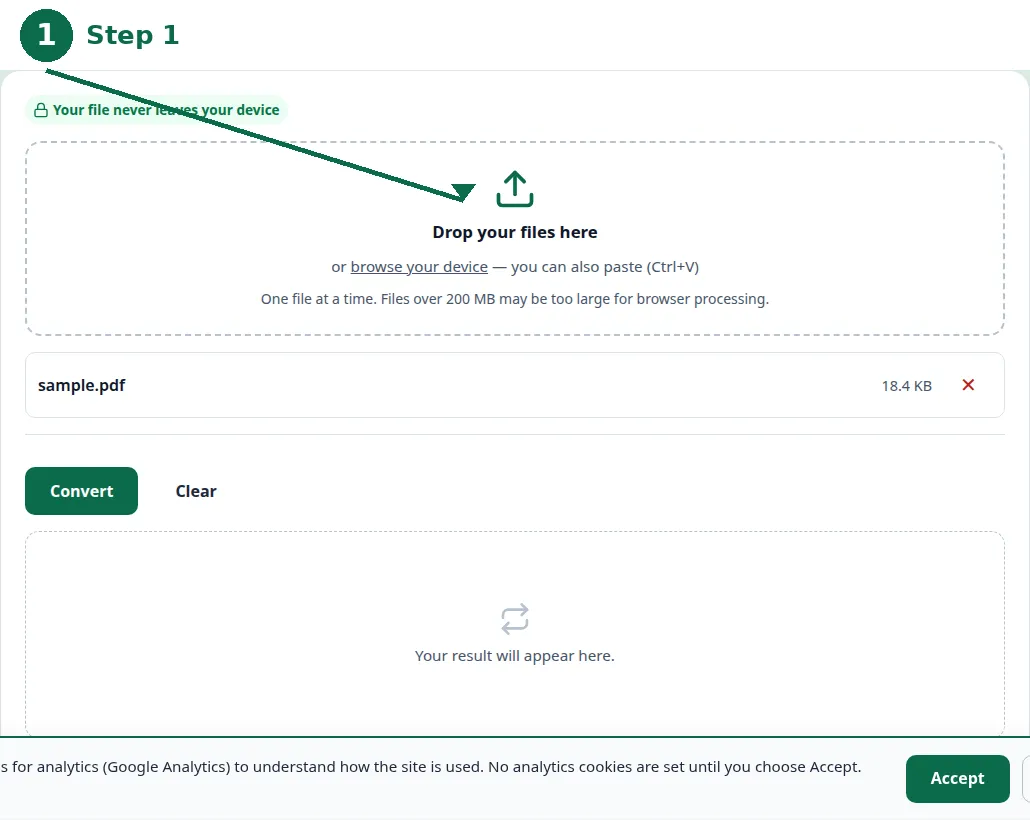
The method is short: choose the file, extract, and download the images. The result is usually a set of image files, one per embedded picture, and the file names will not be descriptive — they are numbered, not named — so check each one by opening it, and rename the ones you keep.
If the result is empty, the PDF probably has no embedded images: its pages are scans, or text with no pictures. That is not a failure of the tool — it is a fact about the file — and the fix is a different job: convert the pages to JPG with the PDF to JPG tool, which turns each page into a picture.
- Step 1 — Open the Extract Images from PDF tool and choose your PDF file.
- Step 2 — Click Convert and wait for the images to be listed.
- Step 3 — Download the images you need, and open each one to check it.
- Step 4 — Rename the ones you keep: the extracted names are numbers, not descriptions.
What you get, and what you do not get
You get each embedded image once, at its stored resolution and in its stored format. A photo that appears on three pages is stored once in the file, so you get it once — which is correct, because there is only one picture to get. A logo used on every page is likewise one image, extracted once, and it will usually be small, because logos are small.
You do not get the text, the layout, or the pages themselves: extraction takes pictures, not words. You do not get a higher resolution than the file stores — an image stored at 800 pixels wide comes out 800 pixels wide, and enlarging it afterwards only stretches it. And you do not get images that were never embedded: a page that is a scanned picture has no embedded image, because the page itself is the picture.
| You need | Use | Why |
|---|---|---|
| A photo from the PDF | Extract images | Stored resolution, full quality. |
| A logo from the PDF | Extract images | The logo as stored, once. |
| A whole page as a picture | PDF to JPG | The page itself is the picture. |
| Text from the PDF | Neither | Extraction takes pictures, not words. |
| A scanned page as an image | PDF to JPG | The page has no embedded image. |
Scanned pages: the case that confuses everyone
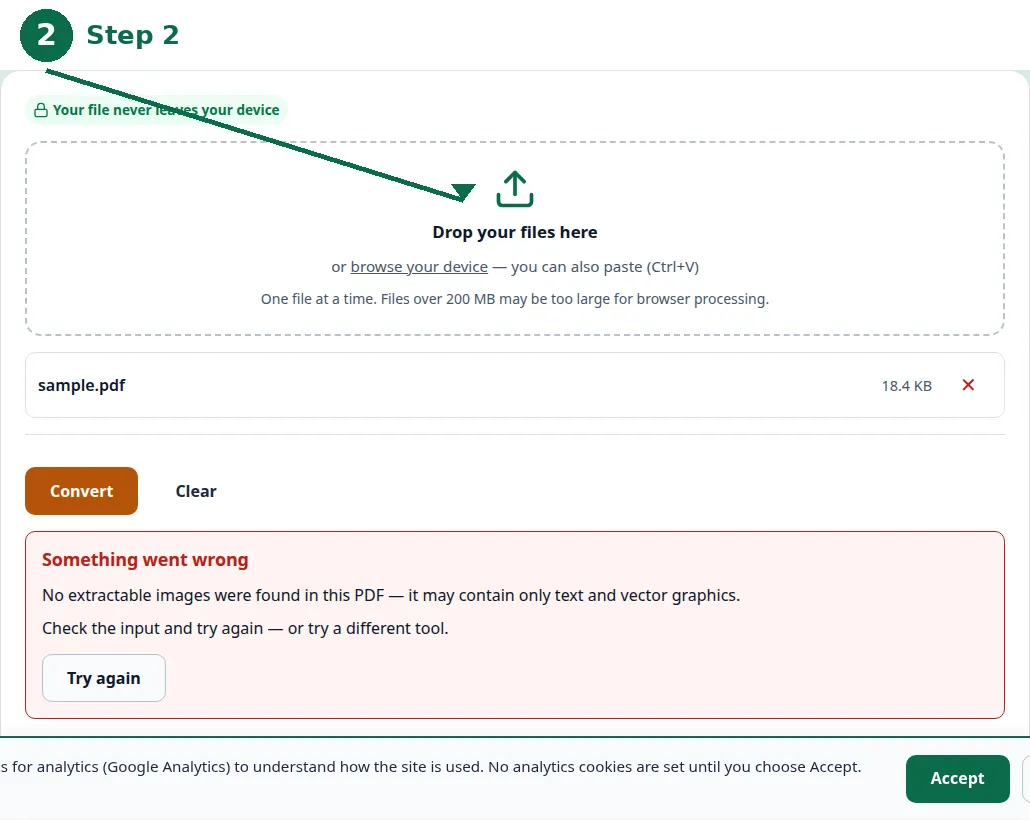
A scanned PDF looks like it is full of pictures, and in a sense it is — but each page is a picture of a page, not a picture stored in a page. There is no embedded image to extract, because the page itself is the image. Running the extractor on a scanned PDF returns nothing, and that empty result is the correct answer, not an error.
For a scanned page, the right tool is PDF to JPG, which turns each page into a JPG image — the whole page, as a picture, at a quality you choose. The guide to converting a PDF to JPG in high quality covers that job in full, including the resolution to choose when the page must stay readable.
What extracted images are good for
Extracted images are good for reuse: a photo from a report, reused in a presentation; a logo from a document, reused on a website; a diagram from a manual, reused in a training slide. They are the original images, at their stored quality, which is better than any copy made by photographing the screen.
They are also good for checking what a PDF contains: a file that looks text-only may carry a high-resolution photo on one page, and extraction shows it. And they are good for shrinking a PDF — once the images are out, the document can be rebuilt without them, though that is a job for the document's author rather than the reader.
A note on using images from someone else's PDF
Extracting an image does not make it yours. Photos, logos and diagrams in a PDF usually belong to someone — the document's author, a photographer, a company — and reusing them in your own work needs the same permission as taking them from anywhere else. Extraction is a technical step; the right to use the image is a separate question, and it is yours to answer before you publish anything with it.
For your own documents, there is no issue at all: the images are yours, and extraction is simply the fastest way to get them back out. For anyone else's document, treat the extracted images the way you would treat any image you found — useful for reference, and in need of permission before reuse.
Troubleshooting
Why did the extractor return no images?
The PDF has no embedded images: its pages are scans, or text with no pictures. That empty result is correct, not an error — use PDF to JPG to turn the pages themselves into pictures.
Why did I get the same photo only once?
Because the PDF stores it once, even if it appears on three pages. There is only one picture to extract, and you got it.
Why is my extracted image smaller than I expected?
It came out at the resolution it was stored at, and the document's author stored it small. Enlarging it afterwards only stretches it — the stored resolution is the most there is.
Common questions
How do I extract images from a PDF?
Use the Extract Images from PDF tool: choose the file, convert, and download the images. The PDF stays untouched, and each embedded picture comes out as a separate image file.
Why are there no images to extract from my scanned PDF?
Because a scanned page is a picture of a page, not a picture stored in a page — there is no embedded image. Convert the pages to JPG instead, which turns each page into a picture.
What quality are the extracted images?
The stored quality: each image comes out at the resolution and format it was stored in the file, which is usually better than a screenshot of the page.
Can I extract the text too?
No — extraction takes pictures, not words. For text, convert the PDF to Word or copy the text from the PDF directly.
Is my file uploaded anywhere when I extract images?
No. Extraction runs entirely in your browser. Nothing is sent to a server, there is no account, and closing the tab clears your file from memory.
Can I use the images I extract from someone else's PDF?
Extracting an image does not make it yours. Photos, logos and diagrams usually belong to someone, and reusing them needs permission — treat them as you would any image you found.
Summary
Extracting images from a PDF takes the embedded pictures out as separate image files, at their stored resolution, leaving the PDF untouched. A photo used on several pages is stored once, so you get it once. A scanned page has no embedded image to extract — for that, convert the page to JPG. And an extracted image still belongs to its owner: extraction is a technical step, not permission to reuse it.