How to convert a PDF to JPG in high quality
Last updated: 8 November 2026.
Converting a PDF to JPG in high quality means choosing a resolution high enough that the text stays readable — and the resolution is the whole decision, because a JPG of a page is a picture of text, not text itself. A page converted at a low resolution turns its words into a blur; the same page at a high resolution stays crisp enough to read, share or print. Pick the resolution for the job — screen, share or print — convert from the original PDF, and check the result at full size before you use it.
What happens when a page becomes a JPG
A PDF page is text, images and layout stored as instructions; a JPG is a grid of pixels. Converting a page to JPG means drawing the page — rendering every word and picture into pixels — and saving that drawing as an image. The text stops being text: it becomes coloured pixels shaped like letters, and it can no longer be selected, searched or copied. That is the trade, and it is worth understanding before you convert, because it cannot be undone from the JPG alone.
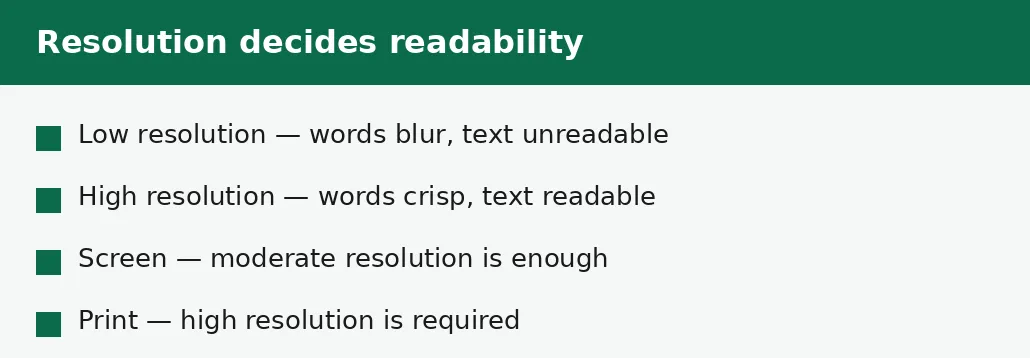
The quality of the result is decided by how many pixels the drawing is made from — the resolution. A page drawn at a low resolution has too few pixels to shape the letters cleanly, so the words blur. The same page drawn at a high resolution has enough pixels for crisp letters, and the text reads as well as it did in the PDF. Resolution is not a minor setting here: it is the difference between a usable image and a useless one.
How to convert a PDF to JPG in high quality
The method has three moves: choose the original PDF, pick the resolution for the job, and check the result at full size. The resolution is the decision that matters, and the section below gives the numbers for each job — screen, share and print — so you do not have to guess. Convert once, from the original, and check the first page at full size before you convert the rest.
If the PDF is long, convert the pages you need rather than all of them: a hundred pages at high resolution is a hundred large image files, and most jobs need only a few. The Split PDF tool takes the pages you need out first, and then those pages convert quickly and cleanly.
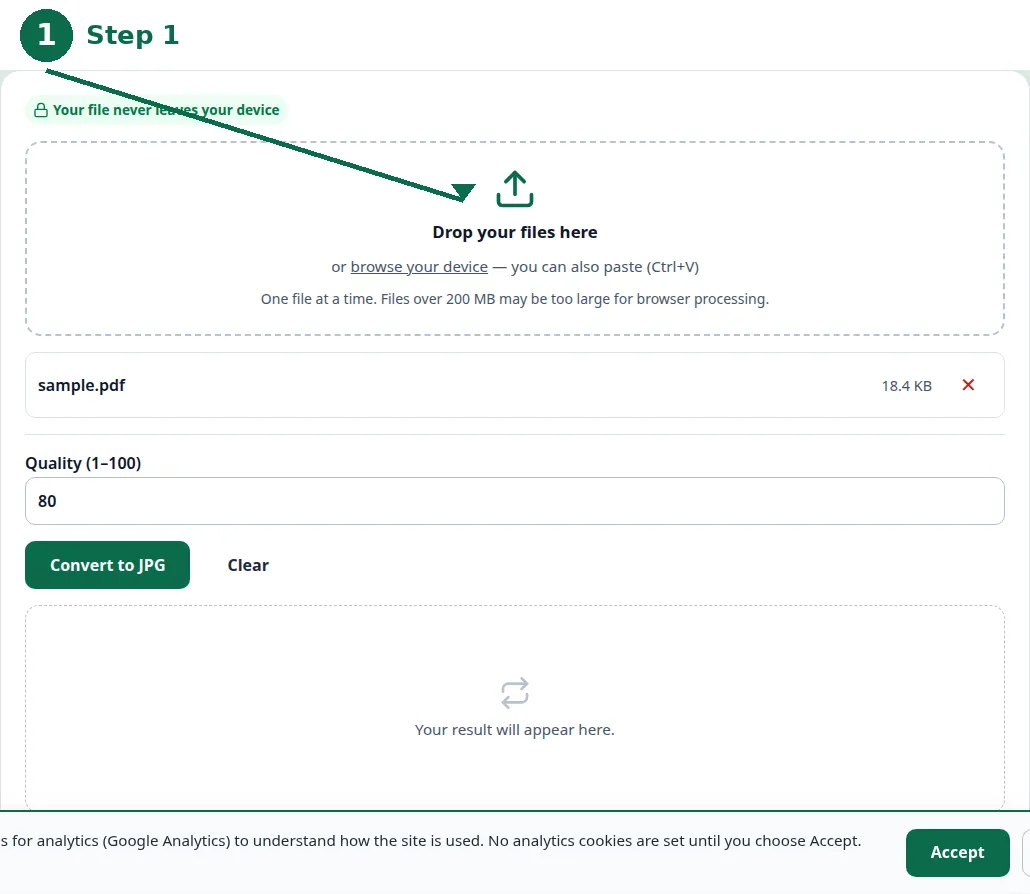
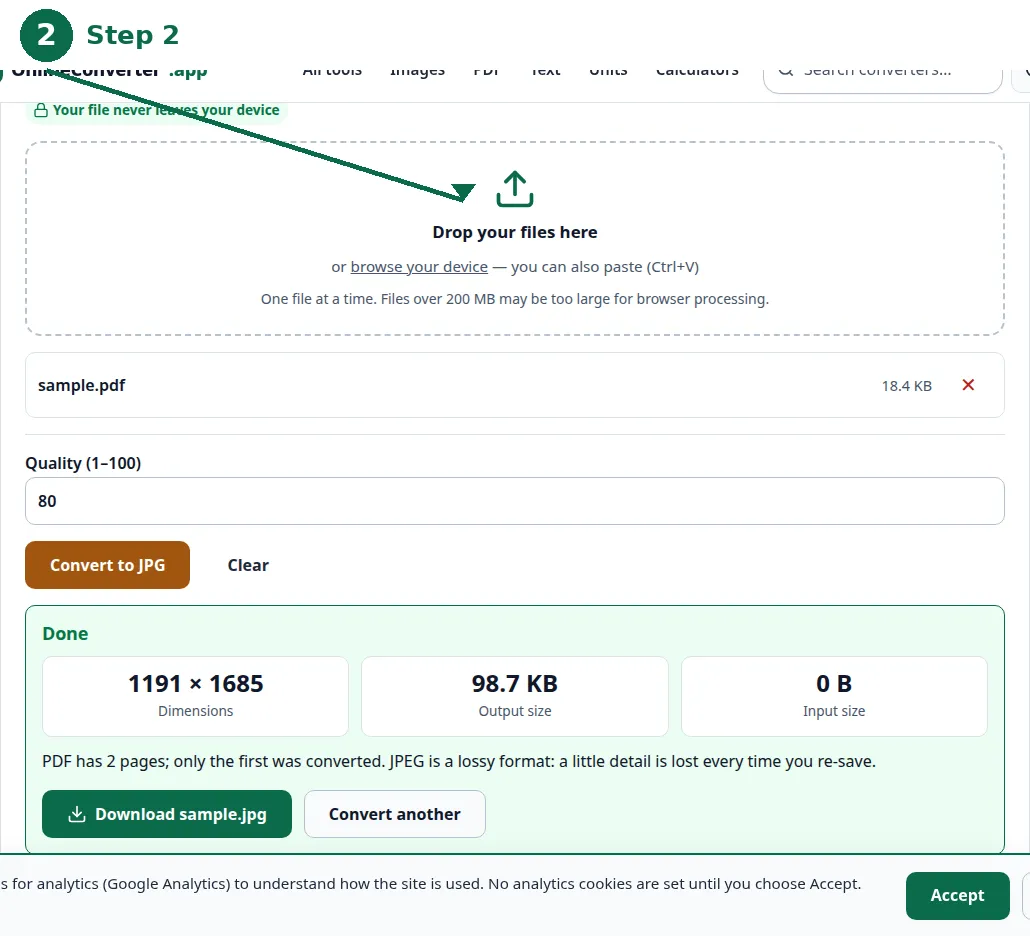
- Step 1 — Open the PDF to JPG tool and choose your PDF file.
- Step 2 — Pick the resolution for the job: higher for print, moderate for screen.
- Step 3 — Click Convert and download the JPG images, one per page.
- Step 4 — Open the first image at full size and check the text is crisp before you use the rest.
Choosing the resolution
Resolution for a page is usually stated in dots per inch, and the number you need depends on what the image is for. For a page shown on a screen — a chat message, a social post, a preview — a moderate resolution is enough, because screens show fewer pixels per centimetre than paper does. For a page that will be printed, a high resolution is required, because print shows far more detail and a low-resolution image looks blurry on paper.
The practical rule is to convert at the highest resolution you can afford in file size, and then shrink the result if it is too big — because shrinking a crisp image keeps it crisp, while enlarging a blurry one only stretches the blur. And the file size follows the resolution: doubling the resolution quadruples the pixels, so a print-quality page is a far larger file than a screen-quality one.
| Job | Resolution | Notes |
|---|---|---|
| Screen preview | Moderate | Crisp on screen, small file. |
| Sharing in chat or post | Moderate to high | Readable when zoomed. |
| Printing | High | Print shows more detail than screen. |
| Archiving a page | High | Keep the most detail you can. |
When a page should be a JPG
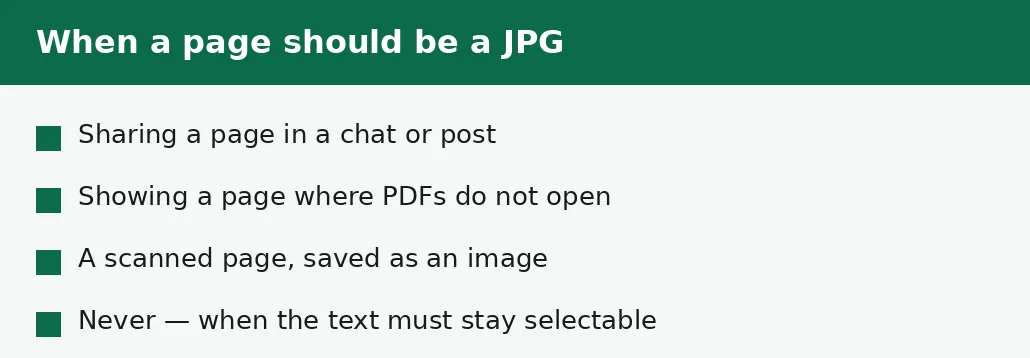
A page should be a JPG when it must be shown where PDFs do not open: in a chat message, in a social post, in an email that cannot carry an attachment, on a screen that shows images but not documents. A JPG of a page is also the right answer for a scanned page that must be saved as an image — the page is already a picture, and the JPG simply stores it as one.
A page should not be a JPG when the text must stay selectable, searchable or editable: a JPG of text is a picture of words, and the words cannot be copied out of it. For those jobs, convert to Word, or extract the text — and if you need the photos rather than the pages, extract the images instead, which gives you the pictures at their stored quality rather than a picture of the whole page.
The mistakes that ruin the result
The most common mistake is converting at too low a resolution and only discovering it when the image is shared: the text is a blur, and the image is useless. Convert again from the original PDF at a higher resolution — do not enlarge the blurry JPG, because enlarging invents no detail and only stretches the blur.
The second mistake is converting a long PDF in full when only a few pages are needed, and ending up with a hundred large files to sort through. Split first, convert second. And the third mistake is deleting the PDF after converting, on the assumption that the JPGs replace it: they do not — the JPGs are pictures of the pages, and the PDF is the only copy where the text is still text.
Troubleshooting
Why is the text blurry in my JPG?
The resolution was too low: the page was drawn with too few pixels to shape the letters cleanly. Convert again from the original PDF at a higher resolution — do not enlarge the blurry JPG.
Why can't I select text in the JPG?
Because a JPG is a picture of the page, not the page itself. The text in the picture is pixels, not characters. If you need selectable text, convert to Word or extract the text instead.
Why are my JPG files so large?
High resolution means many pixels, and many pixels mean large files. Convert at the resolution the job needs — moderate for screen, high only for print — and convert only the pages you need.
Common questions
How do I convert a PDF to JPG in high quality?
Use the PDF to JPG tool, choose a high resolution for the job — higher for print, moderate for screen — convert from the original PDF, and check the first image at full size before you use the rest.
What resolution should I use for a PDF to JPG?
Moderate for screen and sharing, high for print and archiving. Higher resolution means crisper text and a larger file — pick the resolution for the job, not the maximum.
Why is my PDF to JPG blurry?
The resolution was too low. Convert again from the original PDF at a higher resolution; enlarging the blurry JPG only stretches the blur.
Can I convert just one page of a PDF to JPG?
Yes — split the page out first with the Split PDF tool, then convert that page. Converting a long PDF in full produces a large image for every page.
Is my file uploaded anywhere when I convert it?
No. Conversion runs entirely in your browser. Nothing is sent to a server, there is no account, and closing the tab clears your file from memory.
Should I extract images instead of converting pages?
If you need the photos rather than the pages, yes — extraction gives you the pictures at their stored quality. If you need the whole page as a picture, convert the page to JPG.
Summary
A PDF page becomes a JPG by drawing the page into pixels, and the resolution of that drawing decides whether the text stays readable. Pick the resolution for the job — moderate for screen, high for print — convert from the original PDF, and check the first image at full size. If you need the photos rather than the pages, extract the images instead; and keep the PDF, because the JPGs are pictures of the pages, not replacements for them.