How to split a PDF by page range
Last updated: 8 November 2026.
Splitting a PDF by page range means taking a set of pages — say pages 3 to 7, or pages 1, 4 and 9 — out of a PDF and saving them as a new PDF, while the original stays untouched. The range is written as page numbers: a dash for a run of pages, commas for separate pages, and the two can be combined. The new file contains only the pages you asked for, in the order you asked for them, and it is a complete PDF that opens anywhere the original did.
What splitting a PDF means
Splitting takes pages out of a PDF and saves them as a new PDF. The original file is never changed: it stays exactly as it was, with all its pages, and the new file is a separate document containing only the pages you chose. That separation is the point — you can send the part without sending the whole, and you can always go back to the original.
The pages in the new file keep their content, their order and their appearance: a page that was page 7 in the original is still the same page, with the same text and images, only now it is the first page of the new file, or the third, depending on the range you asked for. Nothing is re-typed or re-scanned; the pages are taken as they are.
How to split a PDF by page range
The method has two decisions: which file, and which pages. Count the pages first — open the PDF and find the page numbers of the pages you need, because the range is only valid if the pages exist. A range that asks for page 20 of a 12-page document fails, and a range that is off by one takes the wrong pages.
Write the range carefully, then check the result before you send it: open the new PDF and confirm the first and last pages are the ones you wanted. A split that takes the wrong pages is worse than no split, because it looks finished — and the recipient will not know a page is missing until they need it.
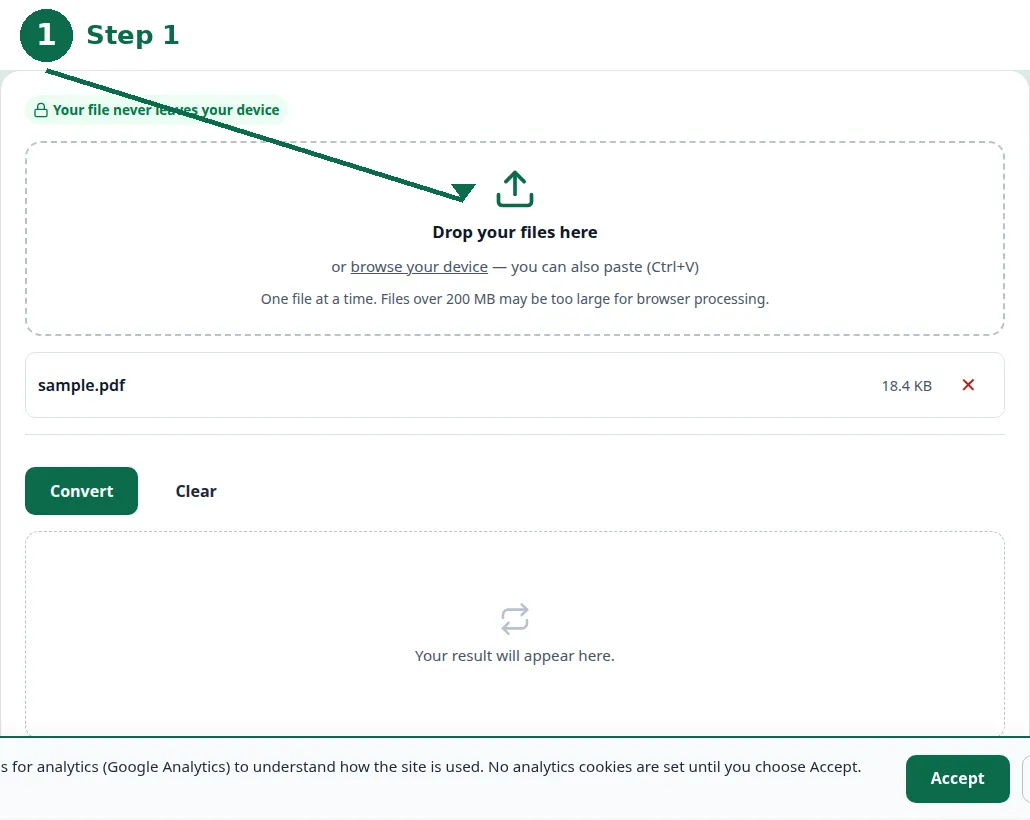
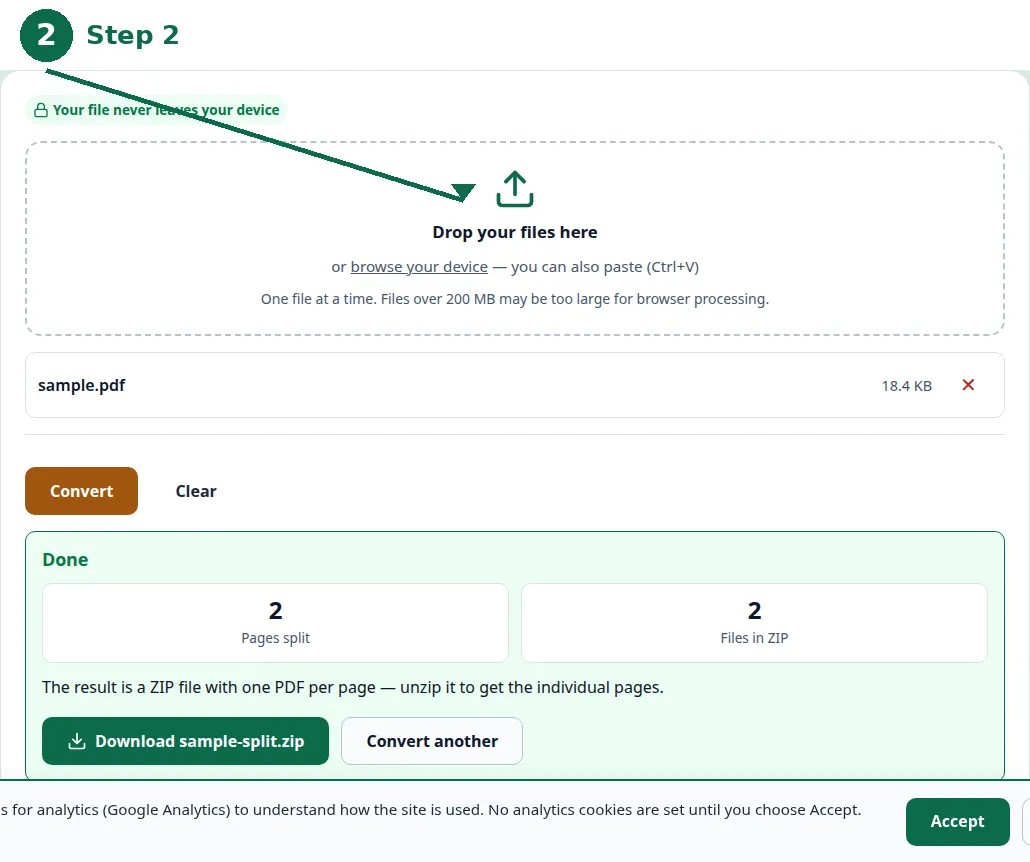
- Step 1 — Open the Split PDF tool and choose your PDF file.
- Step 2 — Type the page range: dashes for runs of pages, commas for separate pages.
- Step 3 — Click Convert and download the new PDF.
- Step 4 — Open the result and check the first and last pages are the ones you wanted.
Writing a page range
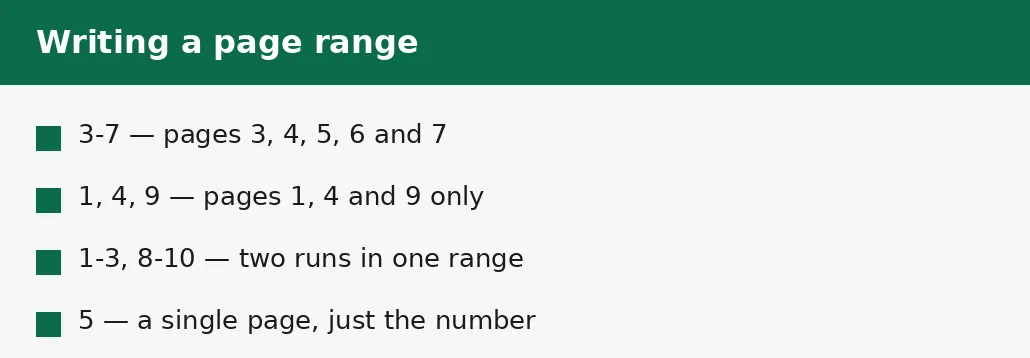
A range is written in page numbers, starting from 1 for the first page. A dash means a run: 3-7 takes pages 3, 4, 5, 6 and 7. A comma means separate pages: 1, 4, 9 takes pages 1, 4 and 9 only. The two combine: 1-3, 8-10 takes pages 1 to 3 and pages 8 to 10, in that order. A single number on its own takes a single page.
Two rules keep ranges honest. First, the pages must exist: the largest number in the range cannot exceed the number of pages in the file. Second, the order you write is the order you get: 8-10, 1-3 puts pages 8 to 10 first, which is rarely what anyone wants — write the ranges in the order the pages should appear.
| You write | You get | Use it when |
|---|---|---|
| 5 | Page 5 only | One page is needed. |
| 3-7 | Pages 3 to 7 | A chapter or section. |
| 1, 4, 9 | Pages 1, 4 and 9 | Separate pages, not a run. |
| 1-3, 8-10 | Pages 1-3, then 8-10 | Two sections in one file. |
| 1-2 | The first two pages | A cover and contents page. |
When splitting is the right fix
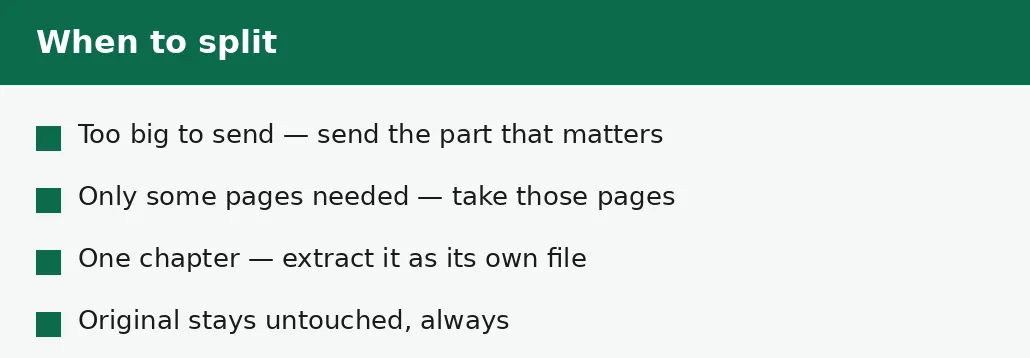
Splitting is the fix when a file is too big to send: a 30 MB report whose relevant chapter is 3 MB becomes sendable when only the chapter travels. It is the fix when only some pages matter: a form that asks for the signed page, a client who needs one chapter, an application that wants the certificate and not the whole file. And it is the fix when one part of a document must live on its own — a chapter as its own file, a signed page kept separately.
Splitting is not the fix for a file that is too big because of its pictures: a single page can be several megabytes on its own, and splitting will not shrink it. For that job, compress the file toward a target size with the Compress PDF tool — or split first and compress the part, which is often the smallest file that does the job.
Checking the split before you send it
Open the new PDF and check three things. First, the first page: is it the page you expected to start with? Second, the last page: is it the page you expected to end with? Third, the count: does the new file have the number of pages the range should produce — five pages for 3-7, three pages for 1, 4, 9? If any of the three is wrong, the range was wrong, and the fix is to split again from the original with the corrected range.
Also check the file size if the split was done to fit a limit: the new file is smaller than the original, but a part full of photographs can still be large. Compress the part toward the target if it must fit an email or a portal limit, and check the pages again after compressing — a file that arrives unreadable has not been fixed.
Troubleshooting
Why did I get the wrong pages?
The range was off by one, or written in the wrong order. Page numbers start at 1 for the first page — count from the cover, not from the first page of content — and write the ranges in the order the pages should appear.
Why does the tool say my range is invalid?
The largest number in the range exceeds the number of pages in the file. Count the pages first, and make sure every number in the range exists.
Why is the split file still too big to send?
Splitting removes pages, not size per page: a part full of photographs can still be large. Compress the split file toward a target size, or split it into smaller parts.
Common questions
How do I split a PDF by page range?
Open the Split PDF tool, choose your file, type the range — dashes for runs of pages, commas for separate pages — and convert. The result is a new PDF with just those pages; the original is untouched.
What does 3-7 mean as a page range?
Pages 3, 4, 5, 6 and 7 — a run of pages from 3 to 7 inclusive. A comma means separate pages: 1, 4, 9 takes pages 1, 4 and 9 only.
Does splitting change the original PDF?
No. Splitting makes a new PDF from the pages you chose. The original stays exactly as it was, with all its pages.
Can I split a PDF into several parts at once?
Split one range at a time from the original, and each split produces one new file. For several parts, repeat the split with a different range each time.
Is my file uploaded anywhere when I split it?
No. Splitting runs entirely in your browser. Nothing is sent to a server, there is no account, and closing the tab clears your file from memory.
What if the pages I need are not in a run?
Use commas: 1, 4, 9 takes pages 1, 4 and 9. Dashes and commas combine, so 1-3, 8-10 takes two runs in one file.
Summary
Splitting a PDF by page range takes the pages you need — dashes for runs, commas for separate pages — and saves them as a new PDF, leaving the original untouched. Count the pages first, write the range in the order the pages should appear, and check the first page, the last page and the page count before you send the result. If the part is still too big, compress it toward a target size.