How to compress a PDF for a visa or government portal upload
Last updated: 8 November 2026.
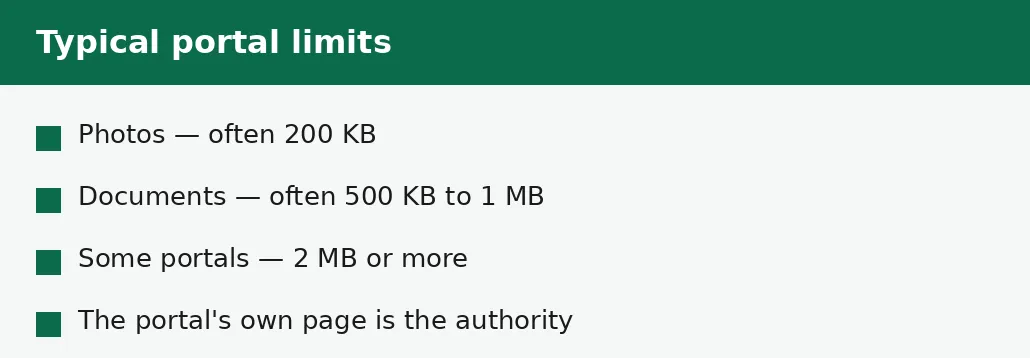
Visa and government portals reject files over their size limit outright — there is no close enough — so the job is to compress your document toward exactly the limit the portal states, then check the size and the pages before you upload. Most portals cap documents between 200 KB and 1 MB, and photo uploads are often capped at 200 KB. Read the limit on the portal itself, compress toward it, and upload the compressed file only after you have opened it and confirmed it is readable.
The limits, and where to find yours
Portal limits vary by portal, by country and by document: a photo upload may be capped at 200 KB while the supporting documents on the same portal allow 1 MB, and two portals for the same visa can state different limits. The only number that counts is the one on the portal you are actually using, on the page where you upload — not a number from a forum, a blog post, or a friend who applied last year, because limits change.
Look for the limit next to the upload button, in the document checklist, or in the portal's help pages. If the portal states a range — for example, 100 KB to 200 KB — aim for the middle. If it states only a maximum, aim a touch under it. The Compress PDF tool also carries a table of common portal limits with the dates they were verified, which is a useful cross-check, but the portal itself is the authority.
How to compress a PDF for a portal upload
The method is the same as any exact-size compression, with one addition: a check of the result before the upload, because a rejected upload costs a day and a failed application costs far more. Compress from the original file, toward the portal's limit, and read the result the tool reports — the size reached and whether the target was met.
Do not upload the first result without opening it. Open the compressed file, look at the first page, a middle page and the last page, and confirm the text is crisp and the photos recognisable. A portal that accepts the file does not check whether it is readable — that check is yours, and it takes a minute.
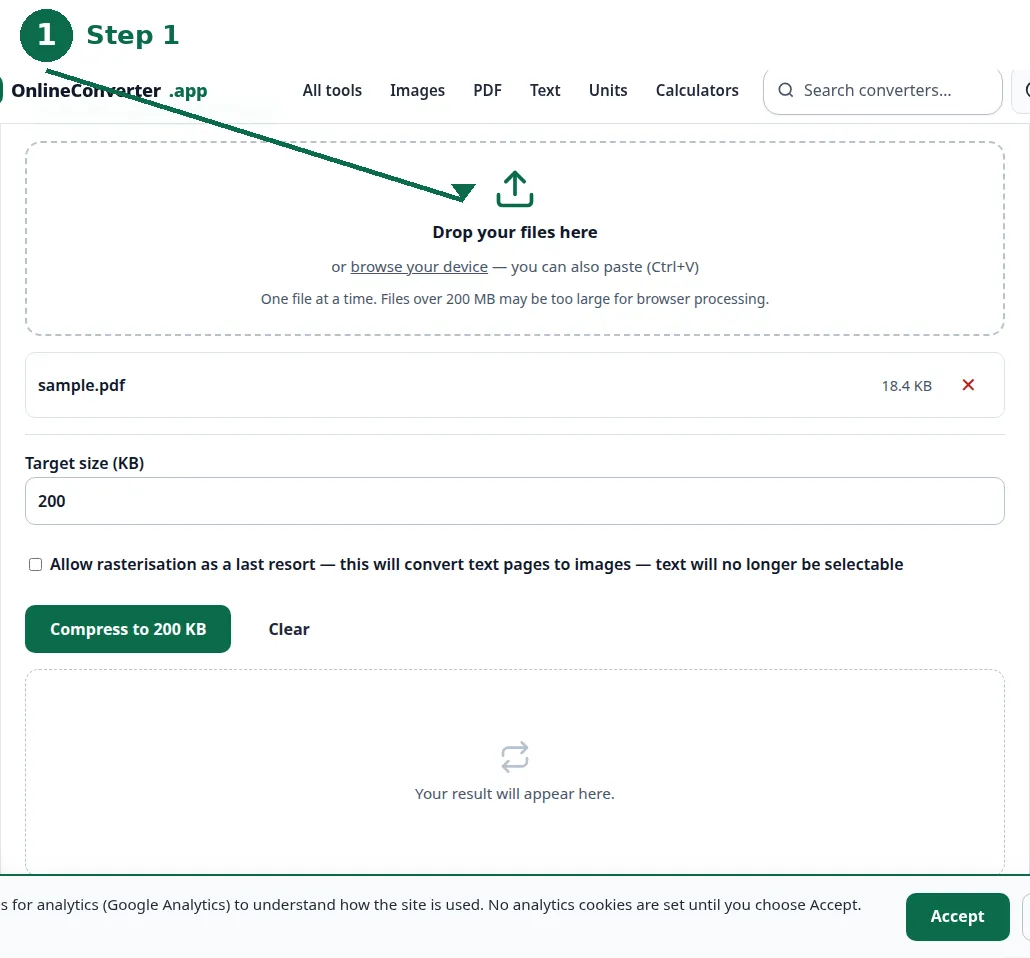
- Step 1 — Open the Compress PDF to 200 KB tool, or the general Compress PDF tool for another limit, and choose your PDF.
- Step 2 — Set the target size in kilobytes to the limit on your portal.
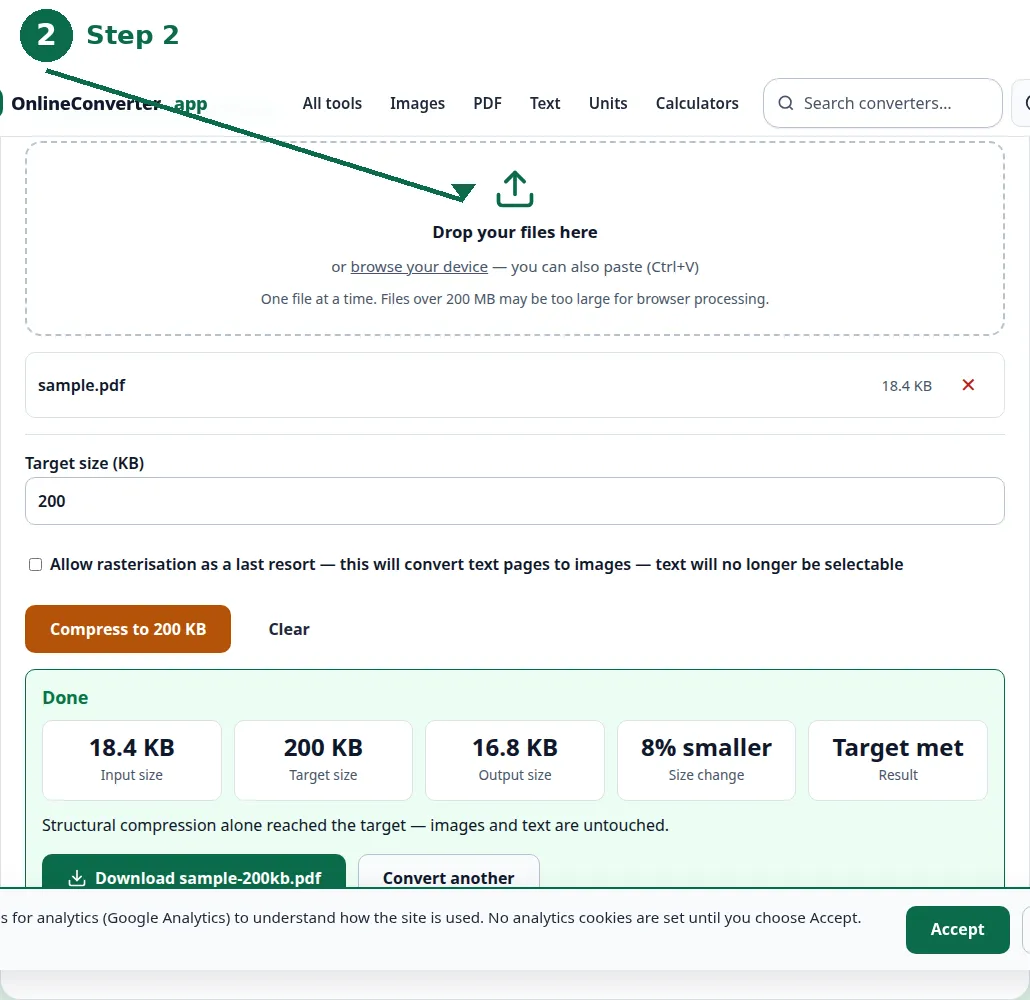
- Step 3 — Click Convert and read the result: the size reached and whether the target was met.
- Step 4 — Open the compressed file, check the pages, then upload it — and keep a copy of exactly what you uploaded.
When the file cannot reach the limit
A long scan at high resolution, or a document full of photographs, has a floor below which it stops being readable — and sometimes that floor is above the portal's limit. When the tool reports the closest readable result instead of the target, do not force it: reduce the source. Re-scan the paper at 200 to 300 dots per inch instead of 600, or shrink the photos before they go into the PDF.
Splitting is the other honest fix when the portal accepts several files: divide a long document into parts that each fit the limit, and upload them as separate documents where the portal allows it. Check the portal's rules first — some portals want one file per document, and splitting a single document across two uploads can confuse the application.
Photos are a different upload
Portal photo uploads are usually JPG files, not PDFs, and they are usually capped at 200 KB. Do not put a photo into a PDF to meet a photo limit: use the image compressor to shrink the photo itself, or the exact-target image page when the portal wants a photo at a precise size. A photo saved as a PDF is a picture wrapped in a document, and the portal asked for a picture.
Portal photos also have rules beyond size — dimensions, background, how recent the photo is — and size is only one of them. This guide covers size; the portal's photo specification covers the rest, and it is worth reading in full before you upload, because a photo rejected for the wrong background costs the same day as a photo rejected for size.
The pre-upload checklist
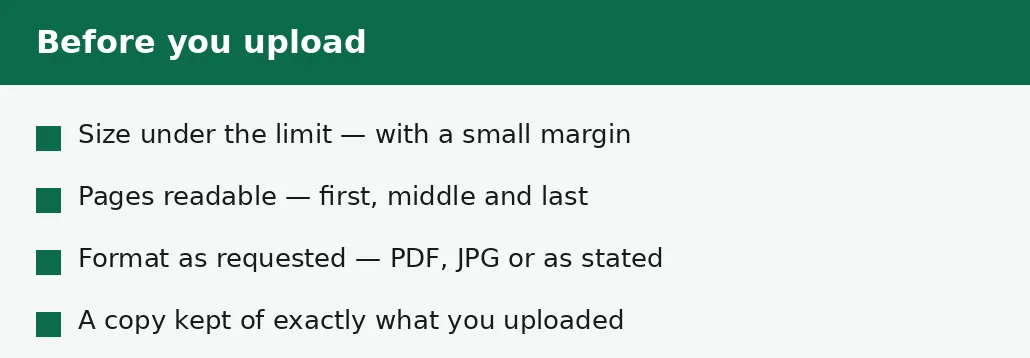
Four checks before the upload goes in. Size: the file is under the limit with a small margin, so a portal that counts kilobytes slightly differently still accepts it. Pages: the first, middle and last pages are readable in the compressed file. Format: the file is in the format the portal asked for — PDF where it asked for PDF, JPG where it asked for JPG.
And the copy: keep the original file untouched, and keep a copy of exactly the file you uploaded, named so you can find it later. If the portal asks for the same document again, or if a later question arises about what was submitted, the uploaded copy is the record — and it is far easier to keep it now than to reconstruct it later.
| Document | Typical limit | Notes |
|---|---|---|
| Passport photo | 200 KB | Often a JPG, not a PDF. |
| Scanned certificate | 200 KB to 500 KB | The most common document cap. |
| Supporting documents | 500 KB to 1 MB | Longer documents get larger caps. |
| Application form | 1 MB to 2 MB | Some portals allow more. |
Troubleshooting
Why did the portal reject my file even though it was under the limit?
Check the format and the dimensions, not just the size: a portal can reject a JPG where it asked for a PDF, or a photo with the wrong dimensions, while the size was fine. Read the portal's specification in full — size is only one of its rules.
Why can't my scan reach 200 KB?
A long scan at high resolution has a floor below which it stops being readable. Re-scan the paper at 200 to 300 dots per inch, or shrink the photos before they go into the PDF, and compress again from the new source.
Why does the portal say the file is corrupt?
Usually the upload was interrupted, or the file was compressed twice and degraded. Upload the compressed file again from the original source, and check the file opens on your own device first.
Common questions
What size should a PDF be for a visa application?
Whatever the portal states — commonly 200 KB for photos and 500 KB to 1 MB for documents. Read the limit on the portal itself; limits vary by portal, country and document.
How do I compress a PDF to 200 KB for a portal?
Use the Compress PDF to 200 KB tool, or the general Compress PDF tool with the target set to 200. Read the result, open the compressed file to check the pages, then upload it.
What if my document cannot reach the portal limit?
Reduce the source: re-scan at 200 to 300 dots per inch, or shrink the photos before they go into the PDF. Or split the document into parts, if the portal accepts several files for one document.
Is my file uploaded anywhere when I compress it?
No. Compression runs entirely in your browser. Nothing is sent to a server, there is no account, and closing the tab clears your file from memory.
Should a portal photo be a PDF or a JPG?
A JPG, where the portal asks for a photo. Do not wrap a photo in a PDF for a photo upload — shrink the photo itself with the image compressor.
What should I keep after uploading?
Keep the original file untouched, and a copy of exactly the file you uploaded. If the portal asks again, or a question arises about what was submitted, the uploaded copy is the record.
Summary
Read the limit on your own portal — commonly 200 KB for photos and 500 KB to 1 MB for documents — compress toward exactly that number, open the result and check the pages, then upload. If the file cannot reach the limit and stay readable, re-scan at lower resolution or shrink the photos first. Keep the original and a copy of what you uploaded.