HEIC vs JPG: which should you convert to?
Last updated: 9 November 2026.
Convert HEIC to JPG when the photo must open anywhere — on Windows, on the web, in an application form — because JPG opens everywhere and HEIC still does not. Keep HEIC when the photo stays inside the Apple devices that made it, because HEIC stores the same picture in about half the space and keeps more detail. The conversion itself is one way in quality terms: a JPG made from a HEIC keeps what the HEIC had, but a HEIC made from a JPG cannot put back what the JPG already lost.
What HEIC and JPG actually are
HEIC is the photo format iPhones have used since 2017: it stores a photo with newer compression, so the same picture takes about half the space of a JPG, and it can also store several pictures, depth information and live-photo frames in one file. It is a better container, and it is the default on iPhones for exactly that reason — it saves storage without visibly changing the photo.
JPG is the photo format everything else uses: it has been the standard since the 1990s, and every operating system, browser, printer, form and photo editor opens it. It compresses less efficiently than HEIC, so the same photo takes roughly twice the space, but that space buys compatibility — a JPG sent anywhere opens, and a HEIC sent to the wrong place does not open at all.
When to convert HEIC to JPG
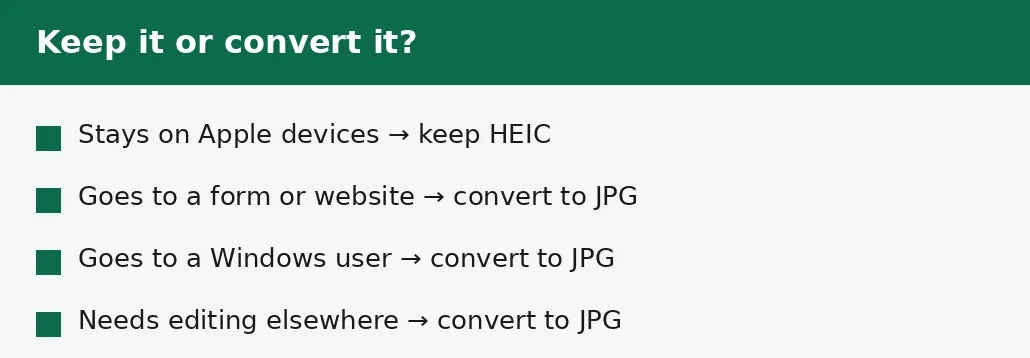
Convert when the photo must leave the Apple devices that made it. An application form that asks for a JPG, a website upload, a Windows computer, an older photo editor, a printer — all of these expect JPG, and a HEIC file will either be rejected or will not open. The conversion is quick, and the JPG it produces is an ordinary JPG that behaves like any other.
Convert also when the photo must be edited somewhere that does not read HEIC. Many desktop editors and web tools still do not open HEIC files, and converting first is faster than discovering the problem halfway through an edit. The HEIC to JPG tool converts the file in your browser, and the guide to converting HEIC to JPG without losing quality covers the quality settings in detail.
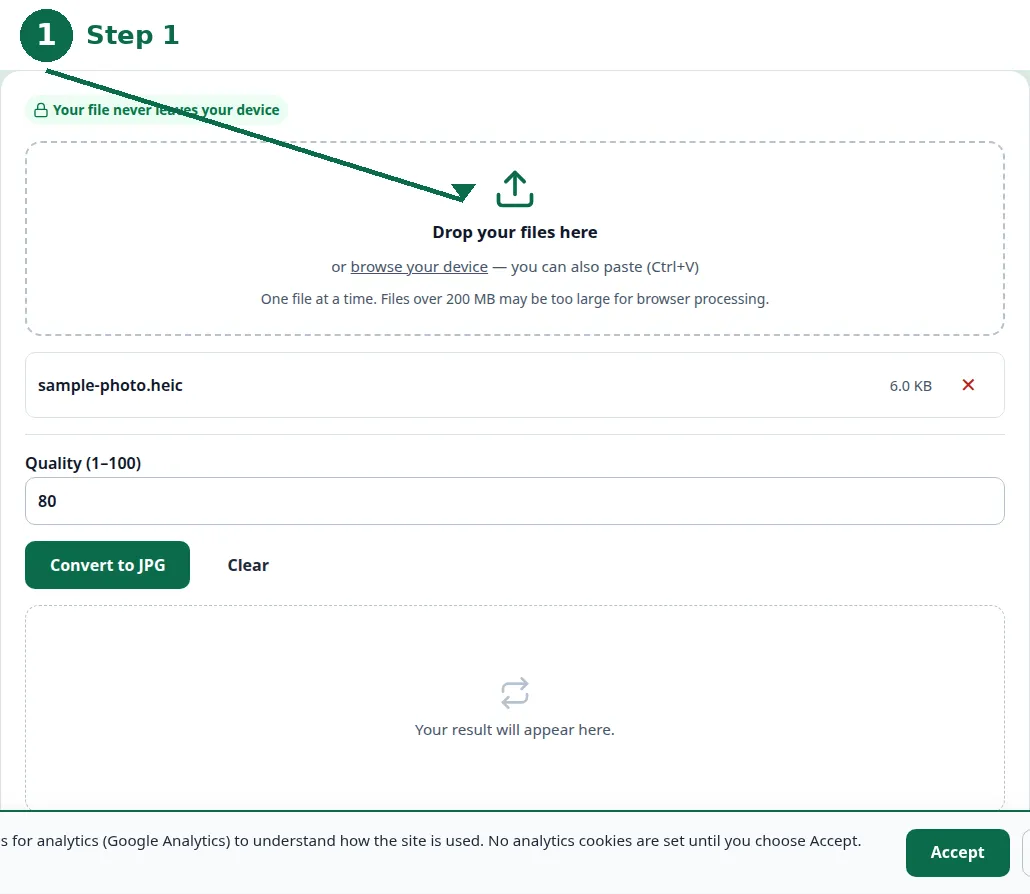
- Step 1 — Open the HEIC to JPG tool and choose your HEIC photo.
- Step 2 — Check the quality setting, and convert.
- Step 3 — Download the JPG and open it to confirm it looks right.
- Step 4 — Keep the original HEIC as well, so you can convert again at a different quality if you need to.
When to keep HEIC
Keep HEIC when the photo stays inside Apple devices: on the iPhone that took it, in iCloud, on a Mac. There the format opens natively, the storage saving is real — about half the space of the same photos as JPG — and there is no compatibility problem to solve, because nothing in that chain needs JPG.
Keep HEIC also when you are archiving photos and space matters more than sharing. A library of thousands of photos takes roughly half the disk space as HEIC, and the extra detail HEIC keeps is worth having for the future, when you may want to edit or print a photo you took years ago. Convert copies for sharing; keep the HEIC originals.
Quality: what you gain and what you lose
HEIC keeps more detail at the same file size, because its compression is newer and more efficient. A HEIC and a JPG of the same photo at the same size are not equal: the HEIC looks better, especially in smooth areas like skies and skin, where JPG's older compression shows its blocky edges first. That is the technical reason iPhones switched — the same storage holds better-looking photos.
Converting HEIC to JPG keeps the picture as it is: the JPG is made from the full HEIC image, so what you see is what the HEIC showed. Converting the other way — JPG to HEIC — cannot recover detail the JPG already threw away when it was first saved. The direction matters: HEIC to JPG is a safe conversion, JPG to HEIC is a re-wrap of an already-degraded picture.
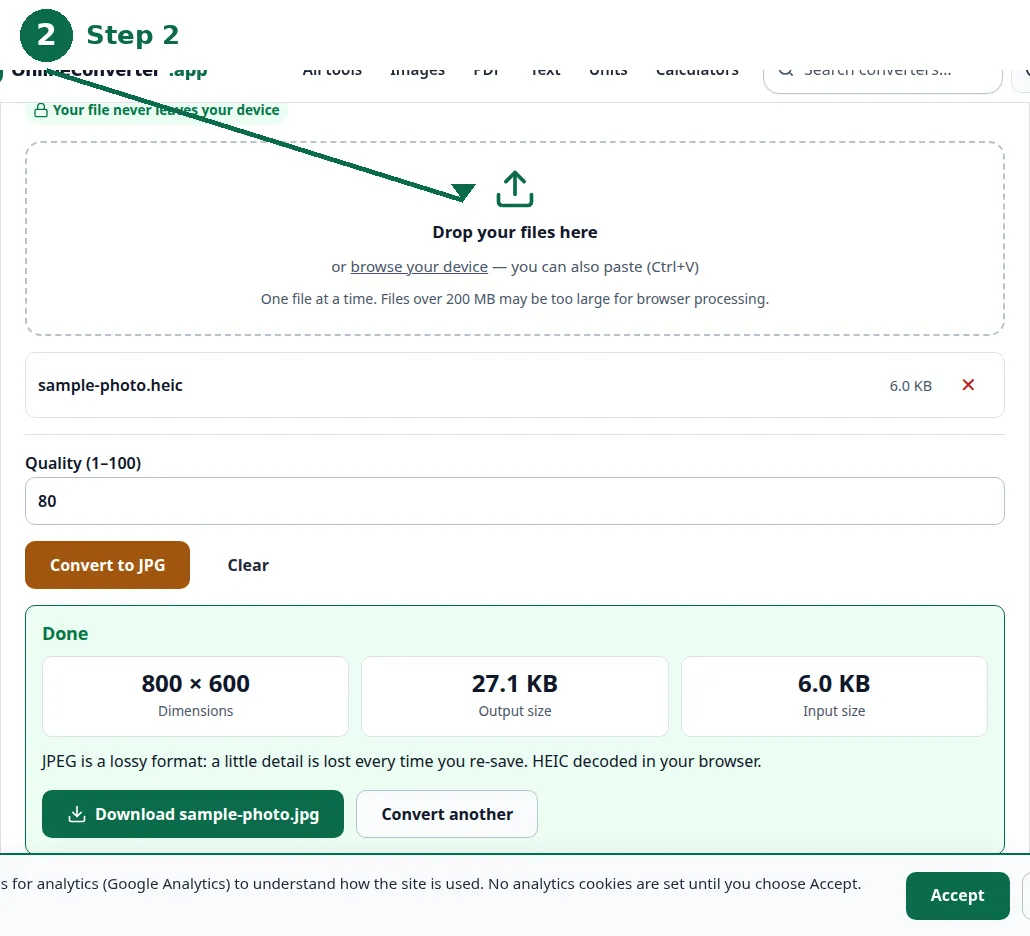
| HEIC | JPG | |
|---|---|---|
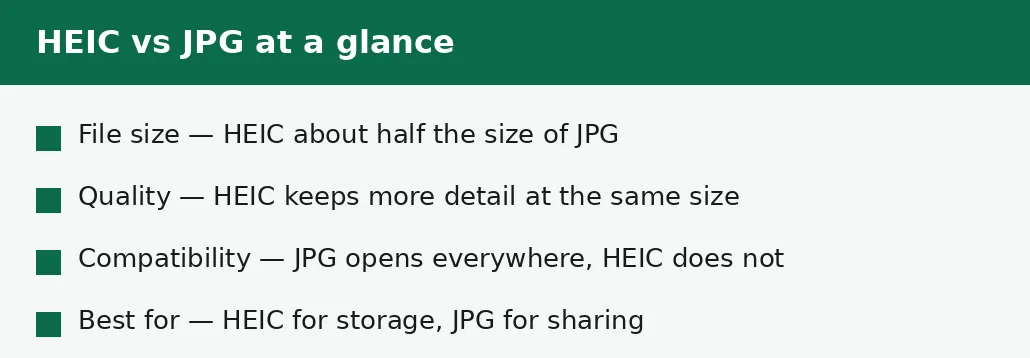
| File size, same photo | About half | About double |
| Quality at the same size | Better | Good, older compression |
| Opens on iPhone / Mac | Yes, natively | Yes |
| Opens on Windows | Newer versions only | Yes, everywhere |
| Opens on Windows 11 | Yes, with the free HEIF extension | Yes, everywhere |
| Opens on Android | Most phones, natively | Yes, everywhere |
| Opens in web forms | Often no | Yes |
| Live photos, depth data | Yes | No |
| Best for | Storing on Apple devices | Sharing anywhere |
Compatibility: where each format fails
JPG fails almost nowhere: it opens on every operating system, in every browser, in every photo editor, on every printer, and in every application form. That is its whole advantage, and it is a large one — a format that opens everywhere never costs you a missed upload or a confused recipient.
HEIC fails in specific, annoying places: older versions of Windows, older photo software, many web upload forms, some printers, and any tool that has not been updated since 2017. The failures are silent as often as they are loud — a form may accept the file and then show nothing, or a recipient may simply never see the photo. When in doubt, send JPG.
HEIC on Windows and Android
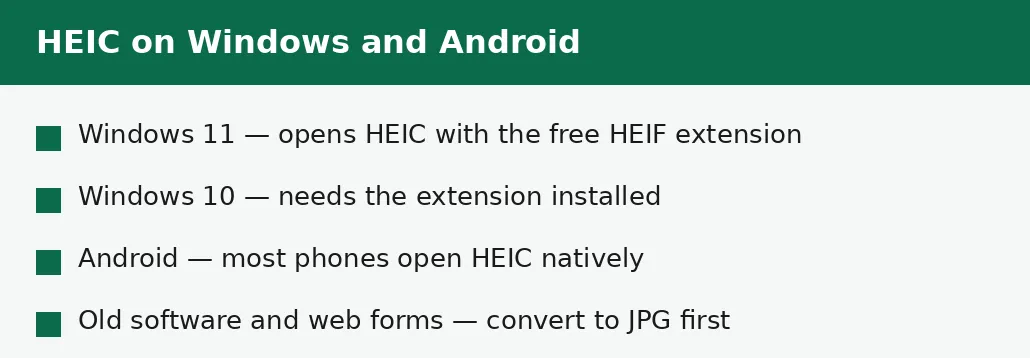
Windows 11 opens HEIC files once the free HEIF Image Extensions package is installed from the Microsoft Store — without it, double-clicking a HEIC file does nothing useful, and the Photos app shows an error instead of the picture. Windows 10 needs the same extension, and older versions of Windows have no support at all. The extension is free and small, and once it is installed HEIC files open like any other photo — but a Windows user who has never installed it will still see a broken file, which is why sending HEIC to a Windows user you do not know is a gamble.
Android is friendlier: most Android phones made in the last few years open HEIC natively, because several manufacturers save photos in HEIC themselves. But "most" is doing work there — older handsets, budget phones and some photo apps still refuse the format, and sharing a HEIC photo to a messaging app can silently convert it, strip it, or fail depending on the app. The rule is the same as for Windows: inside a chain you control, HEIC is fine; across a chain you do not control, JPG is the format that arrives intact.
What you lose either way
Converting HEIC to JPG loses the extras HEIC can carry: live-photo frames, depth information, and the extra detail the newer compression preserves at small sizes. For an ordinary photo shared with a friend or uploaded to a form, none of that matters — the picture itself is what counts, and it survives the conversion intact.
Keeping HEIC loses compatibility, and the cost arrives later: a photo you cannot open on the device you need, a form that rejects the upload on the last day of an application, a recipient who never sees the picture. The rule that covers both losses is simple: keep the HEIC original, and convert a copy for sharing. Storage is cheap; a missed upload is not.
Troubleshooting
Why won't my HEIC photo open on Windows?
Older versions of Windows do not read HEIC files. Convert the photo to JPG with the HEIC to JPG tool — the JPG opens everywhere — and keep the original HEIC as well.
Why did the form reject my photo?
Most forms ask for JPG and reject HEIC, sometimes without a clear message. Convert to JPG first, check the file size against the form's limit, and upload the JPG.
Why is my JPG bigger than the HEIC it came from?
HEIC compresses more efficiently, so the same photo takes about half the space as HEIC. The JPG is larger because JPG's older compression needs more space for the same picture — that is the price of compatibility.
Common questions
Should I convert HEIC to JPG?
Convert when the photo must open anywhere — a form, a website, a Windows computer, or an older editor. Keep HEIC when the photo stays on iPhone, iPad or Mac and space matters.
Does converting HEIC to JPG lose quality?
The picture itself survives: the JPG is made from the full HEIC image. What is lost is the extras HEIC can carry — live-photo frames and depth data — and a little of the size efficiency.
Is HEIC better than JPG?
HEIC is better at storing photos: smaller files, more detail at the same size. JPG is better at sharing photos: it opens everywhere. Better depends on what the photo is for.
Can I convert JPG back to HEIC?
You can, but it cannot recover detail the JPG already lost when it was first saved. The conversion is a re-wrap, not a restoration.
Is my photo uploaded anywhere when I convert it?
No. Conversion runs entirely in your browser. Nothing is sent to a server, there is no account, and closing the tab clears your file from memory.
Why does my iPhone save photos as HEIC?
Because HEIC stores the same photo in about half the space of JPG, with more detail. It is the iPhone default since 2017, and you can change it in the camera settings if you prefer JPG.
Summary
HEIC is the better storage format — about half the size, more detail — and JPG is the better sharing format, because it opens everywhere. Convert to JPG when the photo must leave Apple devices, for a form, a website or a Windows user; keep HEIC when it stays on iPhone, iPad or Mac. Keep the original HEIC, and convert a copy for sharing.