How to add page numbers to a PDF before you submit it
Last updated: 8 November 2026.
Adding page numbers to a PDF means stamping a number onto each page — usually at the bottom centre or bottom corner — so the document can be referenced page by page in a meeting, a review or a submission. The numbers are written into the file itself, so they travel with it and appear the same for everyone who opens it. Number the pages before you submit, not after: a report without page numbers is hard to discuss, hard to cite, and looks unfinished — and adding them takes a minute with the Add Page Numbers tool.
Why page numbers matter
A report without page numbers is hard to discuss: in a meeting, nobody can say turn to page 12, and in a review, a comment cannot point at a page. The reader is left describing the content — the table near the middle, the paragraph after the chart — instead of naming the page, and every reference takes longer than it should. Page numbers are the cheapest navigational aid a document can have, and their absence is noticed immediately.
Page numbers also signal that a document is finished. A submission without them looks like a draft, whatever the content says, because the final polish — numbering, a contents page, consistent headings — is what separates a finished document from a work in progress. Numbering takes a minute, and it is the minute that makes the document look submitted rather than assembled.
How to add page numbers to a PDF
The method is short: choose the final version of the file, pick the position, add the numbers, and check the result. The final version matters — numbering a draft means re-numbering after every edit, because added or removed pages shift every number after them. Number the document you are actually going to submit, after the last edit.
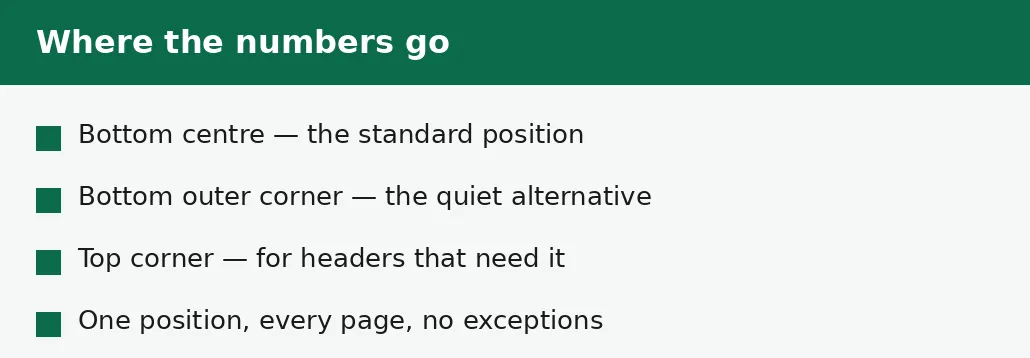
The position matters less than consistency: bottom centre is the standard, bottom outer corner is the quiet alternative, and either is fine as long as every page uses the same one. A document that changes position halfway through looks careless, and the reader notices the inconsistency before they notice the numbers.
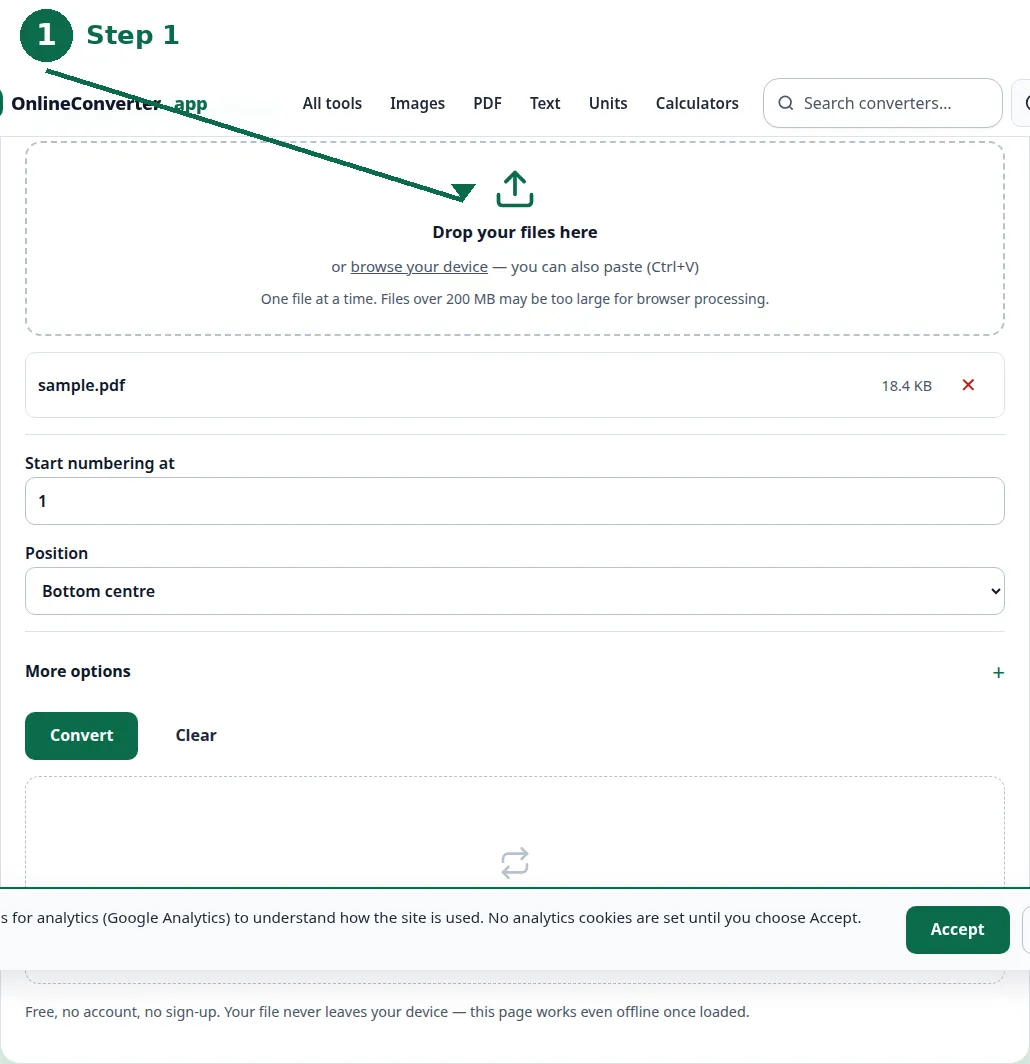
- Step 1 — Open the Add Page Numbers tool and choose the final version of your PDF.
- Step 2 — Pick the position for the numbers — bottom centre is the standard.
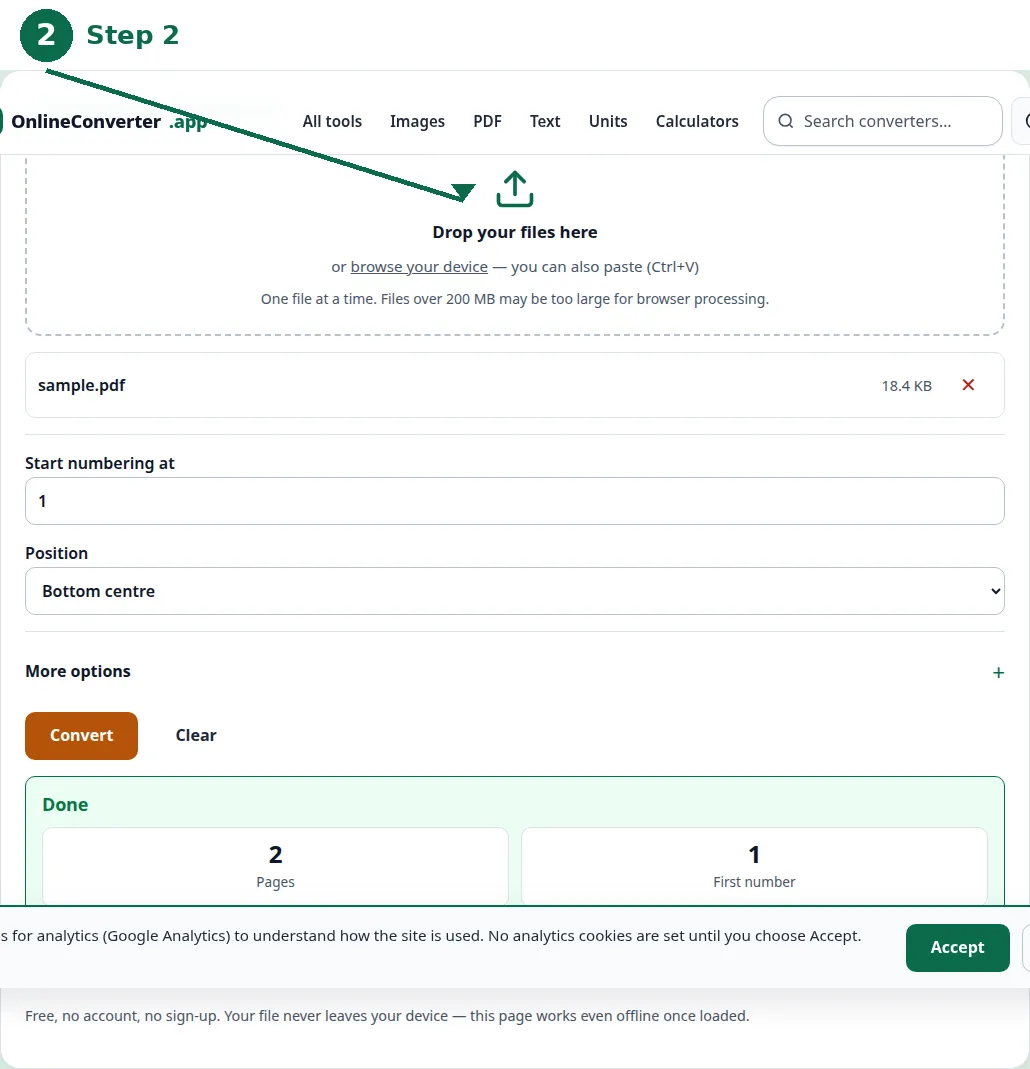
- Step 3 — Click Convert and download the numbered PDF.
- Step 4 — Open the result and check the first, middle and last pages before you submit it.
Where the numbers go
Bottom centre is the standard position for most documents: it is easy to find, it does not compete with the text, and it is where readers look for a page number. Bottom outer corner — bottom right on right-hand pages, bottom left on left-hand pages — is the alternative for documents with footers, where a centred number would collide with the footer text.
Top corner is used for documents with headers that need the page reference at the top, and for forms where the page number is part of the header block. Whichever position you choose, keep it on every page: the only wrong position is a different one on different pages.
| Position | Best for | Watch out for |
|---|---|---|
| Bottom centre | Most documents | Colliding with a centred footer. |
| Bottom outer corner | Documents with footers | Inconsistency between pages. |
| Top corner | Headers and forms | Competing with the header text. |
| No number on page 1 | Cover pages | Forgetting to skip the cover. |
Checking the numbers before you submit
Open the numbered file and check four things. First, the first page: is it numbered, or left blank, as you intended — a cover page is usually left unnumbered, and the numbering starts on the second page. Second, the middle pages: are the numbers in sequence, with no page missed and no page numbered twice? Third, the last page: does its number match the page count?
Fourth, the placement: does any number cover text, a footer, or a chart? A number stamped over the last line of a paragraph is worse than no number at all, because it hides content. If a number collides, move the position — bottom corner instead of bottom centre, or a smaller number — and re-number from the original file.
When to number — and when to skip it
Number the final version, after the last edit, because any added or removed page shifts every number after it. Number before submitting, not after: a document that is already submitted cannot be numbered retroactively without sending a new version, and a new version after submission looks disorganised.
Skip numbering only when the document is a single page — a one-page letter needs no number — or when the submission instructions say not to, which occasionally happens for forms where the portal adds its own numbering. In every other case, number it: the cost is a minute, and the absence is noticed by everyone who reads it.

Troubleshooting
Why are my page numbers out of order?
Pages were added or removed after numbering, shifting every number after the change. Number the final version, after the last edit — and re-number from the original if the document changes.
Why does a number cover the text on some pages?
The number position collides with the content on those pages — usually a long last line or a footer. Move the position to the bottom corner, or use a smaller number, and re-number from the original.
Why is my cover page numbered?
The cover was numbered along with the rest. Leave the first page unnumbered, and start the numbering on the second page — a cover is not page 1 of the content.
Common questions
How do I add page numbers to a PDF?
Use the Add Page Numbers tool: choose the final version of your PDF, pick the position — bottom centre is the standard — convert, and download the numbered file. Check the first, middle and last pages before you submit it.
Where should page numbers go on a PDF?
Bottom centre is the standard; bottom outer corner is the alternative for documents with footers. Pick one position and keep it on every page.
Should the cover page be numbered?
Usually not. Leave the cover unnumbered and start the numbering on the second page — the cover is not page 1 of the content.
When should I add page numbers?
To the final version, after the last edit, and before you submit. Numbering a draft means re-numbering after every edit that adds or removes a page.
Is my file uploaded anywhere when I add page numbers?
No. Numbering runs entirely in your browser. Nothing is sent to a server, there is no account, and closing the tab clears your file from memory.
What if a number covers the text?
Move the position — bottom corner instead of bottom centre — and re-number from the original file. A number stamped over text hides content, which is worse than no number.
Summary
Add page numbers to the final version of a PDF before you submit it — bottom centre is the standard position, bottom corner the alternative — and check the first, middle and last pages before the file goes out. Leave the cover unnumbered, keep the position consistent on every page, and re-number from the original if the document changes after numbering.