Merge a PDF without Acrobat
Last updated: 9 November 2026.
Merging PDFs without Acrobat is free, takes about a minute, and needs no software at all. The job is simple: several PDF files go in, one PDF comes out, with every page in the order you chose. The quickest way is a browser tool that joins the files on your own device — your files are never uploaded, there is no account, and nothing is installed. A Mac has a built-in way to do the same job, and Windows does not, which is the one real difference between the two. What none of these methods do is change your pages: merging only joins files together, it never re-types, re-renders or edits anything.
What merging actually does
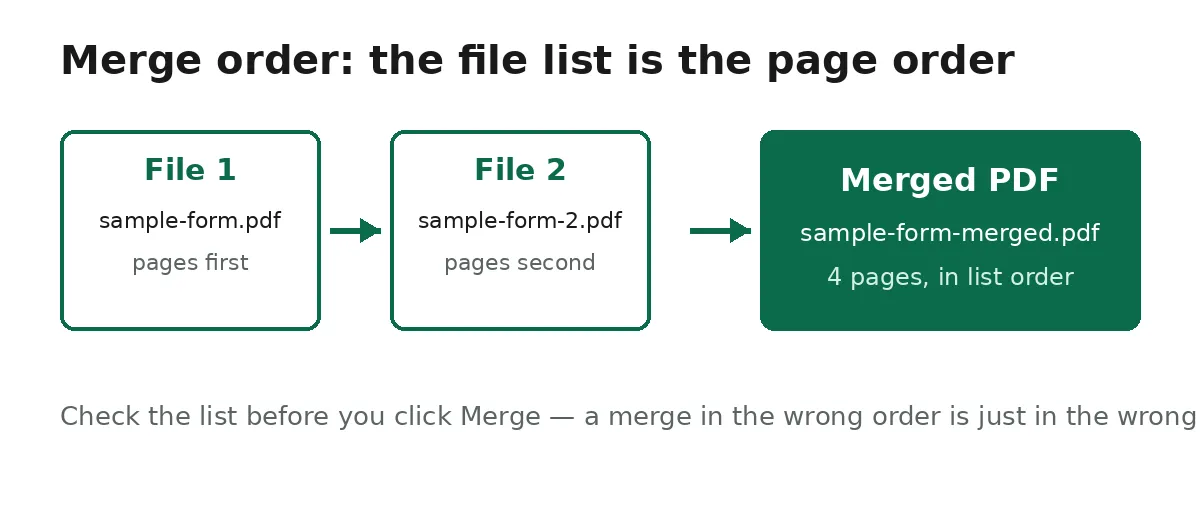
A merged PDF is one document holding the pages of several files, in the order you arranged them. The first file's pages come first, then the second file's, and so on, with each file's pages in their original order. The pages keep their text, images and order exactly as they were — merging only joins the files into one document. That is what makes it the right tool for chapters of a report, scanned pages that belong together, or application forms that ask for a single file when you have several.
Two consequences follow from that. First, the merged file can be larger than any single input, since it holds all the pages together — if the result is too big for an upload form, the answer is to compress it afterwards, not to merge differently. Second, the order is yours to set before you convert: the file list is the order, so checking it before you click Convert is the whole job. A merge done in the wrong order is not broken, it is just in the wrong order, and the fix is to merge again with the list arranged properly.
The browser method: no install, no upload
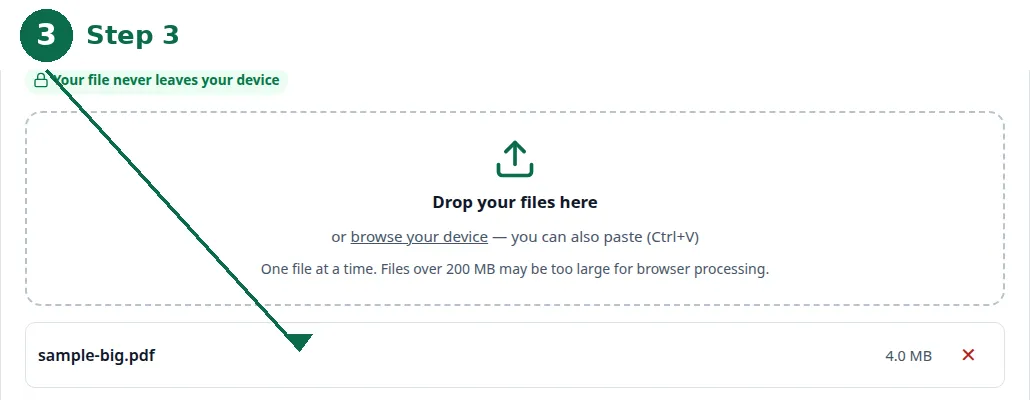
- Step 1 — Open the Merge PDF tool and add your files one at a time, in the order you want them.
- Step 2 — Check the file list, then click Merge PDFs and download the single PDF. The download is named after your first file.
- Step 3 — If the merged file is too big for an upload form, run it through the Compress PDF tool with the target size your portal asks for.
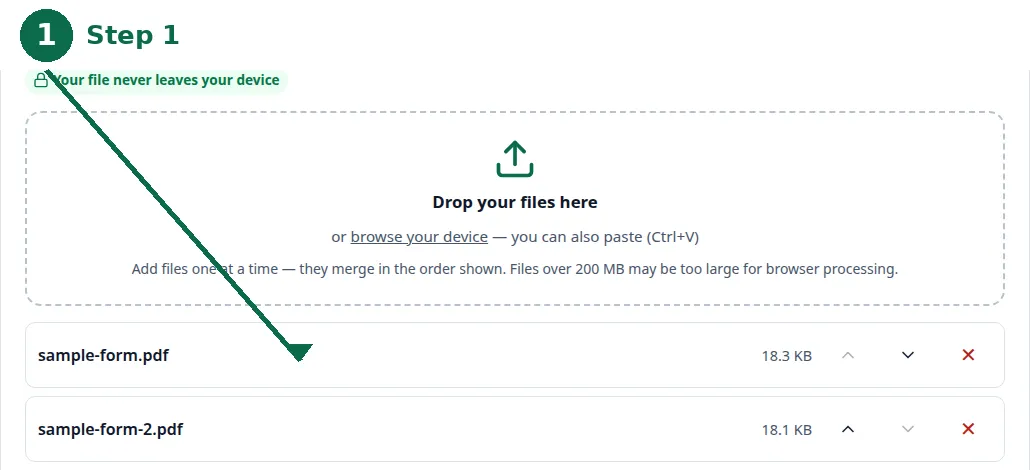
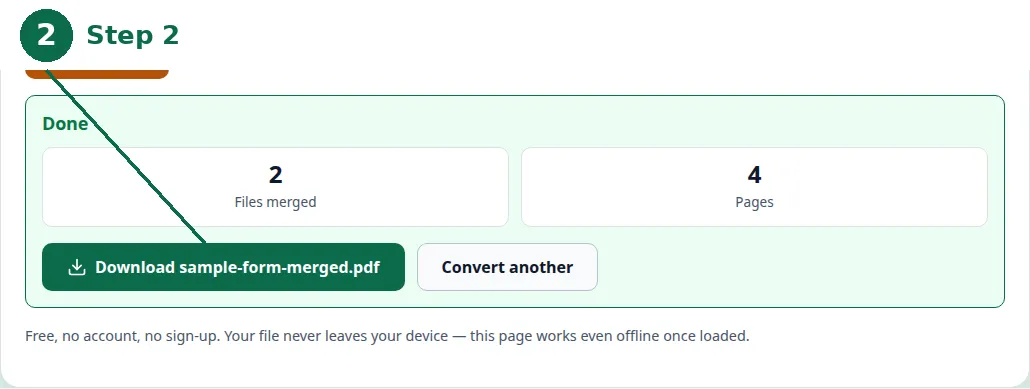
The fastest way needs no software at all. Use the free Merge PDF tool on this site: drop or browse your files one at a time — the file list builds up as you add them — then click Convert, and the tool joins every page into a single PDF you can download. The download is named after your first file, so the first file in your list also decides the name of the result.
You can remove a file from the list before converting, which is how you fix a mistake without starting over: drop a file in by accident, take it out of the list, and convert the rest. Everything runs in your browser: your files are never uploaded, there is no account, and closing the tab clears them from memory. That privacy point is the practical difference from the upload-based mergers: bank statements, ID scans and application forms never leave your device, because there is no server involved at all.
If a file is damaged or is not a PDF at all, the tool says so plainly instead of producing a broken result. And if a file is password-protected, it cannot be merged directly — unlock it first with Unlock PDF, then merge the unlocked copy. A protected file is refused with a plain message rather than a broken download, so you always know where you stand before you convert.
| Method | Install | Upload | Watch out for |
|---|---|---|---|
| Browser tool (this site) | None | None — runs on your device | Very large sets of files can be slow on a modest phone |
| Mac Preview | None — built in | None | Dragging a dozen files into the sidebar is fiddly; export can lose form behaviour |
| Windows | Software, or a browser tool | Depends on the route | No native merge: “Microsoft Print to PDF” cannot join two existing PDFs |
The built-in option on a Mac
A Mac can merge PDFs without any website, using Preview — the app every Mac uses to open a PDF. Open the first file, choose View, then Thumbnails to show the sidebar, and drag another PDF from Finder into that sidebar at the position you want. Repeat for each file, then use File, then Export as PDF to save a new document. The result is a single PDF holding all the pages in sidebar order.
The catches are practical rather than fatal. Dragging a dozen files into a sidebar is fiddly, and it is easy to drop pages in the wrong place — the same ordering care the browser tool needs, with a less forgiving interface. Preview also rewrites the file on export, so forms and some annotations can lose behaviour. For a couple of ordinary files the built-in route is fine; for a longer list, or for files with forms in them, the browser tool's explicit file list is easier to check before you commit.
Why Windows has no equivalent
Windows ships "Microsoft Print to PDF", and people assume it merges. It does not, in the sense that matters: it can combine selected images into one PDF, but it cannot join two existing PDFs. There is no native drag-to-combine equivalent of Preview on Windows, so a Windows user who wants to merge PDFs either installs software or uses a browser tool. The browser method fills that gap without an install: the same drop, order, convert, download flow works on Windows, on a Mac, and on a phone, because the work happens in the browser rather than in the operating system.
If the merged file is too big
A merged file holds all the pages together, so it is often larger than any one input — and application portals usually cap the file they accept. The fix is a second step, not a different merge: run the merged file through the Compress PDF tool, which takes a target size in kilobytes and works toward exactly that number. For the common portal limit, the compress PDF to 200 KB page is built around that exact target. Compression happens in three steps — rebuilding the file's structure, recompressing the embedded pictures, and only with your permission turning pages into images — and the result always tells you the size it reached and whether the target was met.
The reverse job is splitting. If only some pages of a long report matter, or a form needs sending page by page, the Split PDF tool turns one PDF into separate single-page files, delivered as one ZIP download — page-01, page-02, and so on, in the original order. Split and merge are the same operation in opposite directions, and the same privacy rule applies to both: everything runs in your browser, nothing is uploaded.
What merging cannot do
Merging joins files; it does not edit them. It will not remove a page from the middle of a document, re-order pages inside one file, or fix a damaged file — a damaged file is refused with a plain message, and the fix belongs to whatever made the file, not to the merger. It will not unlock a password-protected PDF either: unlock the file first, then merge the unlocked copy. And it will not make a scanned page searchable or editable — the pages keep their content exactly as it was, which is the point, but it also means a scan stays a scan.
The other limit is the one every browser tool shares: the work happens on your device, so a very large set of files can be slow or run out of memory on a modest phone or computer. For the ordinary case — a handful of reports, forms or scans — you will not notice a limit. If you are merging dozens of large files at once, do it on a computer rather than a phone, and check the file list once more before you convert.
Merging on a phone: what changes
Merging on a phone works the same way as on a computer — choose the files, check the order, convert, download — but two things are different. First, choosing files is slower: the phone's file picker shows downloads, photos and cloud folders in separate places, so gathering five PDFs from three folders takes longer than dragging them on a desktop. Second, the phone has less memory to work with, so a large set of files can be slow or can fail outright where a computer would cope. For the ordinary case — a handful of forms or scans — you will not notice a limit.
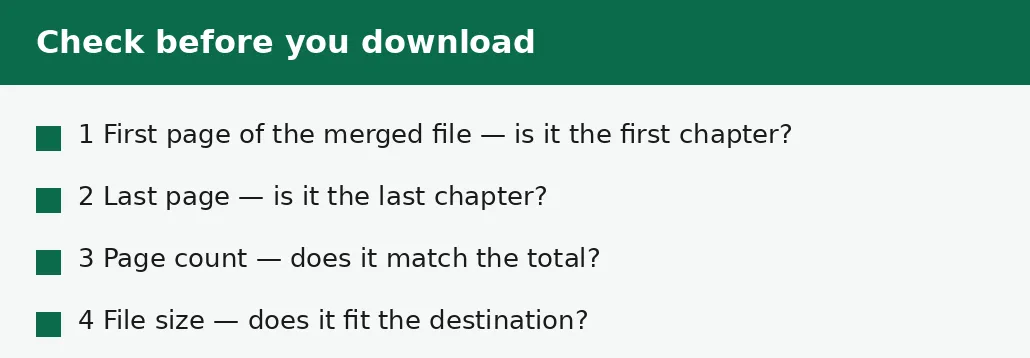
Two habits make phone merging reliable. One: check the order twice before converting, because reordering on a small screen is fiddly and a wrong order is the most common phone-merging mistake. Two: download the merged file and open it on the phone before you send it anywhere — check the first page, the last page, and the page count against the total of the inputs. A merged file with the chapters in the wrong order looks finished and is worse than separate files, because nobody checks a file that looks done.
Troubleshooting
Why are my pages in the wrong order?
The file list is the order, so a merge done in the wrong order is not broken — it is just in the wrong order. Merge again with the list arranged properly, and check the list once more before you click Convert.
Why was my file refused?
If a file is damaged or is not a PDF at all, the tool says so plainly instead of producing a broken result. If a file is password-protected, it cannot be merged directly — unlock it first, then merge the unlocked copy.
Common questions
In what order are the pages merged?
In the order the files appear in the file list, with each file's pages in their original order. The first file's pages come first, then the second file's, and so on. Check the list before you click Convert — the list is the order.
Can I merge a password-protected PDF?
Not directly. Unlock the file first with Unlock PDF, then merge the unlocked copy. A protected file is refused with a plain message rather than a broken result.
Does merging change the content of my pages?
No. The pages keep their text, images and order. Merging only joins the files into one document; it does not re-type, re-render or edit anything.
Do I have to upload my files?
No. Merging runs entirely in your browser. Nothing is sent to a server, there is no account, and closing the tab clears your files from memory.
What if I only need some pages, not the whole file?
Then splitting is the job, not merging. Split PDF produces one file per page, so you keep the pages you need and ignore the rest. If you need only certain pages as a single file, split first and then merge the pages you kept.
Why is the merged file so large?
Because it holds all the pages together — a merged file can be larger than any single input. Run it through Compress PDF with the target size your portal asks for, and the tool will tell you the size it reached and whether the target was met.
Summary
Merging is the simple job of joining several PDFs into one, in the order of the file list, without changing any page. The browser tool does it with no install and no upload; a Mac has Preview built in, and Windows has no native equivalent. If the merged file is too big, compress it afterwards — and if a file is password-protected, unlock it before you merge.