Why is my PDF so large? 7 causes and how to fix each
Last updated: 8 November 2026.
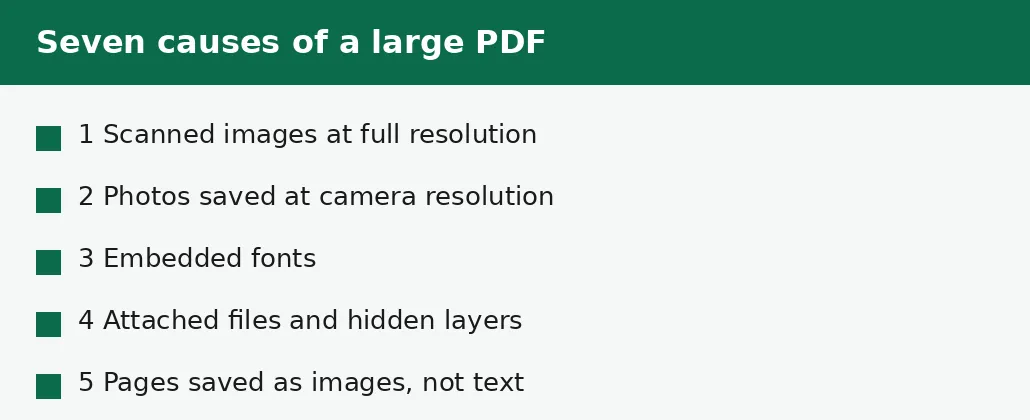
A PDF is usually large for one of seven reasons: high-resolution scanned images, photos saved at full camera resolution, embedded fonts, embedded files, hidden layers or annotations, a bloated file structure, or pages saved as images when they could be text. The fix depends on the cause — compressing the pictures helps a photo-heavy file, rebuilding the structure helps a wastefully saved one — so the first step is always to work out which cause you have, and this guide lists the check for each one.
First, work out which cause you have
Before you compress anything, look at the file. Open it and count the pages, then look at what is on them: are the pages photographs of paper, or typed text? A ten-page scan of paper documents is a photo-heavy file, and pictures are the cause. A ten-page typed report that is somehow 20 MB is a structure or font problem, and pictures are not the cause at all. The fix follows the diagnosis, and compressing the wrong thing wastes the attempt.
A quick check is the file size per page: divide the file size by the number of pages. A typed page should be tens of kilobytes; a scanned page at ordinary resolution is a few hundred kilobytes; a scanned page at full camera resolution can be several megabytes. If the per-page figure is far above what the content justifies, you have found the family of causes — now match it to the seven below.
Cause 1: high-resolution scanned images
The most common cause by far. A scanner set to 600 dots per inch produces pages four times larger than the same pages at 300, and most forms only need 200 to 300. The scan looks identical on screen at either setting — the extra resolution is invisible until you zoom far in — but the file pays for it on every page.
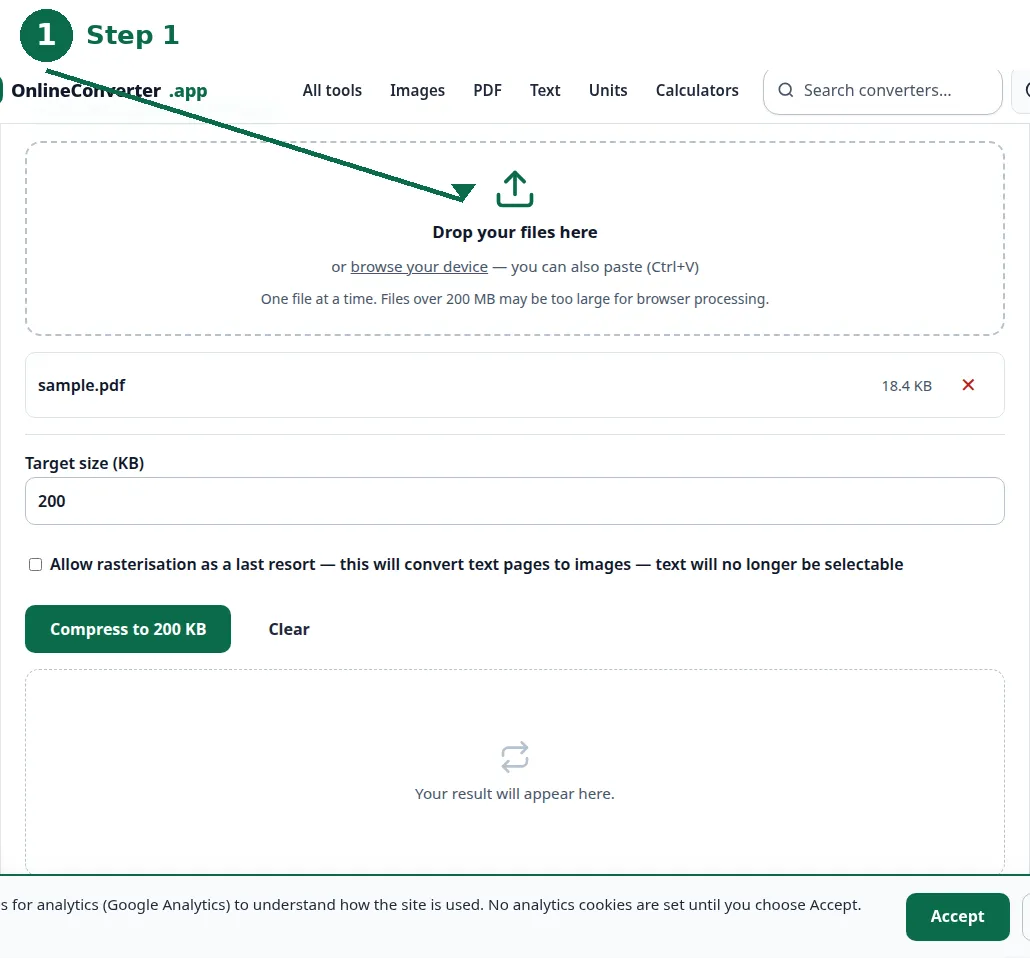
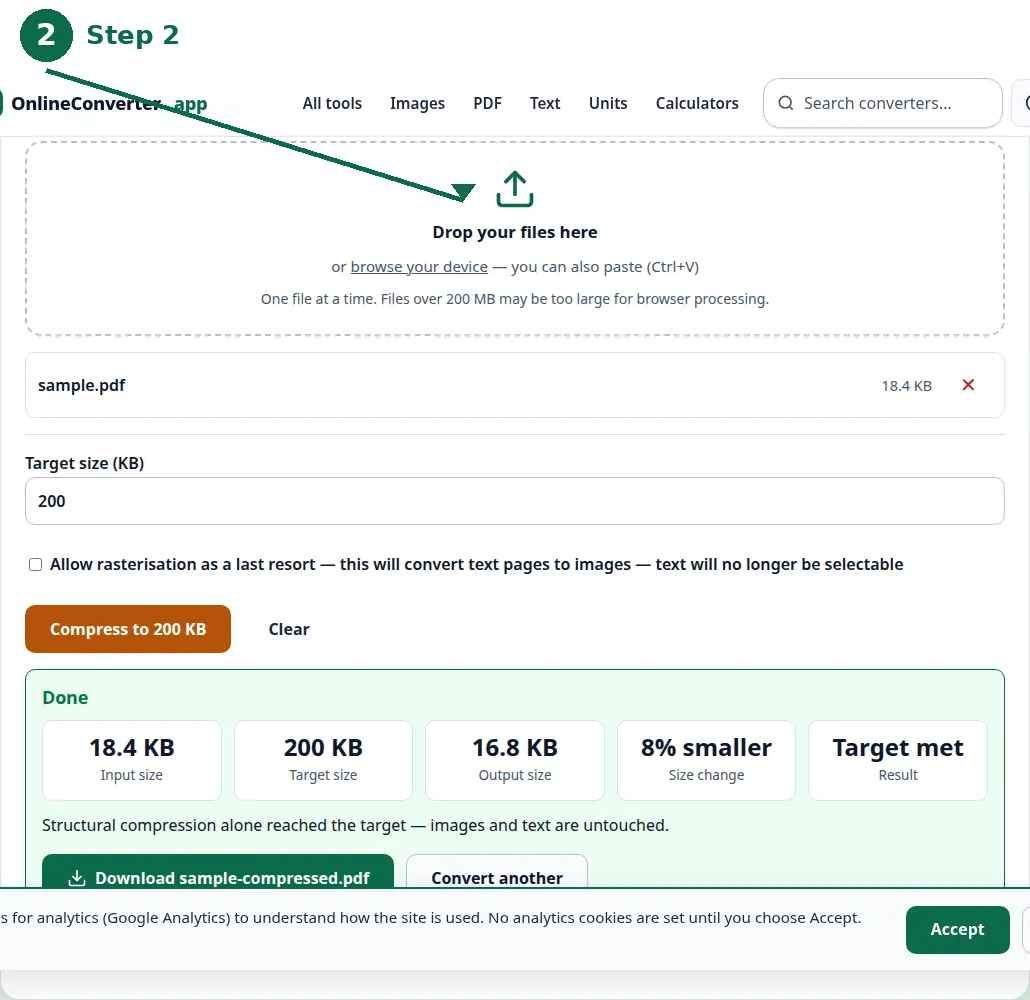
Fix it by compressing the file toward a target size, which recompresses the embedded pictures, or by re-scanning at 200 to 300 dots per inch if the original paper is still at hand. The Compress PDF tool takes a target in kilobytes and reports the size it reaches, so you can see exactly how much the pictures were costing you.
- Step 1 — Open the Compress PDF tool and choose the large PDF.
- Step 2 — Set a target size in kilobytes that fits the destination, and compress.
- Step 3 — Read the result: the size reached and how much smaller it is.
- Step 4 — Open the result and check the pages are still readable before you send it.
Cause 2: photos saved at full camera resolution
A photo straight from a phone camera can be 4000 pixels wide, and a PDF that embeds several of them carries all of those pixels even though the page shows them a few centimetres wide. The picture on the page uses a fraction of the resolution the file stores, and the rest is dead weight.
Fix it the same way as cause 1 — compress the PDF, which recompresses the embedded pictures — or shrink the photos before they go into the PDF, with the image compressor. Shrinking the photo first is the better fix when you are building the PDF yourself, because the file never carries the dead weight at all.
Cause 3: embedded fonts
A PDF can carry the fonts it uses inside the file, so it looks the same on a device that does not have those fonts. That is useful for unusual fonts, and it is pure overhead for common ones: a full font file can add hundreds of kilobytes per font, and a document using four fonts carries four of them.
The fix is to rebuild the file's structure, which the first step of the compressor does, or to re-save the document using standard fonts that do not need embedding. If the document must keep an unusual font for branding, accept the size — it is the price of the look, and compressing the pictures will recover more than fighting the fonts.
Cause 4: embedded files, layers and annotations
PDFs can carry attachments — a spreadsheet inside a report, a second document tucked into the file — and they can carry hidden layers, mark-up and comment threads from review rounds. None of it shows on the page, all of it adds size, and a file that has been through several rounds of review can carry the whole history.
Fix it by removing the attachments and flattening the mark-up before you compress: save a clean copy of the document without the attachments, or print it to a fresh PDF from your viewer, which drops the hidden layers. Then compress the clean copy. A file that drops from 15 MB to 3 MB on this step was never a picture problem at all.
| Cause | Sign | Fix |
|---|---|---|
| Scanned images | Pages are photos of paper | Compress; re-scan at 200-300 dpi. |
| Full-resolution photos | Huge photos on small pages | Compress; shrink photos first. |
| Embedded fonts | Unusual fonts, small page count | Rebuild; use standard fonts. |
| Attachments and layers | Size far above the visible content | Remove attachments; flatten mark-up. |
| Pages as images | Text cannot be selected | Rebuild from the source document. |
| Bloated structure | Saved many times, never rebuilt | Rebuild the file structure. |
| Photo-heavy content | Mostly photographs | Accept the floor; compress to it. |
Cause 5: pages saved as images instead of text
A page of typed text stored as characters is a few kilobytes; the same page stored as a picture of the text is a few hundred kilobytes, and it cannot be searched or selected. This happens when a document is printed to PDF as images, or when a scan is saved without any text layer, and it is the most expensive way to store words.
The fix is to rebuild from the source document where one exists — the Word file, the original report — and save it as a proper PDF with real text. Where no source exists, the file stays image-based, and compression is the only lever: it will shrink, but never to the size of a text-based file.
Cause 6: a bloated file structure
A PDF that has been edited and re-saved many times can carry dead objects: old versions of pages, unused images, fragments left behind by edits. The file grows with every save while the visible content stays the same, and a document that has lived through a dozen revisions can be twice the size it needs to be.
The first step of the compressor rebuilds the file's internal structure, which drops the dead weight without touching the pages at all — the text, images and layout stay exactly as they were. If that step alone recovers a surprising amount of size, the file was bloated, and no picture compression was ever needed.
Cause 7: the content itself is photographic
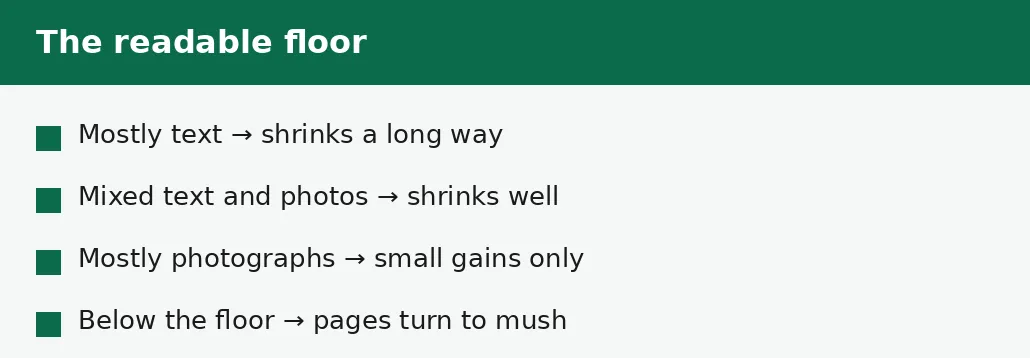
Sometimes there is no fault to find: a catalogue, a photo book, a report full of photographs is large because photographs are large. A file that is mostly photographs has a floor below which it turns to mush, and no honest tool can cross that floor. Compressing it to the floor is the right result, not a failure.
When you hit the floor, the options are to accept the closest readable result, to reduce the source — fewer photos, or photos at a lower resolution — or to split the document into parts. What you should not do is run the file through a second compressor hoping for a different answer: the floor is in the file, not in the tool.
Troubleshooting
Why is my PDF still large after compressing?
Either the pictures are already compressed and the size is in the structure or the fonts, or the file has hit its readable floor. Try rebuilding the structure first, then check whether the file carries attachments or hidden layers — and read the result message, which says what the tool actually achieved.
Why is a one-page PDF several megabytes?
A single page can carry a full-resolution photo or a large embedded font. One page at 600 dots per inch, or one page with a 4000-pixel photo, is a picture problem on a single page — compress it, or shrink the photo before it goes into the PDF.
Why can't I select the text in my PDF?
The pages are images, not text — cause 5. The file was saved as pictures of words rather than words. Rebuild from the source document where one exists; where none exists, the file stays image-based.
Common questions
What makes a PDF file so large?
Usually pictures: high-resolution scans and full-resolution photos. Embedded fonts, attached files, hidden layers and a bloated file structure add size too, and pages saved as images instead of text are always far larger than the same pages as text.
How do I make a PDF smaller?
Work out the cause first, then compress toward a target size with the Compress PDF tool. It rebuilds the structure, recompresses the pictures, and only with your permission turns pages into images — then reports the size it reached.
Why is my scanned PDF so big?
Scans are photographs of paper, and a scanner set to 600 dots per inch produces pages four times larger than the same pages at 300. Re-scan at 200 to 300 dots per inch, or compress the file toward a target size.
Can a PDF be too large to email?
Yes — most email services cap attachments around 20 to 25 MB, and some cap them far lower. The guide to reducing a PDF for email attachment limits covers the caps and the fix.
Is my file uploaded anywhere when I compress it?
No. Compression runs entirely in your browser. Nothing is sent to a server, there is no account, and closing the tab clears your file from memory.
What is the smallest a PDF can get?
It depends on the content: a text-only document can shrink a long way, while a photo-heavy file has a floor below which it stops being readable. The tool reports the closest readable result instead of pretending.
Summary
A large PDF is usually large because of pictures — high-resolution scans and full-resolution photos — but fonts, attachments, hidden layers, a bloated structure and image-based pages all add size too. Diagnose first: divide the size by the page count and look at what is on the pages. Then compress toward a target, rebuild the structure, or remove what should not be there — and accept the readable floor when the content itself is photographic.