How to reduce a PDF for email attachment limits
Last updated: 8 November 2026.
Most email services cap attachments at around 20 to 25 MB, and some cap them lower — so a PDF over the limit must be shrunk, split, or sent another way. The fastest fix is to compress the PDF toward a target size under the limit, then attach the compressed file and check the size before you send. If the file cannot shrink under the limit and stay readable, split it into parts or share it as a link instead of an attachment.
The limits, and the catch in how they are counted
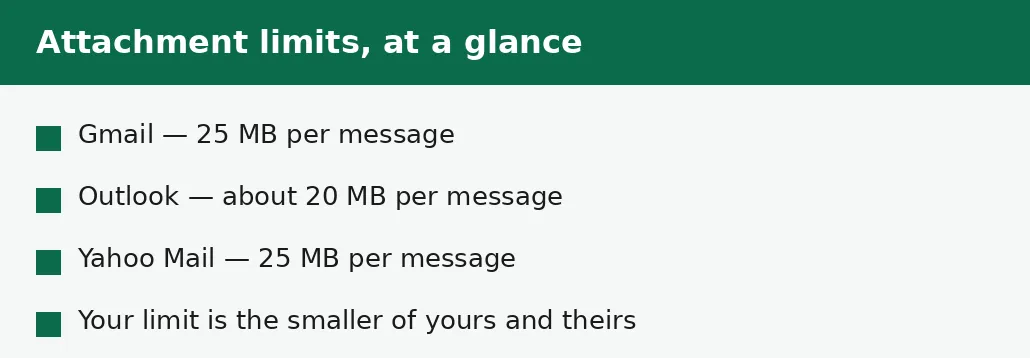
Gmail allows attachments up to 25 MB per message, Outlook around 20 MB, and Yahoo Mail 25 MB — but the limit is not quite the file size on your disk. Email encodes attachments, and the encoding adds roughly a third to the size, so a 20 MB file can count as more than 25 MB once it is encoded. That is why a file that looks safely under the limit can still bounce.
The other catch is that the limit that matters is the smaller of the two services: yours and the recipient's. A 22 MB attachment sent from Gmail to an Outlook address can fail at the Outlook end even though Gmail accepted it. When you do not know the recipient's service, aim well under 20 MB — a 10 MB or 15 MB file passes almost everywhere.
How to reduce a PDF for email
The method is short: compress toward a target under the limit, read the result, and attach the compressed file. Pick the target before you start — 10 MB is a safe default when you do not know the recipient's service, and 1 MB is the right target when the file is headed for a form or a portal rather than a person.
Do not compress the file you already sent, or the copy in your sent folder: compress from the original, so each attempt starts from the best quality. And check the compressed pages before you attach them — a file that arrives unreadable is worse than a file that arrives late.
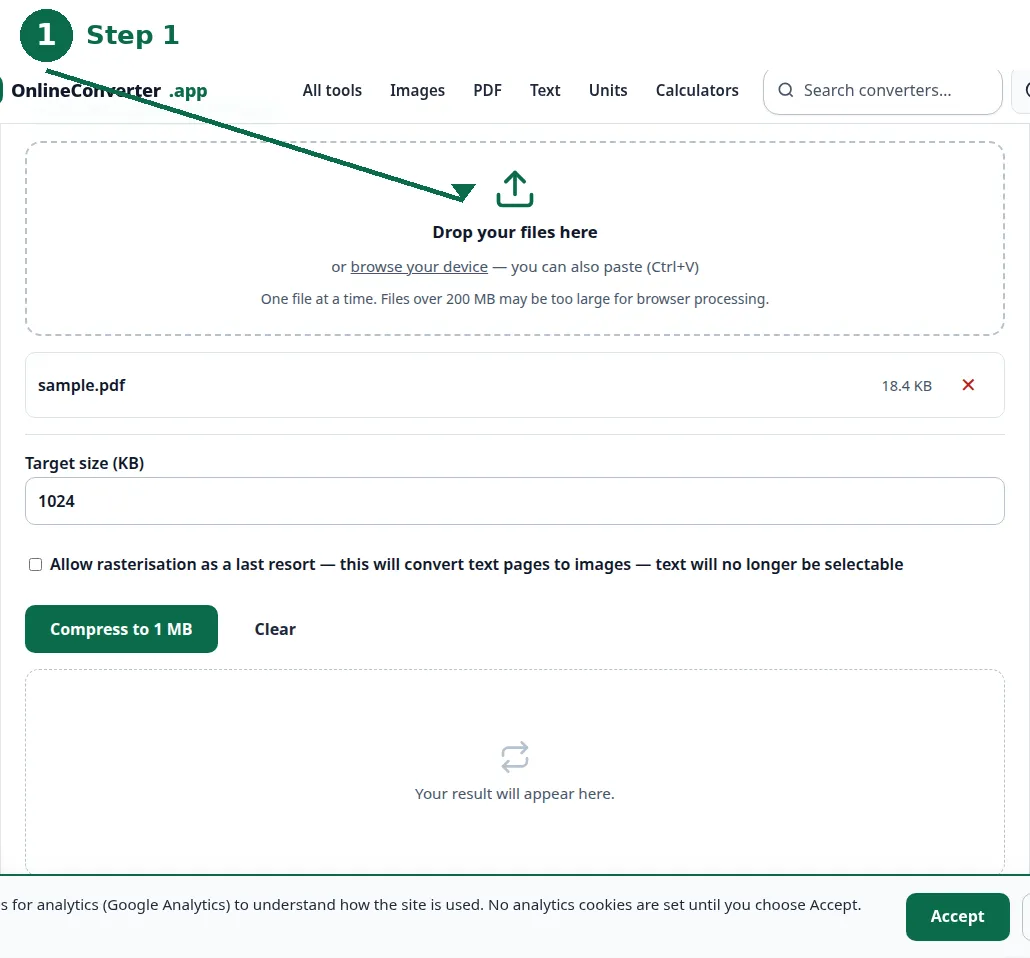
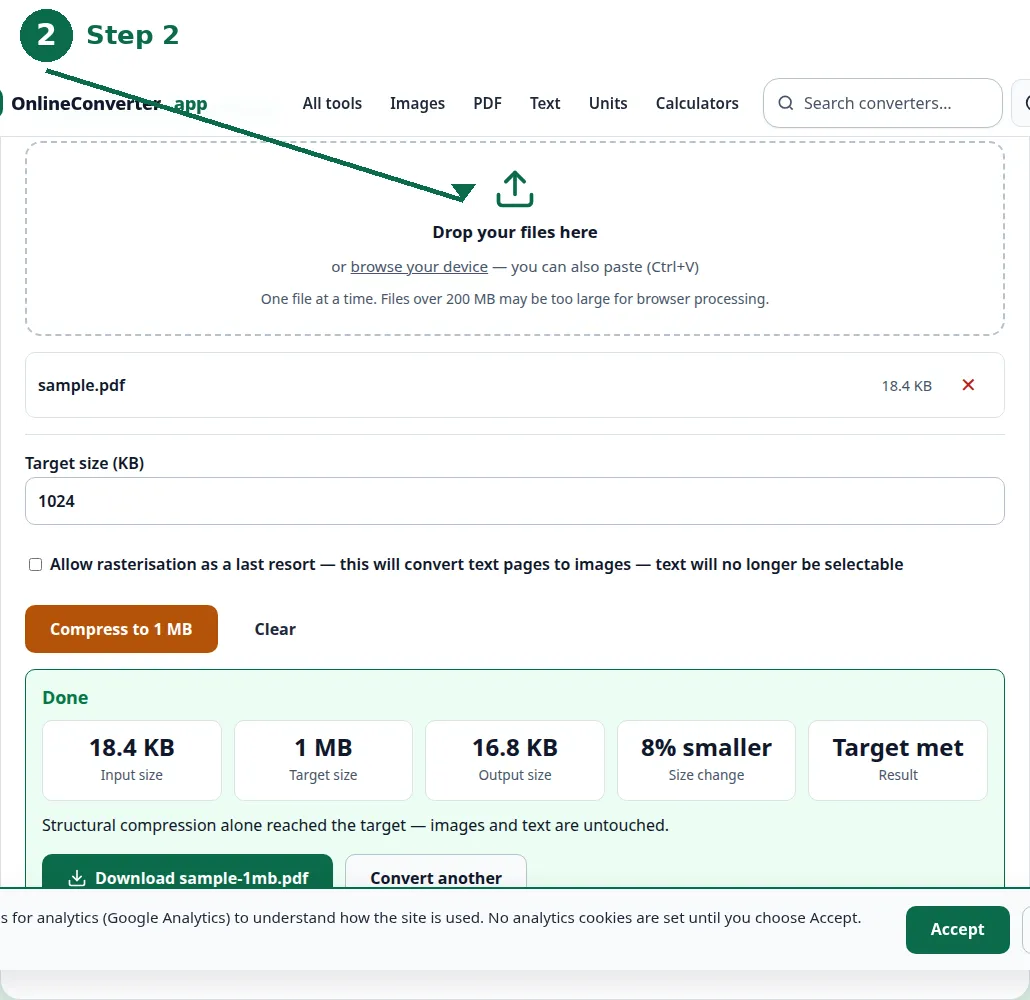
- Step 1 — Open the Compress PDF to 1 MB tool, or the general Compress PDF tool for another target, and choose your PDF.
- Step 2 — Set the target size in kilobytes — 10000 for 10 MB, 15000 for 15 MB — and compress.
- Step 3 — Read the result: the size reached and whether the target was met.
- Step 4 — Open the compressed file, check the pages are readable, then attach it and check the attachment size before you send.
When the file will not fit even after compression
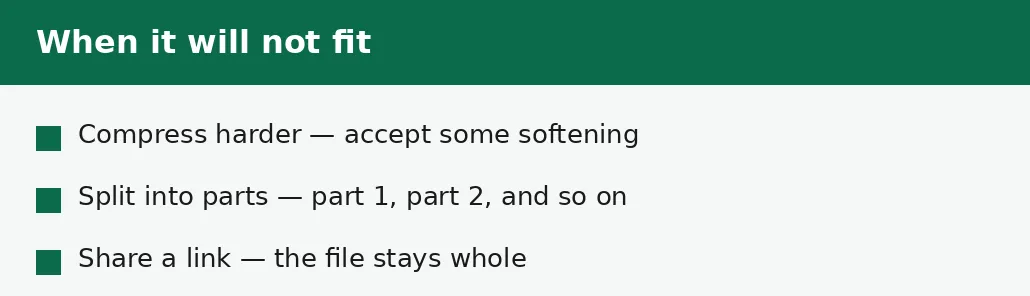
A photo-heavy file has a floor below which it stops being readable, and sometimes that floor is above the email limit. When compression alone cannot get you under the limit, splitting is the honest fix: divide the document into parts — part 1 and part 2 — and send them as separate attachments, or as separate emails, each under the limit. The Split PDF tool takes a page range and returns just those pages as a new PDF.
The other honest fix is to stop attaching the file at all. Upload it to a file-sharing service and send a link instead: the file stays whole, the email stays small, and the recipient downloads the full-quality original. This is the right answer for files that must stay whole and large — a photo book, a high-resolution portfolio, a long scanned report.
| Service | Limit per message | Safe target |
|---|---|---|
| Gmail | 25 MB | Under 20 MB, ideally under 15 MB. |
| Outlook | About 20 MB | Under 15 MB. |
| Yahoo Mail | 25 MB | Under 20 MB, ideally under 15 MB. |
| Unknown recipient | Unknown — assume the strictest | Under 15 MB. |
Check before you send
Three checks before the email goes out. First, the size: the attachment shown in your email program is the size that counts, so read it there rather than trusting the file on disk. Second, the pages: open the compressed file and look at the first page, a middle page and the last page — if the text is crisp and the photos recognisable, it is fine to send.
Third, the recipient: if the file matters, tell them in the email what you sent and how big it is, so they know what to expect and can tell you if it does not arrive. A bounced attachment with no explanation looks like a missing email, and a short line in the message body prevents a day of confusion.
Why the file was so big in the first place
Email-sized PDFs are usually large because of pictures: high-resolution scans and full-resolution photos embedded at camera resolution. The guide to why a PDF is so large lists all seven causes and the fix for each — and for a file you are building yourself, the cheapest fix is to shrink the photos before they go into the PDF, with the image compressor, so the file never carries the dead weight at all.
A file that has been edited and re-saved many times can also carry dead objects — old versions of pages and unused images — and the first step of the compressor rebuilds the file's structure and drops them without touching the pages. If that step alone recovers a surprising amount of size, the file was bloated, and no picture compression was ever needed.
Troubleshooting
Why did my email bounce even though the file was under 25 MB?
Email encodes attachments, adding roughly a third to the size — so a 20 MB file can count as more than 25 MB once encoded. Aim well under the limit: under 15 MB is safe almost everywhere.
Why is my compressed PDF still too big to send?
The file has hit its readable floor: it is mostly photographs, and no honest tool can shrink it past readable. Split it into parts with the Split PDF tool, or share it as a link instead of an attachment.
Why does the recipient see a different size from mine?
Different services count the attachment differently, and the encoded size is larger than the file on disk. The size shown in the email program at the sending end is the one that counts.
Common questions
What is the Gmail attachment limit?
25 MB per message — but the encoded size counts, not the file size on disk, so a 20 MB file can exceed it. Aim under 20 MB, ideally under 15 MB.
What is the Outlook attachment limit?
Around 20 MB per message. Aim under 15 MB to be safe, especially when you do not know the recipient's service.
How do I reduce a PDF to send by email?
Compress it toward a target under the limit with the Compress PDF tool, read the result, open the compressed file to check the pages, then attach it and check the attachment size before you send.
What if my PDF is too big to email even after compressing?
Split it into parts with the Split PDF tool and send the parts separately, or upload the whole file to a sharing service and send a link instead of an attachment.
Is my file uploaded anywhere when I compress it?
No. Compression runs entirely in your browser. Nothing is sent to a server, there is no account, and closing the tab clears your file from memory.
Should I compress from the original or the compressed file?
From the original, always. Compressing an already-compressed file starts from the degraded copy, so each pass loses more detail for less size.
Summary
Email caps attachments at around 20 to 25 MB, and the encoded size counts — so aim under 15 MB when you do not know the recipient's service. Compress toward that target, check the pages, and attach the result. If the file will not fit even after compression, split it into parts or share it as a link instead of an attachment.