How to crop an image to the right size
Last updated: 9 November 2026.
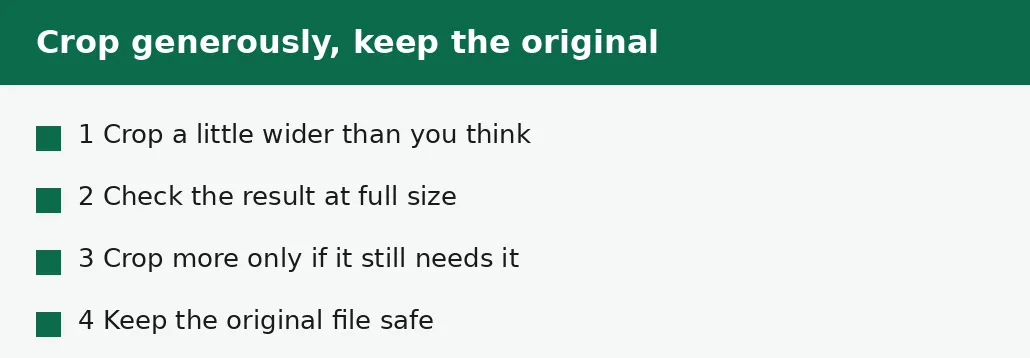
Cropping cuts away the edges of a picture you do not need, leaving only the part that matters. It is the fix for a photo with too much empty space, a profile picture that needs to be square, a form photo that must be a set size, or a composition where the subject sits too far from the centre. The rule is to crop from the original file, keep the crop generous — you can always crop more, but you cannot un-crop — and check the result at full size, because a tight crop that looks fine as a thumbnail can look cramped when it is shown large.
What cropping actually does
Cropping removes pixels from the edges of a picture. A photo 4000 pixels wide cropped to its middle 2000 pixels is a 2000-pixel photo of the middle half — the part you kept is unchanged, pixel for pixel, and the part you cut away is gone. That is the whole operation, and it is why cropping is safe: unlike resizing up or heavy compression, it does not invent or degrade anything. What remains is exactly as sharp as the original.
Cropping also shrinks the file, as a side effect: fewer pixels mean less data to store. A photo cropped to a quarter of its area is roughly a quarter of its file size, before any compression. But shrinking the file is not the reason to crop — if the file is too big, resizing or compressing is the better tool. Crop when the picture itself needs changing: the composition, the shape, or what is in the frame.
How to crop an image
Decide the shape first, then the area. The shape is usually decided for you: a profile picture wants a square, a banner wants a wide rectangle, a form photo wants whatever size the form states. The area is your choice — which part of the photo stays, and how much breathing room the subject gets.
Draw the crop box over the part you want to keep, and leave a little more room than you think you need. A crop that is too tight looks cramped when the picture is shown large, and a crop that is slightly generous can always be tightened later — from the original, or from the cropped copy, since cropping a crop loses nothing but pixels you have already decided to discard.
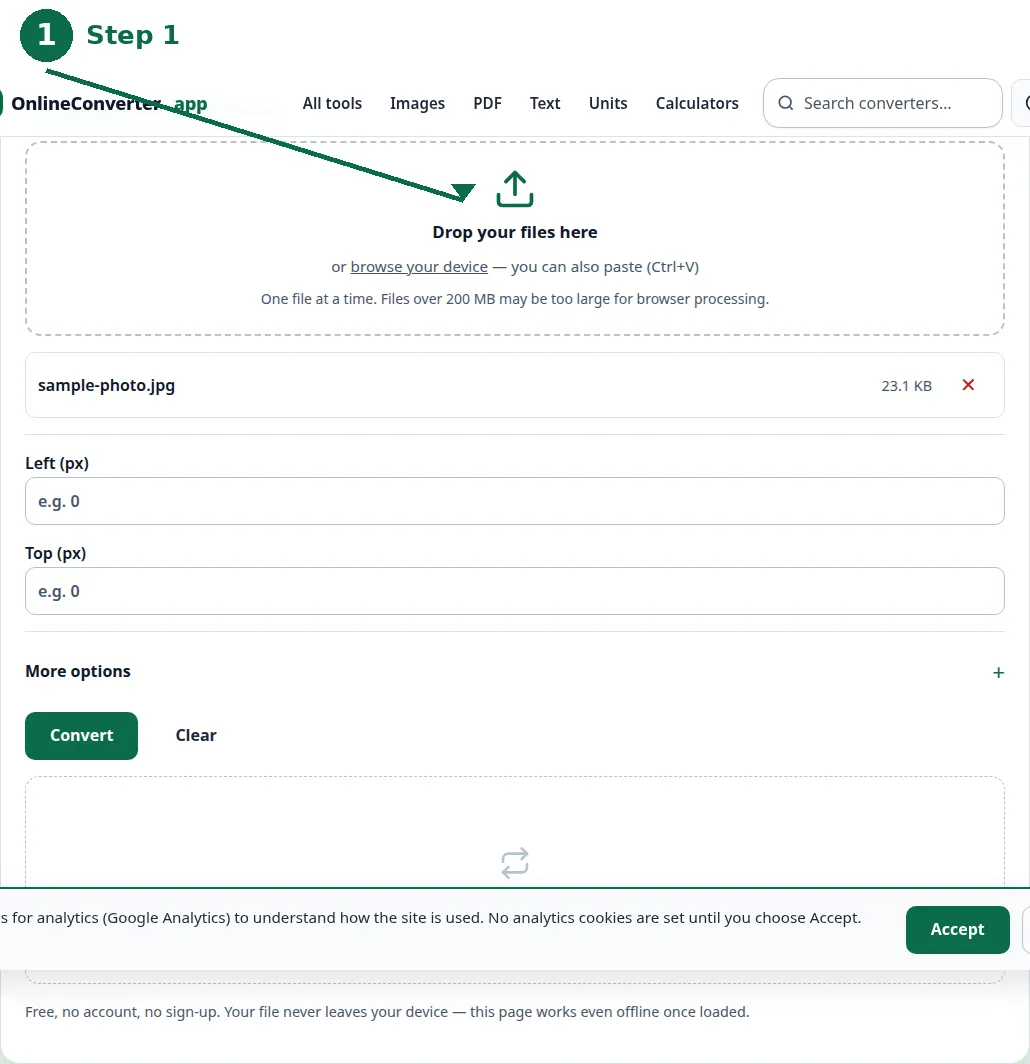
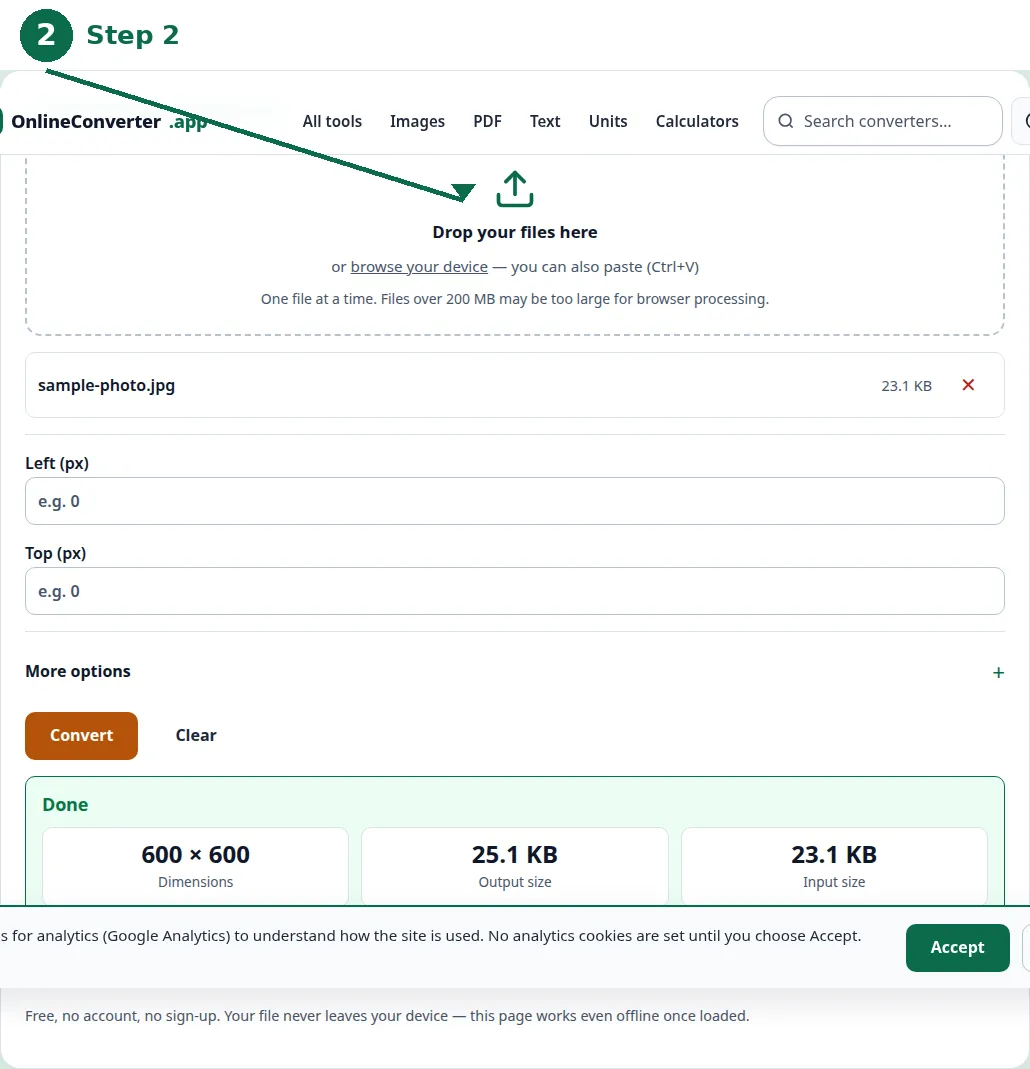
- Step 1 — Open the Crop Image tool and choose your photo.
- Step 2 — Choose the shape the picture needs: square for a profile, wide for a banner.
- Step 3 — Drag the crop box over the part to keep, leaving a little breathing room.
- Step 4 — Crop, download the result, and check it at full size before you use it.
Which shape for which use
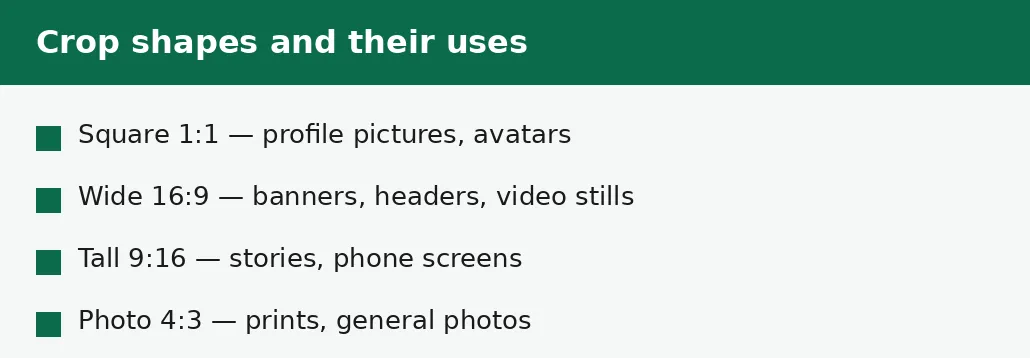
Square (1:1) is the shape of profile pictures and avatars: every platform crops profiles to a square or a circle, so a square crop puts you in control of what shows instead of letting the platform decide. Centre the face, leave room above the head and below the shoulders, and remember that a circle crop cuts the corners — keep anything important away from them.
Wide (16:9) is the shape of banners, headers and video stills: a wide crop suits landscapes, groups and scenes with something happening across the frame. Tall (9:16) is the shape of phone screens and stories. And 4:3 is the classic photo shape, close to what a printed photo looks like. The guide to resizing without losing quality covers what to do when the cropped picture also needs to be a particular size in pixels.
| Shape | Ratio | Used for | Watch out for |
|---|---|---|---|
| Square | 1:1 | Profile pictures, avatars | Circle crops cut the corners |
| Wide | 16:9 | Banners, headers, video stills | Faces near the edges get cut |
| Tall | 9:16 | Stories, phone screens | Very little fits side by side |
| Photo | 4:3 | Prints, general photos | Not square — check the platform |
| Free | Any | Removing clutter, fixing tilt | Keep the subject centred |
Composition: what to keep in the frame
The most useful rule is the simplest: put the subject off-centre, about a third of the way across the frame, with space in front of it — space in the direction a person is looking, or a vehicle is moving. A subject dead centre with equal space on both sides looks like a passport photo; the same subject a third across looks like a photograph.
Cut away distractions before you cut away space: a stray hand at the edge, a sign behind the subject, an empty stretch of sky that adds nothing. But keep the breathing room the subject needs — a head cropped at the forehead looks like a mistake, and a person with no space above their head looks squeezed. When in doubt, keep more rather than less: you can always crop again, and the generous version is the one you will be glad to have.
Cropping and file size
A crop to half the width and half the height leaves a quarter of the pixels, and the file shrinks to roughly a quarter of its size. That is a real saving, and it is why a cropped photo often needs no further compression to fit an upload limit. But do not crop to shrink a file: if the whole picture is wanted and only the size is the problem, the image compressor or the resize tool does the job without throwing away parts of the picture.
One caution: a small crop from a small photo can leave too few pixels. A 1000-pixel photo cropped to a 300-pixel square is a 300-pixel picture — fine for a profile thumbnail, too small for anything larger. If the cropped result will be shown large, start from the largest original you have, and check the result at the size it will be shown at, not as a thumbnail.
The mistakes that ruin a crop
The most common mistake is cropping from a resized copy instead of the original: each generation throws away pixels, and a crop from a small copy is a small picture. Always go back to the largest version you have.
The second mistake is cropping too tight on the first pass — cutting off the top of a head, or a hand at the edge of the frame — and then having no way back because the original was deleted. Keep the original, crop generously, and tighten only when you are sure. And the third mistake is forgetting the platform: a square crop for a platform that shows circles, or a wide crop for a square slot, means the platform crops your crop, and the result is rarely what you wanted.
Troubleshooting
Why does my cropped photo look blurry?
The crop left too few pixels for the size it is shown at. A 300-pixel crop shown at 1000 pixels must be enlarged, and enlarging softens everything. Crop again from the largest original you have, and keep the crop generous.
Why did the platform cut off part of my photo?
The platform crops uploads to its own shape — usually a square or circle for profiles. Crop to that shape yourself first, keeping anything important away from the corners, so the platform has nothing left to cut.
Why is my cropped file still too big?
Cropping removes pixels, but a big photo cropped a little is still a big photo. If the whole picture is wanted and only the size is the problem, resize or compress it instead of cropping further.
Common questions
Does cropping lose quality?
No — the part you keep is pixel-for-pixel identical to the original. Cropping only removes pixels; it never degrades the ones that remain.
Can I undo a crop?
Only by cropping again from the original file. That is why you keep it: a crop that went too far cannot be fixed from the cropped copy.
What shape should I crop a profile picture to?
Square (1:1). Every platform crops profiles to a square or a circle, so a square crop puts you in control. Keep faces centred and important details away from the corners.
Should I crop or resize first?
Crop first, then resize if the result still needs to be a particular size in pixels. Cropping decides what is in the picture; resizing decides how big it is.
Is my image uploaded anywhere when I crop it?
No. Cropping runs entirely in your browser. Nothing is sent to a server, there is no account, and closing the tab clears your file from memory.
Why is my cropped photo a smaller file?
Fewer pixels mean less data to store. A crop to half the width and half the height leaves about a quarter of the file size — a useful side effect, though not the reason to crop.
Summary
Crop from the original file, choose the shape the use demands — square for profiles, wide for banners — and keep the crop generous, with breathing room around the subject. Check the result at full size, keep the original so a crop that went too far can be redone, and resize or compress afterwards if the file still needs to be smaller.