ZIP vs 7Z: which archive format should you use?
Last updated: 9 November 2026.
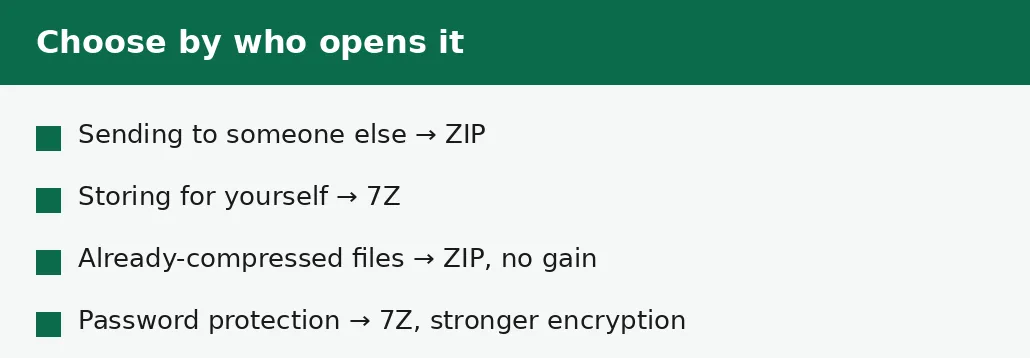
Use ZIP when the archive has to open anywhere — it is built into Windows and macOS, so the person receiving it needs no extra software. Use 7Z when the archive is for storage or for yourself, and size matters: 7Z typically squeezes text, documents and code 30 to 70 percent smaller than ZIP, because it uses a stronger compression method. The trade-off is compatibility: a 7Z file on a computer without the right software will not open, while a ZIP file opens on practically everything. Converting between the two is lossless — the files inside come out exactly as they went in.
What ZIP and 7Z actually are
An archive is a single file that holds many files inside it, squeezed smaller. ZIP is the oldest and most widespread archive format: it has been built into Windows since Windows XP and into macOS for just as long, so double-clicking a ZIP file opens it on practically any computer made in the last twenty years. Its compression is decent but not remarkable, and it stores each file separately, which limits how small it can go.
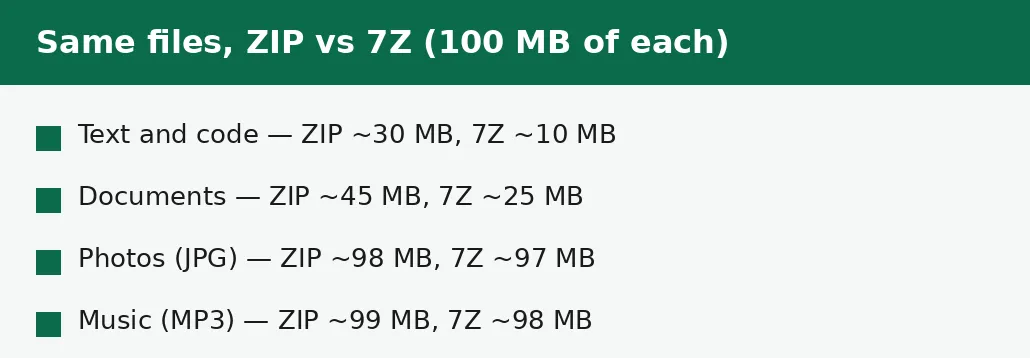
7Z is the format of the free 7-Zip program, and it compresses with a stronger method that looks across all the files in the archive at once. That shared view is why it wins so clearly on text, documents and code: repeated patterns across files are stored once instead of once per file. A folder of documents that ZIP squeezes to 45 MB often comes out around 25 MB as 7Z; a folder of code can halve again. The price is that 7Z is not built into any operating system — opening one needs 7-Zip, a converter, or an app that understands the format.
How to convert between ZIP and 7Z
Converting an archive does not change the files inside it — it only repacks them. The conversion unpacks the archive in memory and packs it again in the other format, so the documents, photos and folders come out byte-for-byte identical. What changes is the size of the wrapper and who can open it.
The direction follows the same rule as the choice itself: convert to 7Z when the archive is going into storage and size matters, convert to 7Z's rival when the archive is going to someone else and compatibility matters. Neither direction needs any software installed — the conversion runs in the browser.
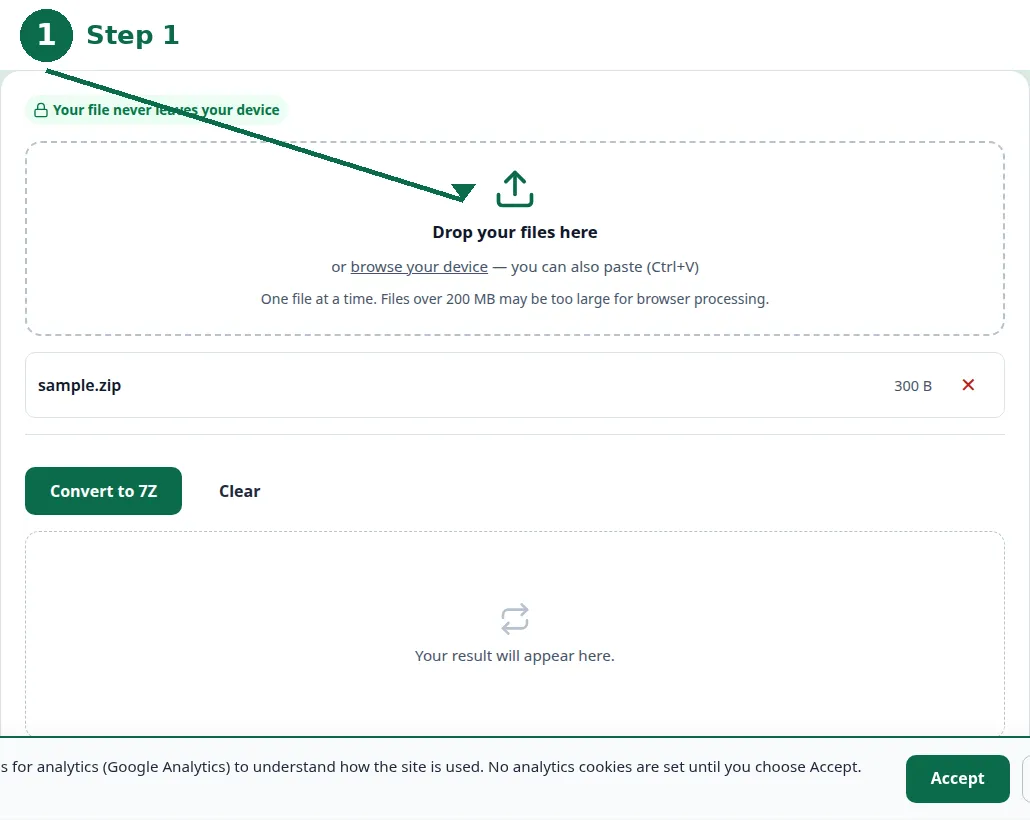
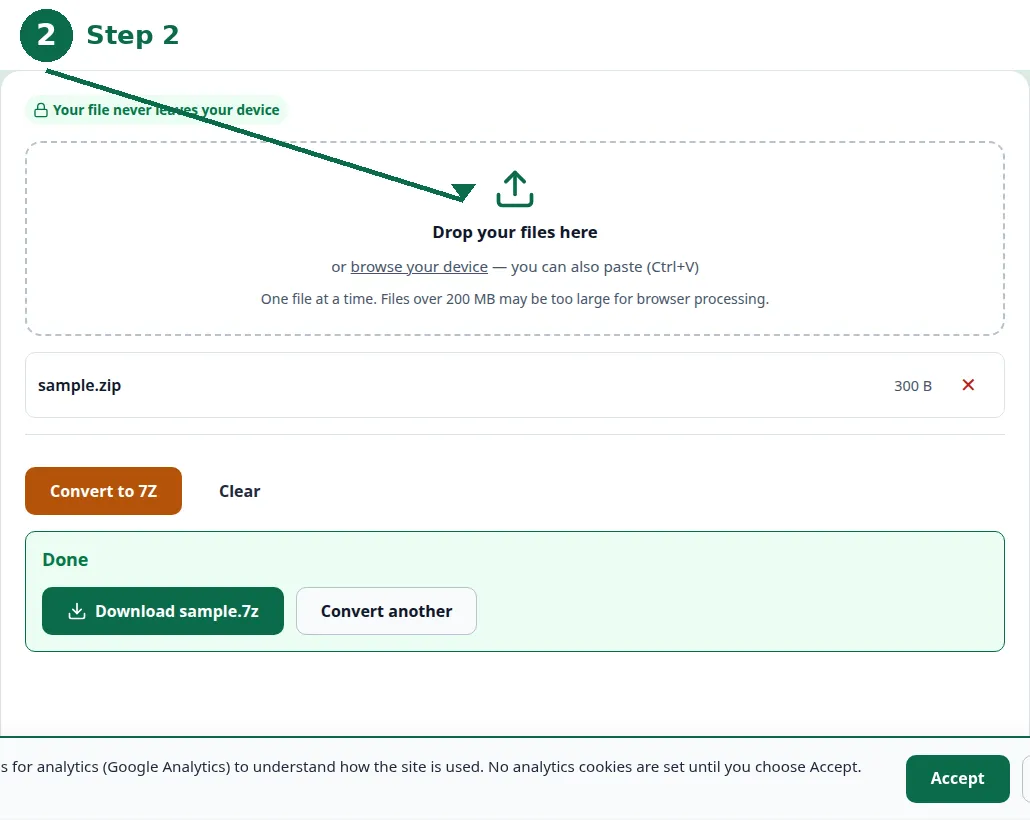
- Step 1 — Open the ZIP to 7Z tool and choose your ZIP file.
- Step 2 — Click Convert and wait for the archive to be repacked — a large archive takes a little longer.
- Step 3 — Download the 7Z file and check it opens before you delete the original.
- Step 4 — If the archive is for someone else, convert the other way instead: 7Z to ZIP opens everywhere.
How much smaller is 7Z, really?
It depends entirely on what is inside the archive. Text compresses well because it repeats itself: the same words, the same code patterns, the same formatting appear again and again, and a good compressor stores each repetition once. Documents, spreadsheets, code and plain text are where 7Z earns its reputation — savings of 30 to 70 percent over ZIP are ordinary there.
Photos, music and video barely compress at all, in either format, because they are already compressed: a JPG photo or an MP3 song has already had its redundancy squeezed out by its own format, so an archiver finds almost nothing left to save. A folder of photos that is 100 MB as loose files will be about 98 MB as ZIP and about 97 MB as 7Z — the archive is still worth making, because it keeps the files together in one download, but neither format will make it meaningfully smaller. The honest rule is that archives organise files; only some kinds of files also get smaller.
| ZIP | 7Z | |
|---|---|---|
| Opens with no software | Yes — built into Windows and macOS | No — needs 7-Zip or a converter |
| Compression (text/code) | Good | Better — typically 30-70% smaller |
| Compression (photos/music) | Almost none | Almost none |
| Password protection | Basic, weaker | Stronger encryption |
| Best for sending | Yes — universal | No — may not open |
| Best for storage | Fine | Yes — smallest files |
Which one for which job
Send ZIP. That is the short answer for anything leaving your computer: a homework folder to a teacher, a set of documents to a client, photos to family. The recipient can open it by double-clicking, on any system, with no instructions from you. A 7Z file sent to someone without the right software is a support call waiting to happen — they will tell you the file is broken, and it is not.
Store 7Z. For your own archives — old projects, backups, a folder you will not open for a year — the smaller size is pure win, and you control the software that opens it. A backup that is 30 percent smaller is a backup that fits on a smaller drive and uploads faster, every single time. And when the archive holds sensitive files, 7Z's stronger password protection is the better choice of the two.
Compatibility: where each format fails
ZIP's compatibility is its superpower and also its limit: because every system supports it, every system supports only its common features. Its older password protection is weak enough that it should not be trusted with anything sensitive, and its compression is good rather than great. If the archive must be both small and secure, ZIP is the wrong tool.
7Z's weakness is the mirror image: stronger in every technical respect, weaker in reach. Windows has no built-in 7Z support, macOS has none either, and most phones cannot open one without an extra app. That gap is closing slowly — more tools understand 7Z every year — but for now the rule stands: 7Z for yourself, ZIP for everyone else. If you receive a 7Z file and cannot open it, convert it to ZIP in the browser: the files inside come out exactly as they went in.
The mistakes that waste time
The most common mistake is archiving already-compressed files and expecting a big saving: a folder of JPGs and MP3s will come out almost the same size in either format, and no archive format can change that. Archive them to keep them together, not to make them smaller.
The second mistake is compressing an archive twice — putting a ZIP inside a 7Z, or a 7Z inside a ZIP — and expecting the second pass to help. The first pass already removed the redundancy; the second finds almost nothing left and only adds a layer that has to be unpacked. And the third mistake is sending a 7Z file to someone who cannot open it: if there is any doubt about the recipient's software, ZIP is the answer, even when 7Z would have been smaller.
Troubleshooting
Why won't my 7Z file open?
7Z is not built into Windows or macOS, so double-clicking it does nothing on most computers. Open it with 7-Zip, or convert it to ZIP in the browser — the files inside come out exactly as they went in.
Why is my ZIP barely smaller than the original files?
Photos, music and video are already compressed by their own formats, so an archiver finds almost nothing left to save. Archives still help by keeping many files in one download — but only text, documents and code get much smaller.
Why is my archive bigger than the files inside?
That happens with tiny files or already-compressed files: the archive's own bookkeeping outweighs the saving. It is normal for a handful of small JPGs. If the archive must be small, 7Z does slightly better; if it must open anywhere, ZIP is still the answer.
Common questions
Is 7Z better than ZIP?
7Z compresses text, documents and code much smaller — typically 30 to 70 percent smaller than ZIP. But ZIP opens everywhere with no extra software, while 7Z needs a tool. Better depends on whether size or compatibility matters more.
Can I convert 7Z to ZIP without losing files?
Yes. Converting repacks the archive — the files inside come out byte-for-byte identical. Only the wrapper and its size change.
Does ZIP work on Mac?
Yes. ZIP is built into macOS as well as Windows: double-clicking a ZIP file opens it, and macOS can create ZIP files from the right-click menu.
Is 7Z safe to use?
Yes. 7Z is an open format from the free 7-Zip program, used for decades. An archive itself is never dangerous — only the files inside it can be, so open archives from people you trust.
Is my archive uploaded anywhere when I convert it?
No. Conversion runs entirely in your browser. Nothing is sent to a server, there is no account, and closing the tab clears your file from memory.
Which format should I use for a backup?
7Z, for your own backups: it is smaller, and its password protection is stronger. Use ZIP for anything you send to someone else.
Summary
ZIP opens everywhere and is the right format for anything you send to someone else. 7Z is typically 30 to 70 percent smaller for documents, text and code, and is the right format for your own storage and backups. Converting between them is lossless — the files inside come out exactly as they went in.