How to rotate an image and save it the right way up
Last updated: 9 November 2026.

A photo that opens sideways needs rotating in the file itself, not just in the viewer: rotating in a gallery app often changes only how you see it, and the file still opens sideways for everyone else. The fix is to rotate the image and save the rotated version — a new file that opens the right way up on any device, in any app, for any recipient. Rotation by 90, 180 or 270 degrees is lossless for JPG and PNG: the pixels are rearranged, not re-compressed, so the picture loses no quality.
Why photos come out sideways
A phone knows which way up it was held when it took a photo, and it writes that information into the photo file as an orientation note. Most apps read the note and show the photo the right way up — but some do not, and some strip the note away when the photo is sent, uploaded or copied. The result is a photo that is fine on your phone and sideways everywhere else: in an email, on a form, on a website, on a colleague's computer.
The photo's pixels were never wrong — the file simply carries its orientation as a note rather than in the pixels themselves. Rotating the file rewrites the pixels so the picture is the right way up with no note needed: the image data itself is turned, and any app that opens it sees a normal, upright photo.
How to rotate an image and save it
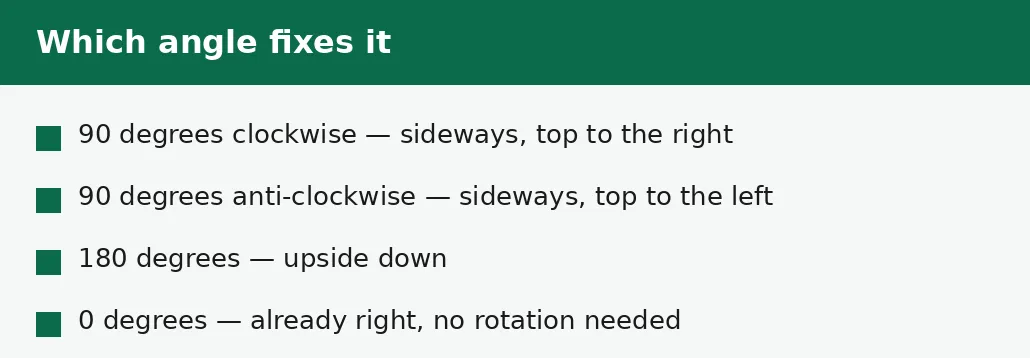
Work out which way the photo needs turning before you start: if the top of the photo points right, it needs 90 degrees anti-clockwise; if the top points left, 90 degrees clockwise; if it is upside down, 180 degrees. Guessing wastes a round trip, and rotating the wrong way twice is slower than thinking once.
Rotate from the original file, and save the result as a new file so the original is still there if the angle was wrong. Then open the rotated file — not in the same viewer that showed the original correctly, but in a plain viewer or a browser — and confirm it is upright before you send it.
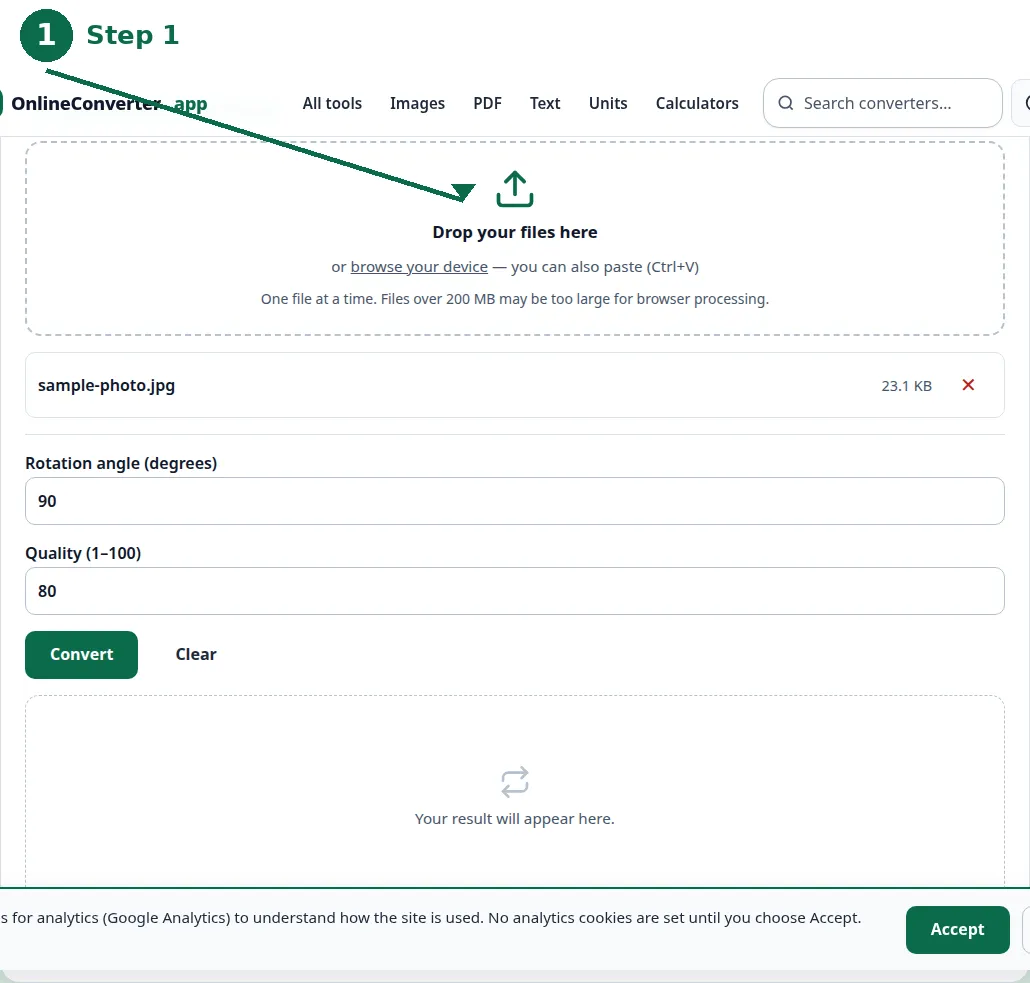
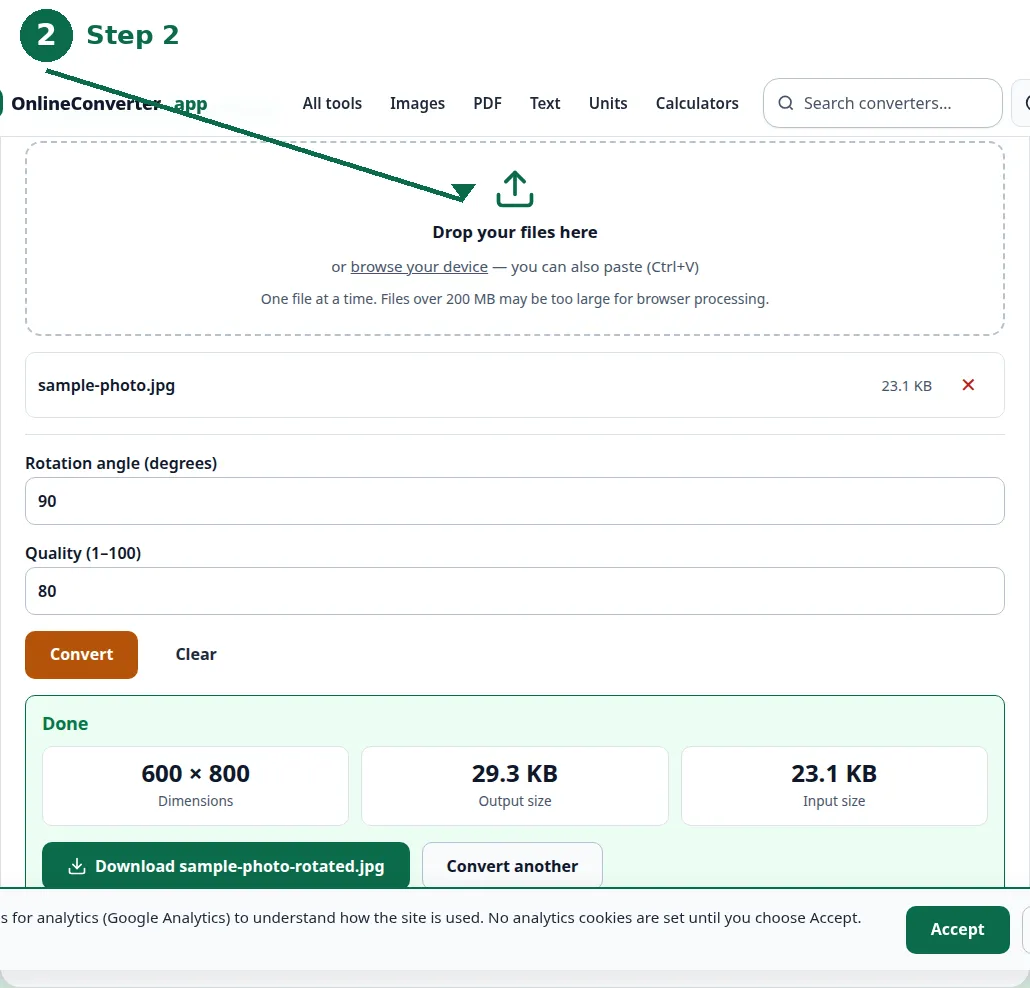
- Step 1 — Open the Rotate Image tool and choose your photo.
- Step 2 — Pick the angle: 90 degrees clockwise, anti-clockwise, or 180 for upside down.
- Step 3 — Click Convert and download the rotated image.
- Step 4 — Open the downloaded file and check it is the right way up before you send it.
Which way to turn it
Hold the photo up and look at where the top points. If the top of the scene points to the right — the photo looks like it is lying on its right side — turn it 90 degrees anti-clockwise. If the top points to the left, turn it 90 degrees clockwise. If the photo is upside down, 180 degrees either way gives the same result.
If you are unsure, rotate 90 degrees clockwise first and look: if the photo is now upright, you are done; if it is now upside down, it needed the other direction, and one more 180-degree turn from there fixes it. Two turns are never a problem — rotation by right angles loses no quality — but thinking first saves the round trip.
| Photo looks | Top points | Rotate |
|---|---|---|
| Lying on its right side | Right | 90 degrees anti-clockwise |
| Lying on its left side | Left | 90 degrees clockwise |
| Upside down | Down | 180 degrees either way |
| Right way up | Up | No rotation needed |
| Mirrored (text backwards) | Up | Flip, not rotate — see below |
Phone photos: the usual case
Most sideways photos come from phones, and most of them are sideways only in some apps. A photo taken with the phone held sideways is stored with an orientation note, and apps that read the note show it correctly while apps that ignore it show it sideways. That is why the same photo can look right in your gallery and wrong in an email — the photo is fine, the reader is not.
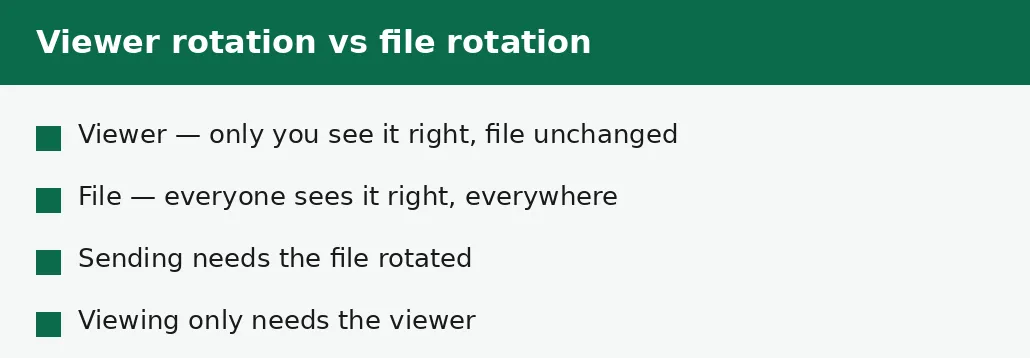
Rotating the file fixes it for every reader at once, which is why it is the right fix for a photo that will be sent, uploaded to a form, or used on a website. A viewer rotation fixes it only for you, on that device, in that app — and the moment the photo leaves the app, the problem returns. If a photo must travel, rotate the file.
Quality: does rotating lose anything?
Rotating by 90, 180 or 270 degrees is lossless for JPG and PNG: the pixels are rearranged into their new positions, not re-compressed, so the picture is exactly as sharp as the original. You can rotate a photo several times while you work out the right angle and lose nothing.
Rotation by any other angle — 45 degrees, 10 degrees, a small tilt correction — is a different job, and it does cost quality: the picture must be re-drawn onto a new grid of pixels, the corners must be filled or cropped, and the result is re-compressed. If a photo is only slightly tilted, that is the price of straightening it; if it is sideways by a right angle, the free fix is the right one.
The mistakes that leave a photo sideways
The most common mistake is rotating in the viewer and thinking the file is fixed: the photo looks right on your screen, you send it, and the recipient sees it sideways. Always rotate the file and check the downloaded result.
The second mistake is rotating the wrong way and sending it without checking — a photo rotated 90 degrees the wrong way is still sideways, just on the other side. Open the result before you send it. And the third mistake is confusing rotation with flipping: a photo where the text reads backwards is mirrored, not rotated, and no amount of turning will fix it — that needs a flip, which is a different tool.
Troubleshooting
Why is my photo sideways only in some apps?
Your phone stores the orientation as a note in the file, and some apps ignore that note. Rotate the file itself and the photo is upright in every app, because the pixels are turned, not just the note.
Why did rotating make my photo upside down?
It was turned the wrong way. A photo lying on its right side needs 90 degrees anti-clockwise; clockwise puts it upside down. Rotate the result another 180 degrees, or start again from the original.
Why is the text in my photo backwards?
The photo is mirrored, not rotated — usually a front-camera selfie. Rotation cannot fix a mirror image; the photo needs flipping, which is a different operation from rotating.
Common questions
Does rotating an image lose quality?
No — rotating by 90, 180 or 270 degrees only rearranges the pixels, so the picture is exactly as sharp as the original. Rotating by any other angle does cost quality, because the picture must be re-drawn.
Why does my photo look right on my phone but sideways on my computer?
Your phone reads the orientation note stored in the file; the computer's viewer does not. Rotating the file rewrites the pixels, so every viewer shows it the right way up.
Should I rotate or flip a photo?
Rotate when the photo is sideways or upside down. Flip when it is mirrored — for example, when text in the photo reads backwards. They are different operations.
Can I rotate a photo on my phone without an app?
Yes — open the Rotate Image tool in the phone's browser, choose the photo, pick the angle, and download the rotated file. Nothing is installed, and the file is processed on the phone itself.
Is my image uploaded anywhere when I rotate it?
No. Rotation runs entirely in your browser. Nothing is sent to a server, there is no account, and closing the tab clears your file from memory.
What if I rotate the wrong way?
Rotate again from the original file — rotation by right angles loses no quality, so a wrong turn costs nothing but a minute. Keep the original until the rotated version is checked.
Summary
A sideways photo needs rotating in the file itself, not just in the viewer — otherwise it still opens sideways for everyone else. Pick the angle by looking at where the top of the scene points, rotate from the original, and check the downloaded file before you send it. Rotation by right angles is lossless, so a wrong turn costs nothing.