How to make an audio file smaller
Last updated: 9 November 2026.
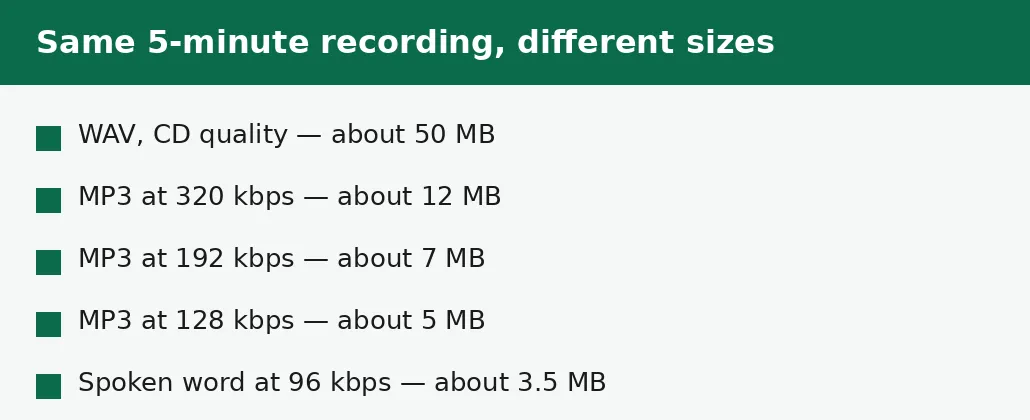
The fastest way to make an audio file smaller is to convert it to a compressed format at a sensible bitrate: a 5-minute WAV recording of about 50 MB becomes about 5 MB as a 128 kbps MP3, and about 7 MB at 192 kbps. If the file is already an MP3, lowering its bitrate shrinks it further — but every re-save throws away a little more detail, so always work from the best version you have. Trimming unwanted silence or sections off the ends is the only method that shrinks a file without touching its quality at all.
Why audio files are big in the first place
An uncompressed recording is big because it stores everything: a CD-quality WAV records sound 44,100 times a second, at 16 bits per sample, in stereo, which works out at about 10 MB for every minute. A 30-minute interview recorded that way is about 300 MB — far too big to email, slow to upload, and a real chunk of a phone's storage.
Compressed formats store the same sound far more efficiently by discarding detail the ear is unlikely to notice. That is why the same 30 minutes is about 30 MB as a 128 kbps MP3 and about 43 MB at 192 kbps. The file is not smaller because anything was cut out of the recording — the length is the same — but because each second of sound is stored in fewer bits. The whole job of shrinking an audio file is choosing how few bits per second you can accept.
How to make an audio file smaller
Start from the best version of the file you have — the original WAV, or the highest-bitrate MP3 — and pick the method that fits the file. A WAV wants converting to MP3; an MP3 that is still too big wants a lower bitrate; a recording with long silences or unwanted sections at the start and end wants trimming before anything else. Do the conversion once, from the original, and check the result before you delete anything.
The compressor takes the file and a target bitrate and returns the smaller file. You do not need to know anything about audio to use it: the bitrate is the only setting that matters, and the table below tells you which one to pick for music and for spoken word.
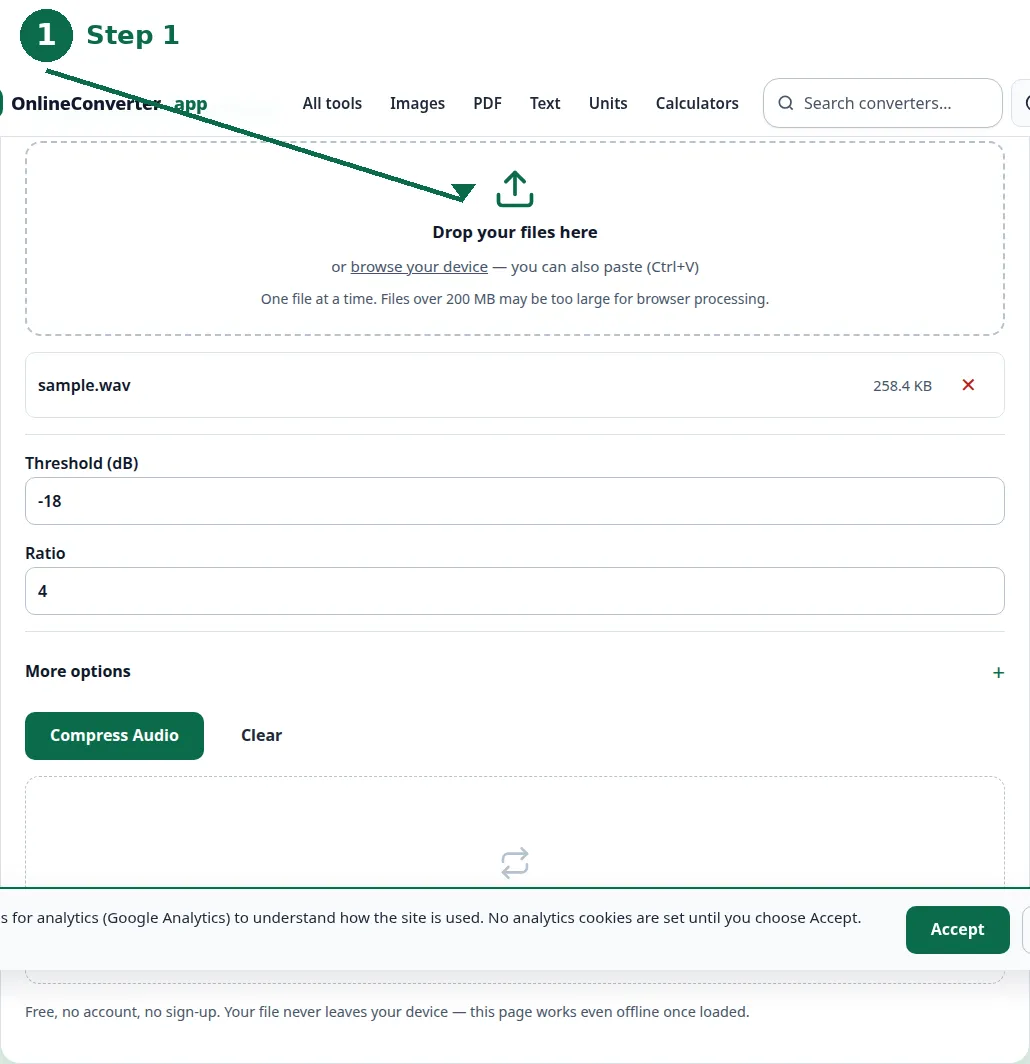
- Step 1 — Open the Audio Compressor tool and choose your audio file.
- Step 2 — Pick a bitrate: 192 kbps for music, 128 kbps for a smaller file, 96 kbps for spoken word.
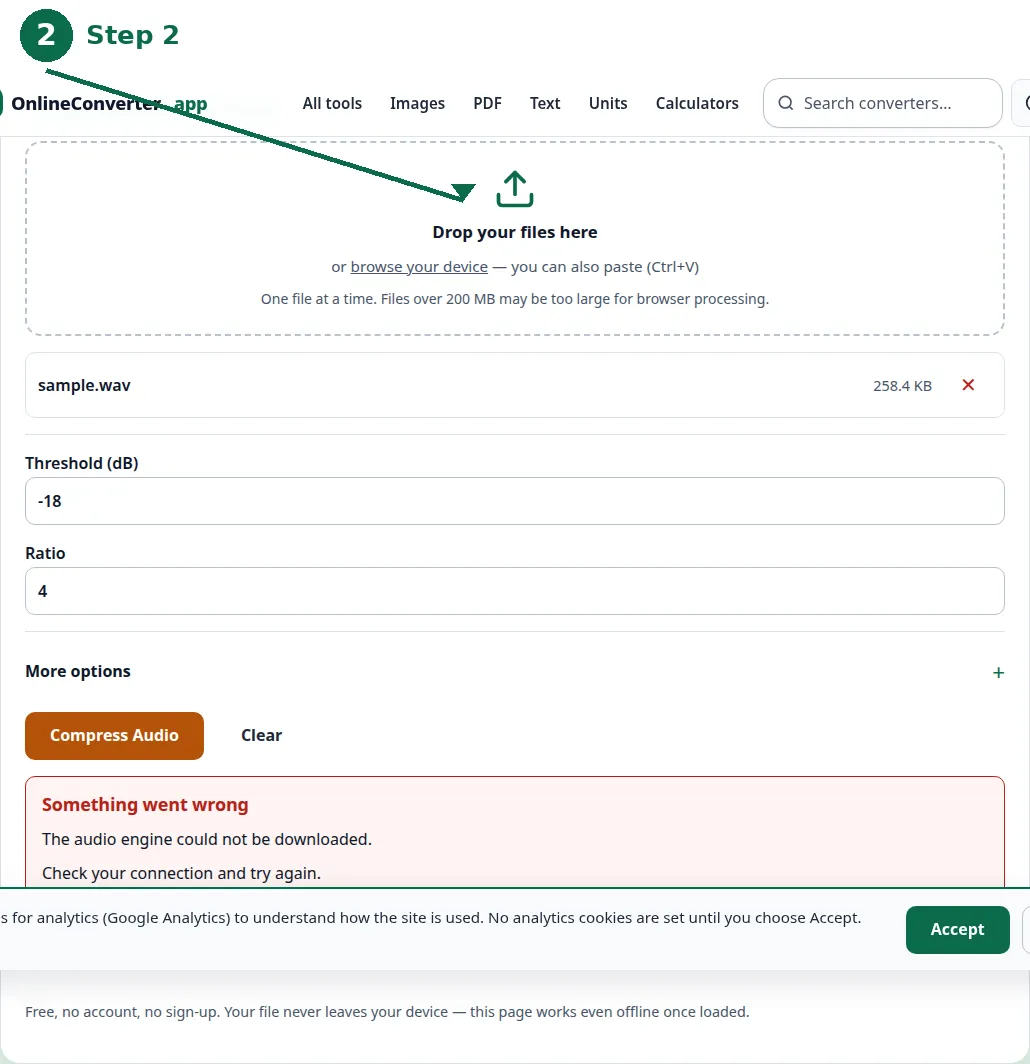
- Step 3 — Click Convert and download the smaller file.
- Step 4 — Listen to the result from start to finish before you delete the original — quiet passages are where a low bitrate shows first.
How small can it go? The sizes by setting
The bitrate is the size, almost exactly: a minute of audio at 128 kbps is about 1 MB, at 192 kbps about 1.4 MB, and at 320 kbps about 2.4 MB. Multiply by the length and you know the result before you convert — a 10-minute song at 192 kbps will be about 14 MB, and a 60-minute podcast at 96 kbps will be about 43 MB. There are no surprises in audio compression: the bitrate and the length decide the size, and nothing else does.
That predictability is useful when the destination has a limit. An email attachment cap of 25 MB takes about 25 minutes of 128 kbps audio, or about 17 minutes at 192 kbps. A messaging app that caps files at 16 MB takes about 16 minutes at 128 kbps. If the recording is longer than the limit allows, the honest options are a lower bitrate, splitting the recording into parts, or trimming — not hoping the file will somehow come out smaller than the maths says.
| Format / setting | Size per minute | 5 minutes | 30 minutes |
|---|---|---|---|
| WAV, CD quality | About 10 MB | About 50 MB | About 300 MB |
| MP3, 320 kbps | About 2.4 MB | About 12 MB | About 72 MB |
| MP3, 192 kbps | About 1.4 MB | About 7 MB | About 43 MB |
| MP3, 128 kbps | About 1 MB | About 5 MB | About 29 MB |
| MP3, 96 kbps (speech) | About 0.7 MB | About 3.5 MB | About 22 MB |
Which method for which file
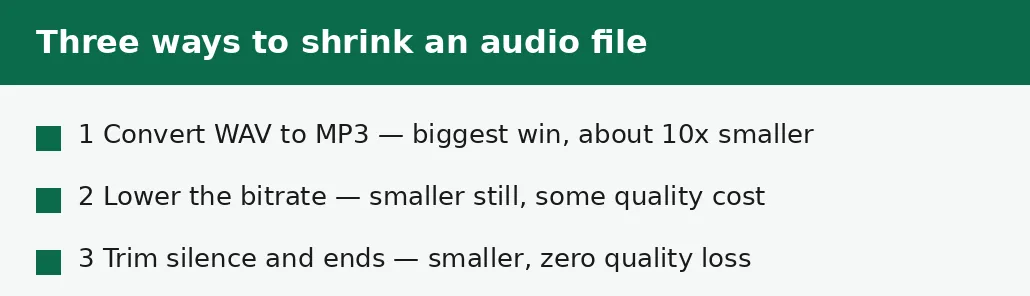
Convert the format when the file is a WAV, FLAC or other full-quality format: that single step is the biggest win available, roughly ten times smaller, and at 192 kbps the quality loss is small. This is the right method for recordings, voice memos saved as WAV, and anything exported from an audio editor in full quality.
Lower the bitrate when the file is already an MP3 but still too big: a 320 kbps MP3 re-saved at 128 kbps loses about half its size. The cost is real — the second compression throws away detail from an already-reduced file — so do it once, from the highest-bitrate copy you have, and never re-compress the result again. And trim when the file has dead air: ten seconds of silence at the start, a long pause in the middle, a trailing section that nobody needs. Trimming is the only method with zero quality cost, because it removes time rather than detail.
Quality: where a low bitrate shows
A low bitrate shows first in quiet passages and in high frequencies: cymbals turn thin and splashy, applause turns to a wash, a voice in a quiet room gains a faint underwater quality. It shows least in loud, simple material — a single voice, a solo instrument — which is why spoken word survives on 96 kbps while a full band wants 192 kbps.
The practical rule is to pick the bitrate by ear, once, and then stop fiddling: convert a short sample at 128 kbps and at 192 kbps, listen to both on the headphones or speakers the audience will actually use, and keep the lower one only if you genuinely cannot hear the difference. If you can hear it, the extra megabytes are worth it — storage is cheap, and a recording that sounds bad cannot be fixed by converting it back up.
The mistakes that shrink the sound, not the file
The most common mistake is re-compressing an already-compressed file several times: a 320 kbps MP3 to 192, then to 128, then to 96, each step throwing away more detail from an already-reduced file. The result is smaller, but it sounds worse than a single conversion from the original to 96 would have. Always go back to the best version you have.
The second mistake is converting up to make a file bigger: turning a 128 kbps MP3 into a WAV, or into a 320 kbps MP3, makes a bigger file with exactly the same sound. The detail was discarded when the MP3 was made, and no conversion can put it back. And the third mistake is deleting the original before listening to the result — keep the original until you have heard the compressed file all the way through, because a bad conversion can only be redone from the source.
Troubleshooting
Why is my file still too big after compressing?
The bitrate and the length decide the size — a 60-minute recording at 192 kbps is about 86 MB, whatever you do. Drop to 128 kbps, split the recording into parts, or trim unwanted sections: those are the only levers that exist.
Why does my compressed file sound worse?
A low bitrate throws away audible detail, and re-compressing an already-compressed file throws away more. Convert once, from the best version you have, at 192 kbps for music — and listen to the result before deleting the original.
Why did converting to MP3 barely shrink my file?
It was probably already an MP3, or already compressed. Converting MP3 to MP3 at a similar bitrate changes almost nothing. Check the original format first — the big win comes from converting a WAV or FLAC, not from re-saving an MP3.
Common questions
What is the smallest size I can get without losing quality?
Trimming is the only method with zero quality loss. Converting WAV to MP3 at 192 kbps loses very little that most listeners can hear; below 128 kbps the loss becomes audible for music.
What bitrate should I use for a podcast or voice recording?
96 to 128 kbps is usually plenty for spoken word, because voices are simpler than music. A 60-minute podcast at 96 kbps is about 43 MB.
Can I make an MP3 smaller without losing quality?
Not really — making an MP3 smaller means lowering its bitrate, which throws away more detail. The only lossless shrink is trimming unwanted sections off the recording.
Why is my WAV file so big?
WAV stores every sample of the original sound with nothing removed — about 10 MB per minute at CD quality. Convert it to MP3 at 192 kbps and it becomes about 1.4 MB per minute.
Is my audio uploaded anywhere when I compress it?
No. Compression runs entirely in your browser. Nothing is sent to a server, there is no account, and closing the tab clears your file from memory.
Should I keep the original after compressing?
Yes, until you have listened to the compressed file all the way through. A bad conversion can only be redone from the original — the compressed copy cannot be improved afterwards.
Summary
Convert a WAV to MP3 for the biggest win — about ten times smaller — at 192 kbps for music or 128 kbps for a smaller file. Lower an MP3's bitrate only once, from the best copy you have, and trim silence and unwanted sections for a shrink with zero quality loss. Keep the original until you have heard the result.