JPG to PNG: when to convert, and how
Last updated: 9 November 2026.
Converting a JPG to a PNG is free and takes seconds — but it is only the right move some of the time. PNG stores every pixel exactly, so converting stops further quality loss, and it supports transparency, which JPG never does. What it cannot do is put back detail the JPG already lost when it was saved. If you need a lossless file for editing, a logo, or a screenshot with crisp edges, convert. If you are sending a photograph and want the smallest file, keep the JPG.
What actually changes when you convert
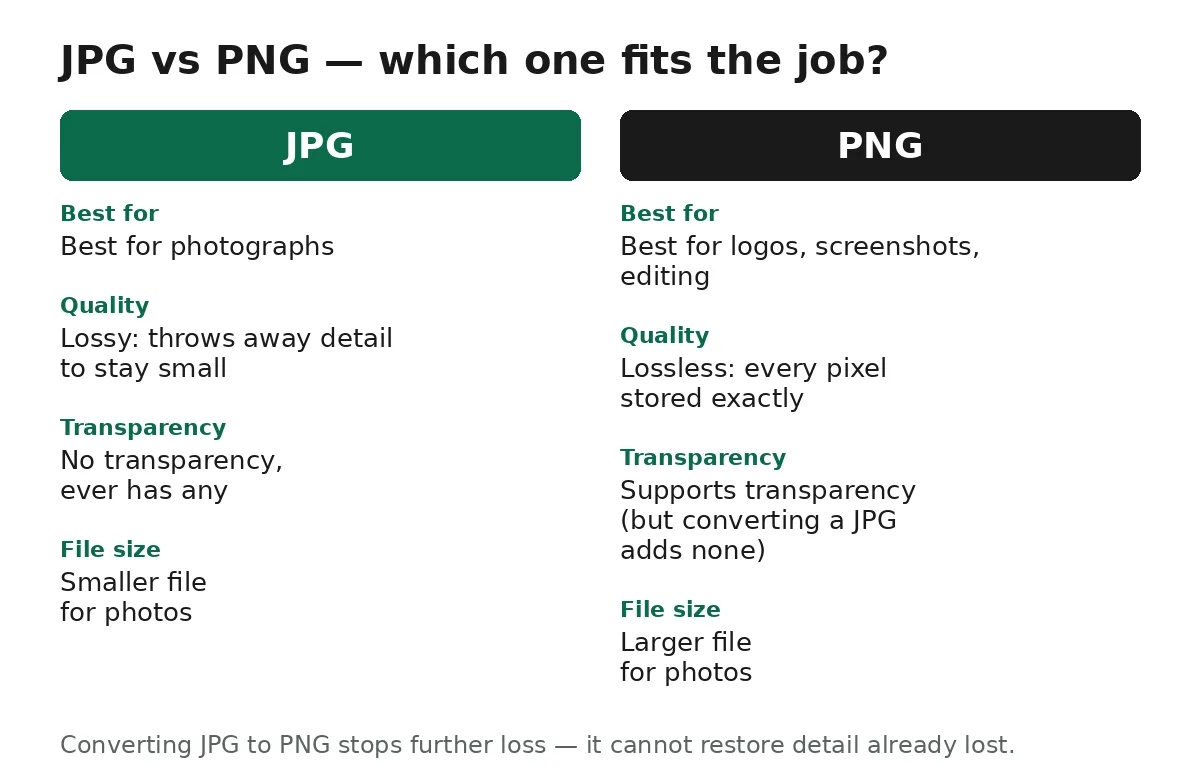
JPG and PNG solve opposite problems. JPG is a lossy format: when a photo is saved as a JPG, detail the eye barely notices is thrown away to keep the file small. That is why a photograph that is several megabytes as a PNG can be a few hundred kilobytes as a JPG. PNG is a lossless format: it stores every pixel exactly, so opening and re-saving a PNG never degrades it, but a photograph saved as PNG is almost always much larger than the same photo as a JPG.
Converting a JPG into a PNG does not reverse the lossy step. The detail the JPG discarded when it was first saved is gone for good, and the PNG simply preserves the picture exactly as it is now, compression artefacts included. What the conversion does buy you is a file that will not lose any more quality: you can open it, edit it and save it again without adding another round of lossy compression. That is the whole point of the format for editing work.
The second difference is transparency. PNG supports it; JPG never does. A JPG has no transparency information at all, so converting one to PNG does not create transparent areas — the PNG simply has the same solid background as before, stored in a format that could hold transparency if the picture had any. If you need a transparent background, you have to start from a picture that already has one, usually a PNG.
When PNG is the right choice
Convert to PNG when any of these is true. First, when a website, editor or app asks for a PNG: some upload forms, design tools and document systems only accept PNG, and converting is the only way through. Second, when you are about to edit a photo further — crop it, add text, adjust colours — and want no more quality loss from here on. A JPG re-saved after every edit gets a little worse each time; a PNG does not.
Third, for graphics rather than photographs: logos, icons, diagrams and screenshots. These have flat colours and sharp edges, and JPG's lossy compression smudges exactly those edges, leaving visible artefacts around text and lines. PNG keeps them crisp, and because graphics compress well losslessly, the file stays small. Fourth, for screenshots you plan to keep: text in a screenshot stays readable in PNG, while a JPG of the same screen often blurs the letters.
Fifth, when you need the exact pixels preserved for records — a scan of a document, a chart, a receipt. PNG stores every pixel exactly, so what you archive is what you scanned, with nothing silently discarded.
When to keep the JPG
Keep the JPG when the file is a photograph and size matters. A photograph saved as PNG is usually several times larger than the same photo as JPG, because lossless storage cannot squeeze photo detail as tightly. For a photo going to a website, an email or a chat message, that extra size buys nothing visible: the picture looks the same, uploads slower and uses more data.
The same applies to storage. If you are archiving hundreds of photos from a phone or camera, keeping them as JPG saves real disk space, and converting them all to PNG would multiply the archive for no visible gain. Convert only the ones you are about to edit, and keep the originals as they are.
There is also a case for a third format. If the goal is simply a smaller photo for a website, a blog or an online shop, WebP is usually the better upgrade: it keeps the photographic look of a JPG while usually producing a smaller file at similar quality, which is why so many sites now prefer it, and it handles transparency too. WebP is supported by all current browsers, though very old software may not open it. And if the file is already too large for an upload form, the answer is not a format change at all — it is the image compressor, which shrinks the file while keeping its format.
How to convert a JPG to PNG
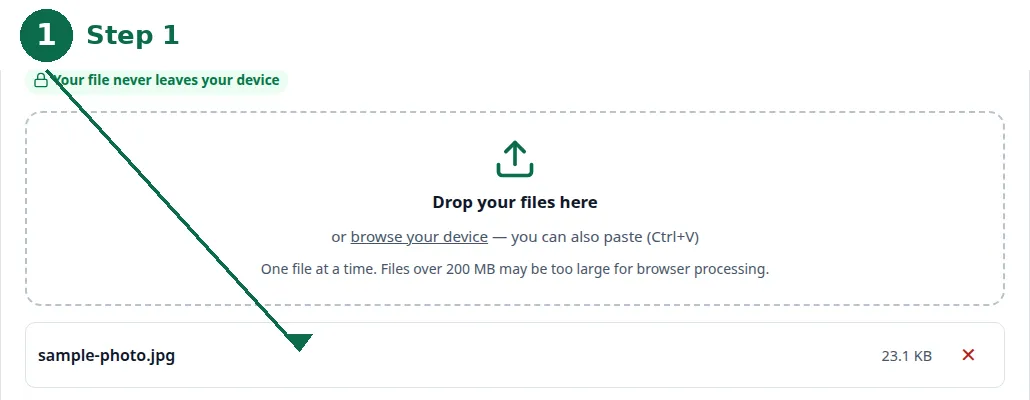
- Step 1 — Open the JPG to PNG converter and choose your JPG file.
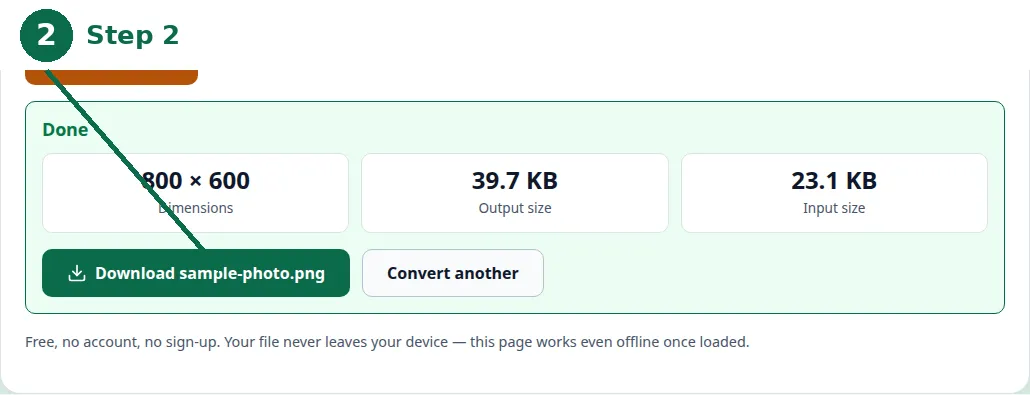
- Step 2 — Click Convert and download the PNG. The conversion runs entirely in your browser.
- Step 3 — If the PNG comes out larger than you expected, that is normal for a photograph. If the size is a problem, shrink the file with the image compressor instead.
| Format | Quality | Transparency | File size for a photo |
|---|---|---|---|
| JPG | Lossy — detail is thrown away to stay small | Never | Smallest of the three for a photograph |
| PNG | Lossless — every pixel stored exactly | Yes, if the picture has it | Usually several times larger than the JPG |
| WebP | Similar quality to JPG at a smaller size | Yes | Usually smaller than the JPG at similar quality |
The fastest way needs no software at all. Use the free JPG to PNG converter on this site: choose your JPG file, click Convert, and download the PNG. The conversion runs entirely in your browser — your file never leaves your device, there is no upload, no account and no sign-up. One file converts at a time: convert a file, download the result, then clear the tool and convert the next one.
Your computer can also do it without any website. On Windows, open the JPG in Paint, choose File, then Save as, and pick PNG. On a Mac, open the image in Preview, choose File, then Export, and pick PNG as the format. On a phone there is no simple built-in format switch for photos, so open the converter in Safari or Chrome, upload the photo from your gallery and save the PNG. All three routes give the same result, because the conversion itself is the same operation everywhere.
If the PNG comes out larger than you expected, that is normal: a PNG of a photograph is almost always larger than the JPG it came from. There is no setting that avoids it — lossless storage of photo detail simply takes more space. If the size is a problem, the file probably should have stayed a JPG, or gone to WebP instead.
How big is the PNG, really? A worked example
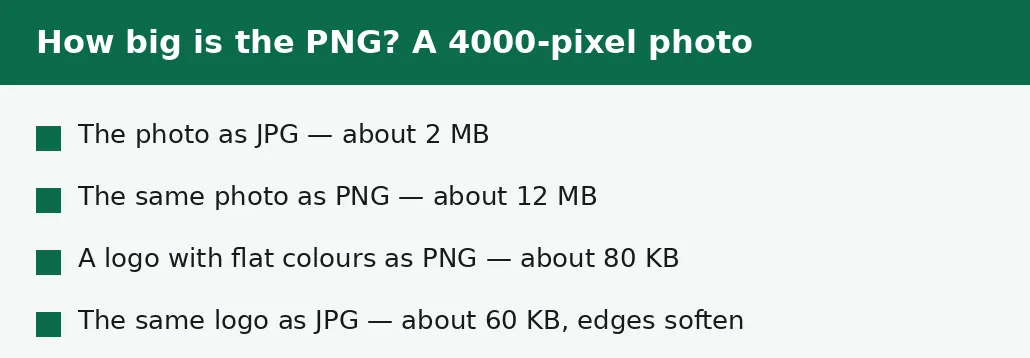
Take a photograph 4000 pixels wide, saved as a JPG at good quality: about 2 MB. Convert it to PNG and the same picture is about 12 MB — six times bigger — because PNG stores every pixel exactly, while the JPG threw away the detail your eye would not miss. Nothing about the picture changed: the same pixels, the same colours, the same sharpness. Only the storage did, and the PNG pays for exactness with size. That is why converting a photo to PNG to make it smaller is backwards: the PNG is the bigger file, every time.
A logo behaves the opposite way. A simple logo with flat colours and sharp edges might be 80 KB as a PNG — small, because flat areas compress well even losslessly — and about 60 KB as a JPG, with its edges slightly softened by the JPG compression. Here the PNG is the right format, not because it is smaller but because it is exact: the logo's edges stay crisp, and the file is small either way. The worked example is the rule in miniature: for photographs, JPG is small and PNG is huge; for flat graphics, PNG is small and exact, and JPG's saving is not worth the softening.
Troubleshooting
Why is the PNG larger than my JPG?
PNG stores every pixel exactly, while JPG throws detail away to save space. A photograph saved as PNG is almost always larger than the same photo as JPG — there is no setting that avoids it. If the size is a problem, the file probably should have stayed a JPG, or gone to WebP instead.
Why didn't converting improve the quality?
PNG is lossless, so the conversion stops further quality loss, but detail the JPG already lost when it was saved cannot come back. The picture will look exactly as it did as a JPG — no better, no worse.
Common questions
Will converting JPG to PNG improve the quality?
No. PNG is lossless, so the conversion stops further quality loss, but detail the JPG already lost when it was saved cannot come back. The picture will look exactly as it did as a JPG — no better, no worse.
Does JPG to PNG keep transparency?
JPG has no transparency to keep, so the PNG simply has no transparent areas. If you need transparency, start from a PNG that already has it. Converting the other way — PNG to JPG — flattens transparent areas onto white, because JPG has nowhere to store transparency.
Why is the PNG larger than my JPG?
PNG stores every pixel exactly, while JPG throws detail away to save space. A photograph saved as PNG is almost always larger than the same photo as JPG. For graphics and screenshots the difference is small; for photographs it is large.
Do I have to upload my image?
No. The conversion on this site runs entirely in your browser — your file never leaves your device, and there is no account or sign-up. The same is true of Paint and Preview on your own computer.
Can I convert several files at once?
No — one file at a time on this site. Convert a file, download the result, then clear the tool and convert the next one. If you have a whole folder to convert, that is a batch job for desktop software, not a single web page.
Is there a file size limit?
There is no fixed limit, but the work happens on your device, so a very large file can be slow or run out of memory on a modest phone or computer. For most photos and graphics you will not notice a limit.
Summary
Convert a JPG to PNG when you need a lossless file for editing, a logo, or a screenshot with crisp edges — and remember the conversion stops further loss without restoring what the JPG already discarded. Keep the JPG for photographs where size matters, and reach for WebP when a smaller web photo is the goal. The conversion itself takes seconds, in your browser, with nothing uploaded.