How to make a QR code for a link, Wi-Fi or contact
Last updated: 9 November 2026.
A QR code is a web address, a password or a piece of contact information drawn as a square of black and white blocks that any phone camera can read. To make one, type the link or text into a QR generator, download the code as an image, and test it with a phone camera before you print it — a code that does not scan is worse than no code at all. The most common uses are a link to a website, a Wi-Fi password guests can join without typing, and a contact card someone can save with one tap.
What a QR code actually is
A QR code is a two-dimensional barcode: a square of black and white blocks that stores text, and a phone camera that knows how to read it. The blocks hold the text in a pattern with built-in error correction, which means a code with a scratch, a smudge or a logo in the middle can often still be read — up to about 30 percent of the code can be damaged and the phone will still work out what it says.
The code itself stores nothing except the text you typed: a web address, a Wi-Fi password, a name and number. There is no account, no tracking and no expiry in the code itself — a QR code printed ten years ago still works, as long as the thing it points to still exists. A code pointing at a deleted page opens a dead page, which is the only way a QR code truly expires.
How to make a QR code
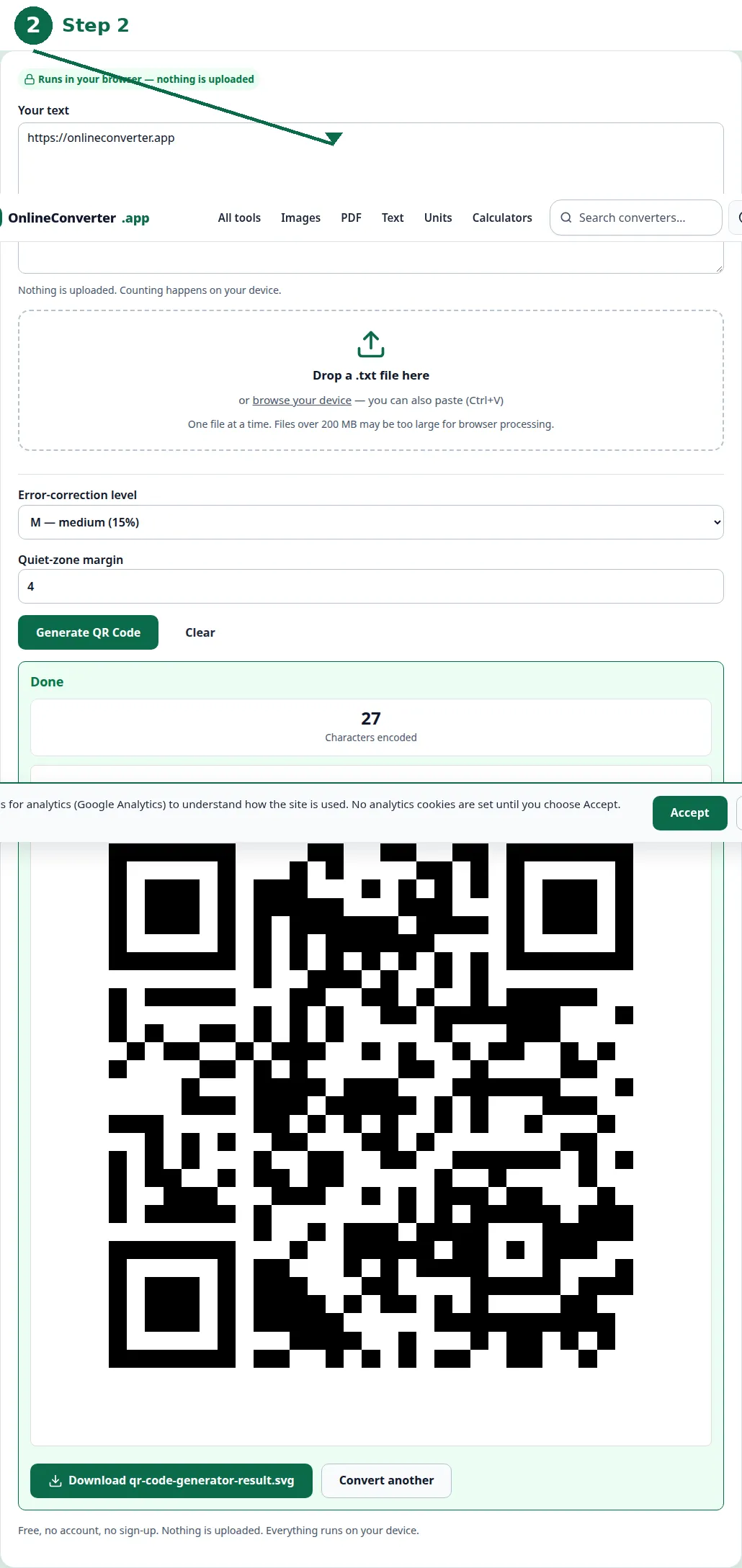
Type the link or text into the generator, download the code as an image, and test it before you use it. The text is the whole job: for a website, the full address including https:// — a code with a mistyped address opens the wrong page, and nobody will tell you, because the code itself looks fine.
Download the code as an SVG if the generator offers it: an SVG stays sharp at any size, which matters when the same code must work on a business card and on a poster. A PNG works too, but it must be downloaded at a large size — a small PNG enlarged for a poster goes blurry, and a blurry QR code does not scan.
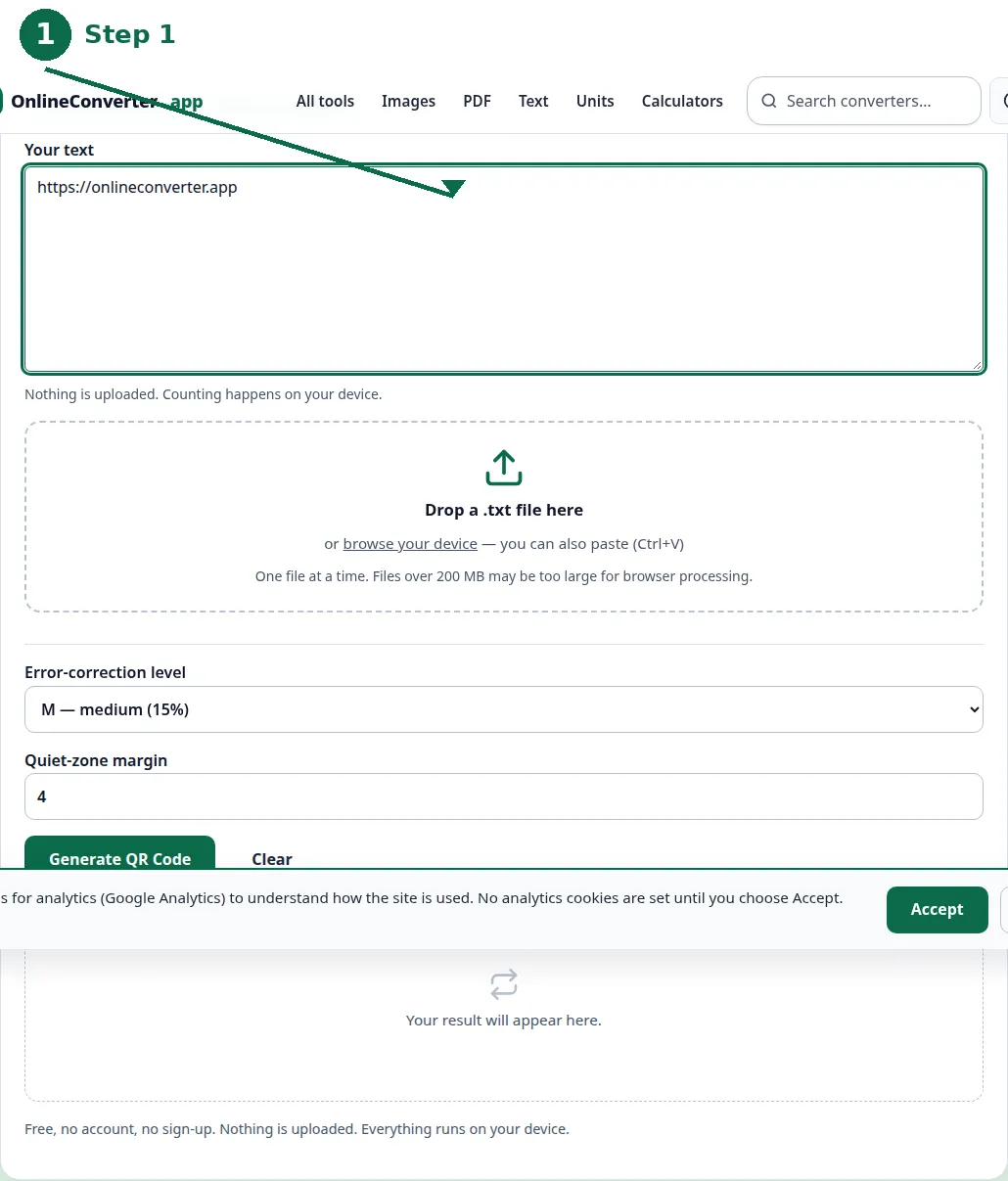
- Step 1 — Open the QR Code Generator and type the web address, Wi-Fi password or contact text.
- Step 2 — Click Generate and check the code appears on screen.
- Step 3 — Download the code — SVG if offered, for sharp printing at any size.
- Step 4 — Test it with a phone camera before you print it or share it.
What to put in a QR code
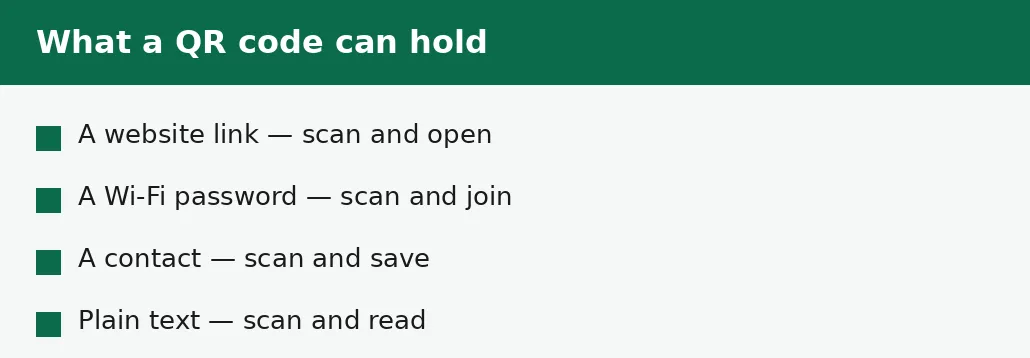
A website link is the most common use: a link to a menu, a portfolio, a form, a video. Use the shortest link that works — a short link makes a simpler code with bigger blocks, and bigger blocks scan more reliably from further away and in worse light. If the link is long, shorten it first, or use the site's own short address if it has one.
A Wi-Fi password is the second use: guests scan the code and join the network without typing a long password. The code needs the network name, the password and the security type, and the generator formats them into the shape phones expect. A contact card is the third: a name, a number and an email, saved to the phone with one tap. Plain text works too — a short message, a room number, a reference — but a link is usually more useful than text on its own.
| Use | What goes in | Test it by |
|---|---|---|
| Website link | The full address, with https:// | Scanning and opening the page. |
| Wi-Fi password | Network name, password, security type | Scanning and joining the network. |
| Contact card | Name, phone, email | Scanning and saving the contact. |
| Plain text | The message itself | Scanning and reading it back. |
| Menu or form | The link to the page | Scanning from the printed size. |
Printing it so it scans
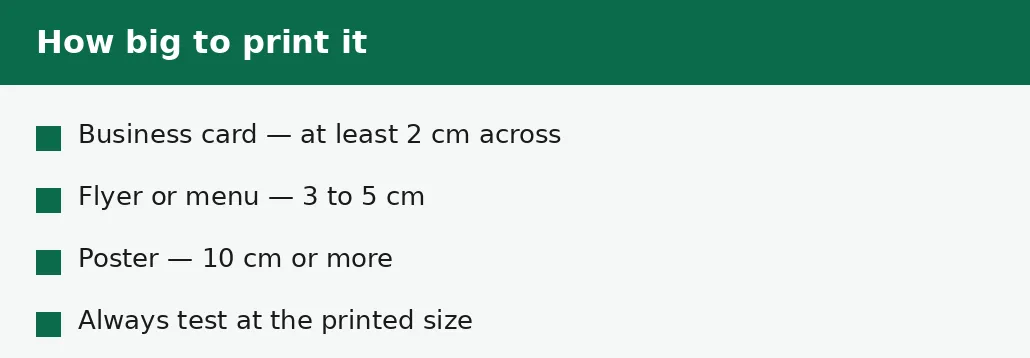
Size is the rule: a QR code must be big enough for the phone to read from the distance it will be scanned at. A code on a business card needs to be at least 2 centimetres across; on a flyer, 3 to 5 centimetres; on a poster that will be read from metres away, 10 centimetres or more. The rough rule is that the code should be about a tenth of the distance it will be scanned from — a code read from 50 centimetres away should be about 5 centimetres across.
Contrast matters as much as size: black blocks on a white background scan best, and a code printed in pale colours on a pale background may not scan at all. Leave a quiet border — a margin of white space at least four blocks wide — around the code, because the phone needs the border to find the edges. And test the printed code, not just the one on screen: print one copy, scan it in the light where it will be used, and only then print the rest.
The mistakes that make a code unscannable
The most common mistake is not testing the code: a mistyped address, a Wi-Fi password with a wrong character, a link to a page that no longer exists — all invisible in the code itself, and all found in seconds by scanning it once. Test every code, every time, with a real phone.
The second mistake is printing too small, or in colours with too little contrast: a 1-centimetre code in light grey on white will not scan for anyone. And the third mistake is putting the code where it cannot be scanned at all — behind glass with reflections, on a curved surface, at the bottom of a page nobody can reach with a phone, or on a moving vehicle. A QR code is a bridge between the physical world and the digital one, and it only works where a phone can see it clearly.
Troubleshooting
Why won't my QR code scan?
It is too small, too low-contrast, or the thing it points to is wrong. Print it bigger with black on white, leave a white border around it, and test it with a phone camera in the light where it will be used.
Why does my QR code open the wrong page?
The address typed into the generator was wrong — a missing letter, a wrong domain, no https://. The code stores exactly what was typed. Generate it again with the correct address and test it.
Why does my Wi-Fi QR code not connect?
The network name, password or security type was entered wrong, or the phone is too far from the router to join. Check the details letter by letter, and test the code on the same network it will be used on.
Common questions
How do I make a QR code for my website?
Type the full web address, including https://, into the QR generator, download the code, and test it with a phone camera before you print or share it.
Do QR codes expire?
No — the code itself never expires. It stops working only if the thing it points to disappears, like a deleted web page or a changed Wi-Fi password.
Can I make a QR code for a Wi-Fi password?
Yes. Enter the network name, the password and the security type, and guests can join by scanning the code instead of typing the password.
How big should a printed QR code be?
At least 2 cm across on a business card, 3 to 5 cm on a flyer, and 10 cm or more on a poster. Roughly a tenth of the distance it will be scanned from.
Is my link uploaded anywhere when I make a QR code?
No. The code is generated entirely in your browser. Nothing is sent to a server, there is no account, and closing the tab clears your text from memory.
Should I download the code as SVG or PNG?
SVG if it is offered — it stays sharp at any size, so the same code works on a card and on a poster. PNG works too, but download it large, because enlarging a small PNG blurs the blocks.
Summary
A QR code is a link a camera can read: type the address, password or contact into the generator, download the code, and test it with a phone before you print it. Use short links for simpler codes, print black on white with a quiet border, and size it to the distance it will be scanned from — at least 2 cm on a card, 10 cm or more on a poster.