Compress a PDF to 200 KB for application forms
Last updated: 9 November 2026.
Two hundred kilobytes is the size most application portals ask for, and this page is built around exactly that number. Exam forms for JEE Main, NEET, UGC NET and CUET all cap photos at 200 KB, so a scan or a certificate PDF that comes in heavier needs to land on 200 KB — not 210, not 190. The way to get there is not a quality slider and a guess: it is a tool that takes 200 KB as a target and works toward exactly that number, then tells you the size it reached and whether the target was met. Everything runs in your browser — your file is never uploaded, there is no account, and closing the tab clears it from memory.
Why 200 KB, and why exact
Portals set a hard cap, and a file over the cap is rejected outright — there is no "close enough". A photo that is 210 KB fails a 200 KB limit exactly as surely as a 2 MB photo does, and a file squeezed to 150 KB when 200 KB was allowed has lost quality for nothing. That is why the target matters more than the method: the job is to land on the number the form asks for, keeping the file readable, and to know the size you actually reached before you upload it.
The same logic applies beyond exam forms. Job applications in India and Pakistan list their own portal limits, and the general compressor page lists those common limits with the dates they were verified, so you can tap a limit and use it as your target instead of typing the number yourself. Whatever the portal, the principle is identical: pick the limit first, compress toward it, and read the result before you submit.
How to compress a PDF to 200 KB
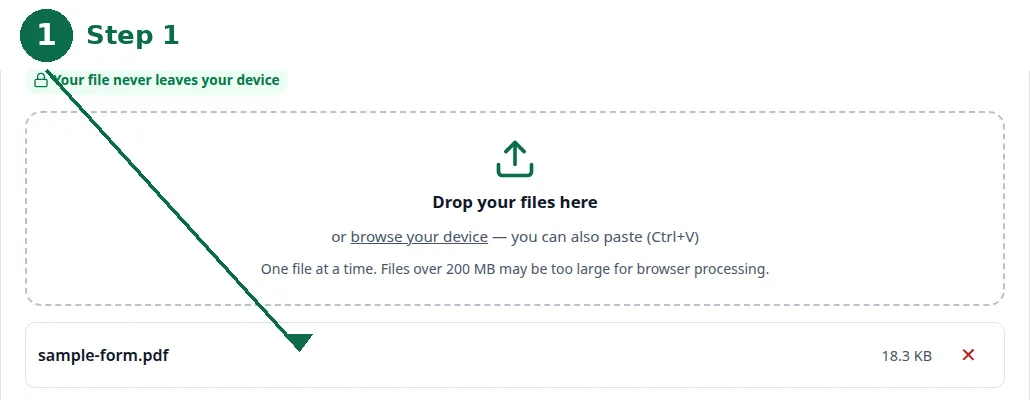
- Step 1 — Open the Compress PDF to 200 KB tool and choose your PDF file.
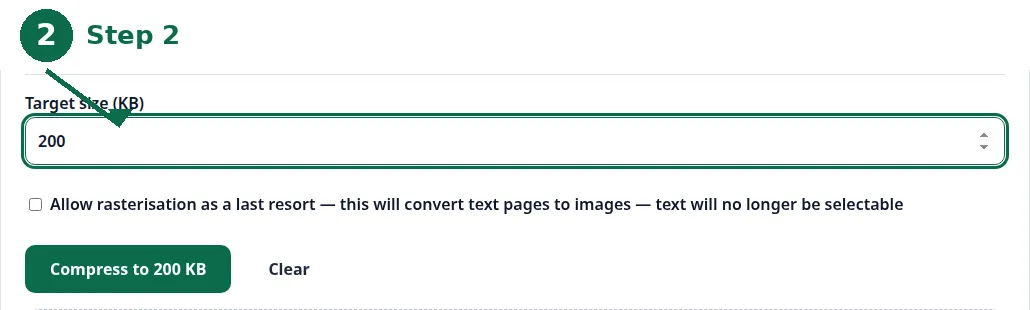
- Step 2 — Check the target size reads 200 KB: the exact-target page is built around that number.
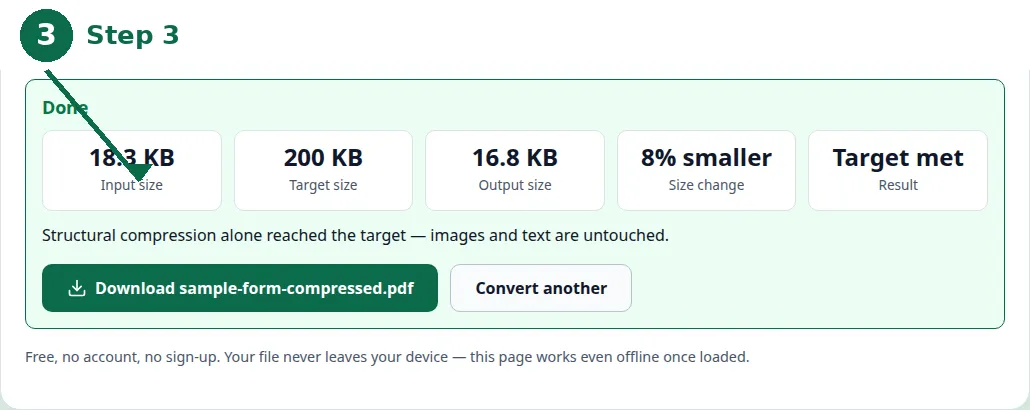
- Step 3 — Click Compress to 200 KB and read the result: the size reached, how much smaller that is, and whether the target was met.
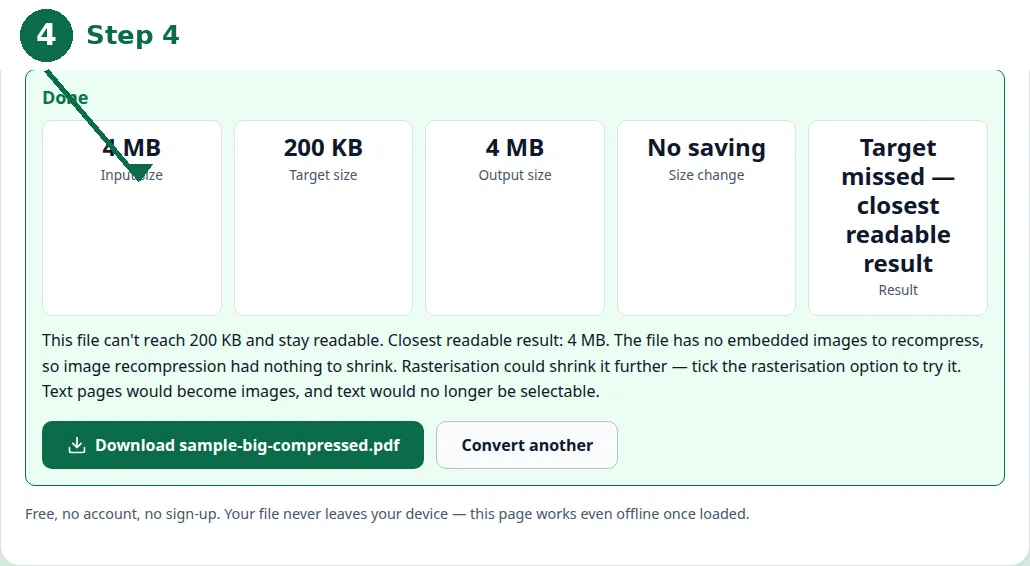
- Step 4 — If the tool says the file cannot reach 200 KB and stay readable, use the closest readable result, or reduce the source before you compress.
How the exact-target compressor works
Upload your file and the tool works toward 200 KB in three steps. First it rebuilds the file's internal structure, which does not touch the pages at all — the text, images and layout stay exactly as they were, and this step alone often recovers a surprising amount of size from a file that was saved wastefully. Then it recompresses the embedded pictures, which can soften photos slightly: this is the step where quality is traded for size, and it is the step that does most of the work on a scan-heavy file.
The third step turns pages into images, and it only runs with your permission, as a last resort — because once a page becomes an image, its text is no longer selectable. That trade is worth making when the target matters more than selectable text, for example a portal that rejects anything over its limit: a readable image of the page passes the upload check, while a selectable-text file over the limit does not pass at all. But it is a real trade, which is why the tool asks before it does it rather than doing it silently.
The result always tells you what actually happened: the size it reached, how much smaller that is, and whether the target was met or missed. That honesty is the whole point of an exact-target tool — a slider that reports nothing leaves you guessing whether the file will pass, and a guess is what gets a form rejected.
What happens when 200 KB cannot be reached
Some files cannot reach 200 KB and stay readable, and the tool says so honestly instead of pretending. You will see exactly this kind of message: "This file can't reach 200 KB and stay readable. Closest readable result: 340 KB" — with the number adapted to your file. The result you get is the closest readable one, never a silent overshoot. A file that is mostly photographs, or a long scan at high resolution, has a floor below which it turns to mush, and no honest tool can cross that floor for you.
When that happens, you have three real options. First, accept the closest readable result and check whether the portal allows a larger size for that particular document — some forms cap photos at 200 KB but allow larger documents, and the limit you are fighting may be the wrong one. Second, reduce the source before you compress: a scan taken at a lower resolution, or a photo rather than a scan of a photo, starts smaller and compresses further. Third, allow the third compression step — turning pages into images — if you have not already, and accept that the text will no longer be selectable. What you should not do is run the file through a second compressor hoping for a different answer: the floor is in the file, not in the tool.
The general compressor, and when to use it
The exact-target page is built around 200 KB, but the general Compress PDF tool takes any target size in kilobytes, starting at 200 KB, and compresses toward exactly that number. Use the general tool when your portal's limit is not 200 KB — a 100 KB photo cap, a 500 KB document cap, a 1 MB upload limit — and use the exact-target page when the limit is 200 KB and you want the shortest path to it. Both tools work the same three steps, both report the size reached and whether the target was met, and both run entirely in your browser.
The general tool also carries the table of common portal limits — exam and job applications in India and Pakistan — with the dates they were verified, so you can tap a limit to set it as your target. That table is the fastest way to avoid typing the wrong number: find your form, tap its limit, and let the tool work toward it. If your form is not in the table, type its limit in the Target size field yourself — the field takes kilobytes, and the tool compresses toward exactly the number you enter.
| Tool | Target | Use it when |
|---|---|---|
| Compress PDF to 200 KB | 200 KB, fixed | The portal limit is 200 KB and you want the shortest path to it. |
| Compress PDF (general) | Any size in KB, from 200 KB | The portal limit is not 200 KB — a 100 KB, 500 KB or 1 MB cap. |
| Image compressor | Smaller photo, same format | The file under 200 KB is a photo, not a PDF. |
Photos are a different job
If the file you need under 200 KB is a photo rather than a PDF, do not put it in a PDF first. Use the image compressor, which shrinks the photo while keeping its format, or the exact-target image page when the portal wants a photo at a precise size. A photo saved as a PDF is a picture wrapped in a document, and compressing the wrapper is the long way round — compress the picture itself, and upload the picture in the format the form asks for. The same three-step logic applies in spirit: rebuild, recompress, and only as a last resort change what the file fundamentally is.
One practical tip for any portal: leave a small margin. If the limit is 200 KB, a result of 198 or 195 KB passes everywhere a 200 KB result does, and it passes even on a portal that counts kilobytes a little differently from the tool. A result of exactly 200 KB is fine, but a result a few kilobytes under it costs nothing visible and removes the argument entirely. Aim a touch under the limit, not exactly on it.
A worked example: a 1.2 MB certificate to 200 KB
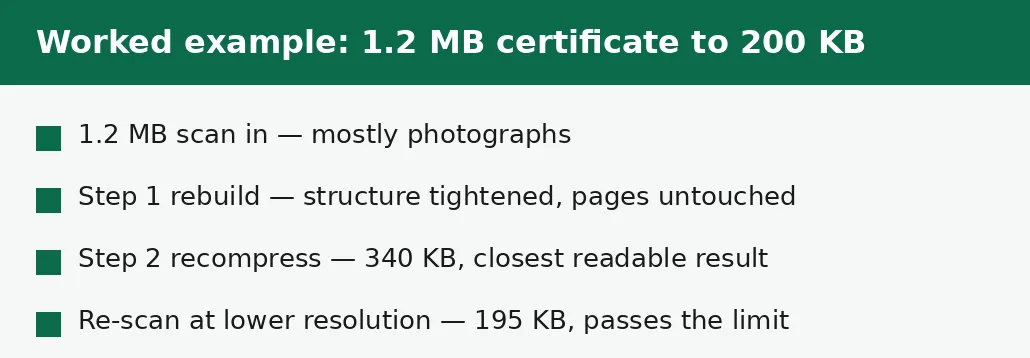
Take a scanned certificate: two pages, mostly photographs of paper, 1.2 MB as it comes from the scanner. The portal caps it at 200 KB. Step 1 rebuilds the file's structure — the pages do not change, but the wasteful saving is tightened. Step 2 recompresses the embedded pictures, and the file lands at 340 KB: the tool reports it honestly as the closest readable result, because the photographs in the scan have a floor below which they turn to mush. At that point the file is still over the limit, and no further compression step will fix it without destroying the text.
The fix is not more compression but a better source: re-scan the certificate at a lower resolution, or take a photo of it in good light instead of scanning at full resolution. The re-scanned file starts at around 600 KB, and the same three steps bring it to 195 KB — under the limit, readable, and accepted on the first upload. The lesson generalises: when a file cannot reach its target, the lever is usually the source, not the tool. A smaller source compresses further, and a source that starts small never needs the destructive last step at all.
Troubleshooting
Why can't my file reach 200 KB?
A file that is mostly photographs, or a long scan at high resolution, has a floor below which it turns to mush, and no honest tool can cross that floor for you. The tool reports the closest readable result instead of pretending — accept it, check whether the portal allows a larger size for that document, or reduce the source before you compress.
Why is my result a few kilobytes under 200 KB?
That is the safe side of the limit: a result of 198 or 195 KB passes everywhere a 200 KB result does, and it passes even on a portal that counts kilobytes a little differently from the tool. Aim a touch under the limit, not exactly on it.
Common questions
What if my file can't reach 200 KB?
Then the tool says so honestly instead of pretending. You will see a message like: "This file can't reach 200 KB and stay readable. Closest readable result: 340 KB" — with the number adapted to your file. The result you get is the closest readable one, never a silent overshoot.
Will compression change how my PDF looks?
Step 1 does not touch the pages at all. Step 2 recompresses the embedded pictures, which can soften photos slightly. Step 3, which turns pages into images, only runs if you allow it — and then the text is no longer selectable.
What is rasterisation, and when should I allow it?
Rasterisation converts text pages to images so they can shrink further. Allow it only as a last resort, when the target matters more than selectable text — for example, a portal that rejects anything over its limit.
Which portals ask for 200 KB?
JEE Main, NEET, UGC NET and CUET all cap photos at 200 KB. The table on the Compress PDF page lists these limits with the dates they were verified — tap a limit to set it as the target size.
Is my file uploaded anywhere?
No. Compression runs entirely in your browser. Nothing is sent to a server, there is no account, and closing the tab clears your file from memory.
What is the difference between the two compressor pages?
The exact-target page is built around 200 KB and nothing else — the shortest path for the common portal limit. The general Compress PDF page takes any target size in kilobytes, starting at 200 KB, and carries the table of verified portal limits. Same three steps, same honest result reporting, same browser-only processing.
What if my portal accepts a larger size for documents than for photos?
Then use the larger limit for the document. Some forms cap photos at 200 KB but allow documents up to 500 KB or 1 MB, and compressing a document to the photo limit throws away quality for nothing. Check the form's instructions for the document limit specifically, and compress toward that number with the general compressor.
Summary
A 200 KB portal limit is met by compressing toward the exact number, not by guessing with a quality slider. The tool rebuilds the file, recompresses its pictures, and only with your permission turns pages into images — then tells you the size it reached and whether the target was met. If 200 KB cannot be reached and stay readable, take the closest readable result or reduce the source, and compress photos as photos, not as PDFs.